Pick the Right Mac Charger
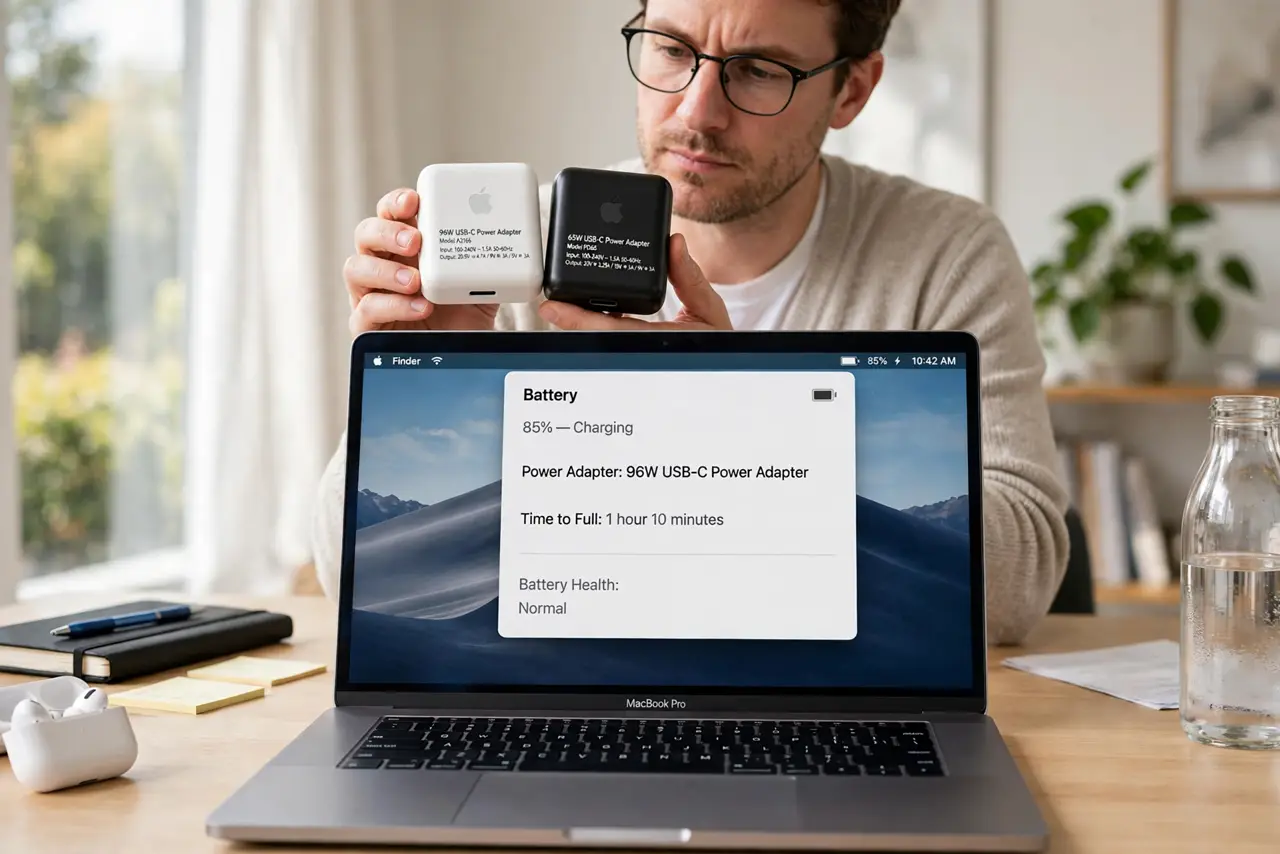
Your MacBook came with a specific charger, but now there are spares, USB-C bricks, and chargers from other laptops, and the wattage numbers are a puzzle. The good news is simple: USB-C charging is a negotiation, not a gamble. Here is how charger wattage actually works with Macs and which brick to reach for.
TL;DR / Quick Fix
Quick fix: any USB-C Mac charger works with any Mac — wattage only sets the top charging speed. Use your Mac's original wattage or higher for full speed; a lower-wattage brick just charges slower. Bigger MacBooks want bigger bricks, and Apple lists each model's wattage in its specs.
Follow these steps
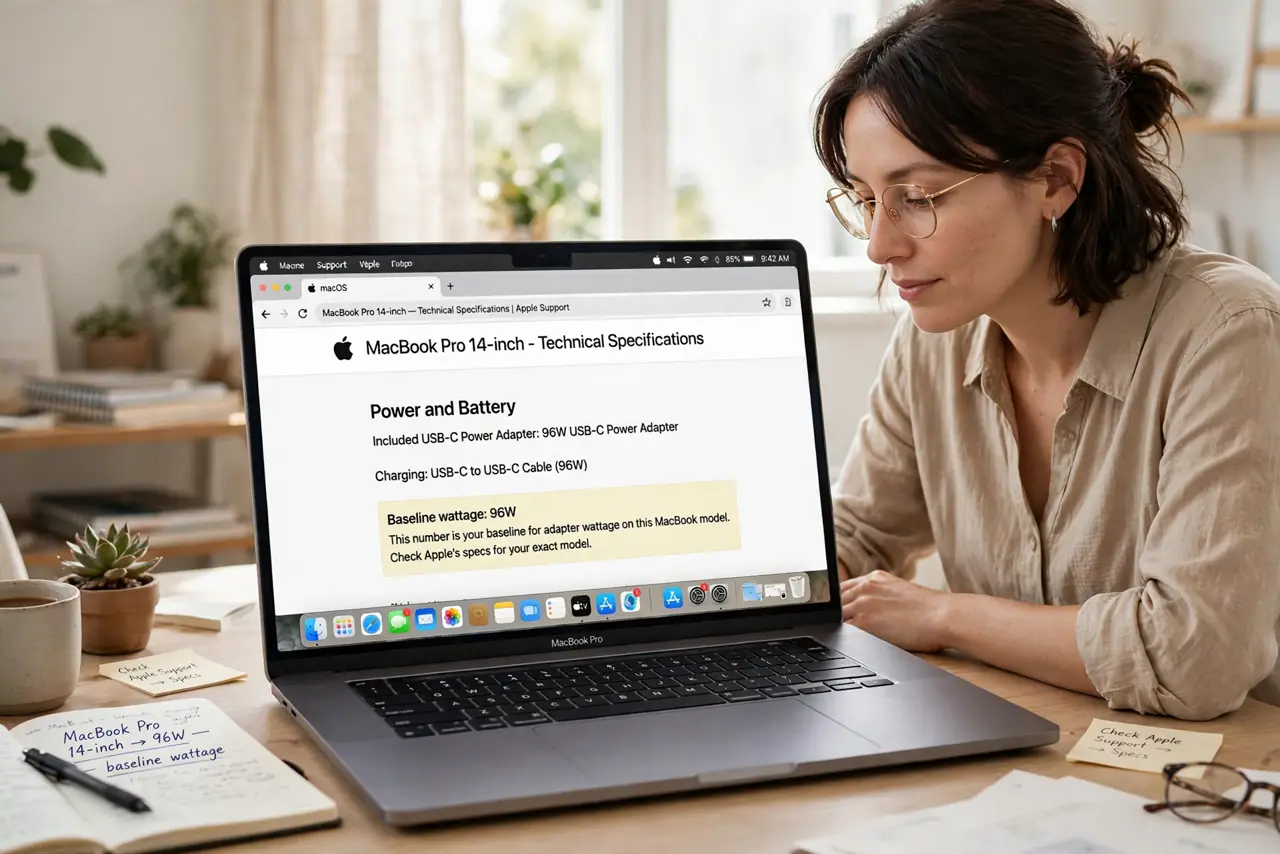
- Find your Mac's original wattage. Check the specs for your exact MacBook model — Apple lists the included adapter's wattage there. That number is your baseline for full-speed charging.
- Know that higher wattage is safe. A bigger brick never forces extra power into the Mac; the laptop draws only what it needs. Using a stronger charger than the original is completely fine.
- Expect slower charging from small bricks. A phone-sized low-wattage charger will charge a MacBook slowly, or merely hold the battery steady under heavy load. It works in a pinch, but it is not a daily driver for a big Mac.
- Check the cable too. High-wattage charging needs a cable rated for it. A thin cheap cable can bottleneck a good brick — match a quality USB-C cable to the job.
- Consider a GaN charger for travel. Modern GaN chargers deliver high wattage in a much smaller package, which is why they are the favorite travel pick for MacBook owners.
- Do not stress about daily-driver mixing. Charging your Mac with a dock, a monitor's USB-C port, or a shared family brick is normal. The Mac negotiates power safely every time it is plugged in.
What to avoid
- Do not use a damaged or frayed cable just because it fits. Charging faults come from bad cables far more often than from wrong wattage.
- Do not buy the cheapest no-name brick at high wattage. Stick to reputable brands with proper certifications — the savings are not worth the risk.
- Do not expect a 30W phone brick to fast-charge a 16-inch MacBook. It will trickle-charge at best; match the brick to the machine.
- Do not ignore heat. A charger that gets burning hot is a warning sign — unplug it and replace it rather than pushing through.
Frequently asked questions
Can I use my iPhone charger on my MacBook?
Yes, in an emergency — it will charge very slowly and may not keep up while you work. Fine overnight, frustrating during the day.
Does fast charging hurt the battery?
No. The Mac manages charging intelligently, and the 80% charge limit philosophy applies on Macs too via optimized charging — heat matters more than speed.
Why does my Mac say 'not charging' with a small brick?
The brick may deliver too little power to charge while the Mac is working. A bigger adapter, or charging while the Mac sleeps, solves it.