Monitor Says 'Out of Range'? Fix It
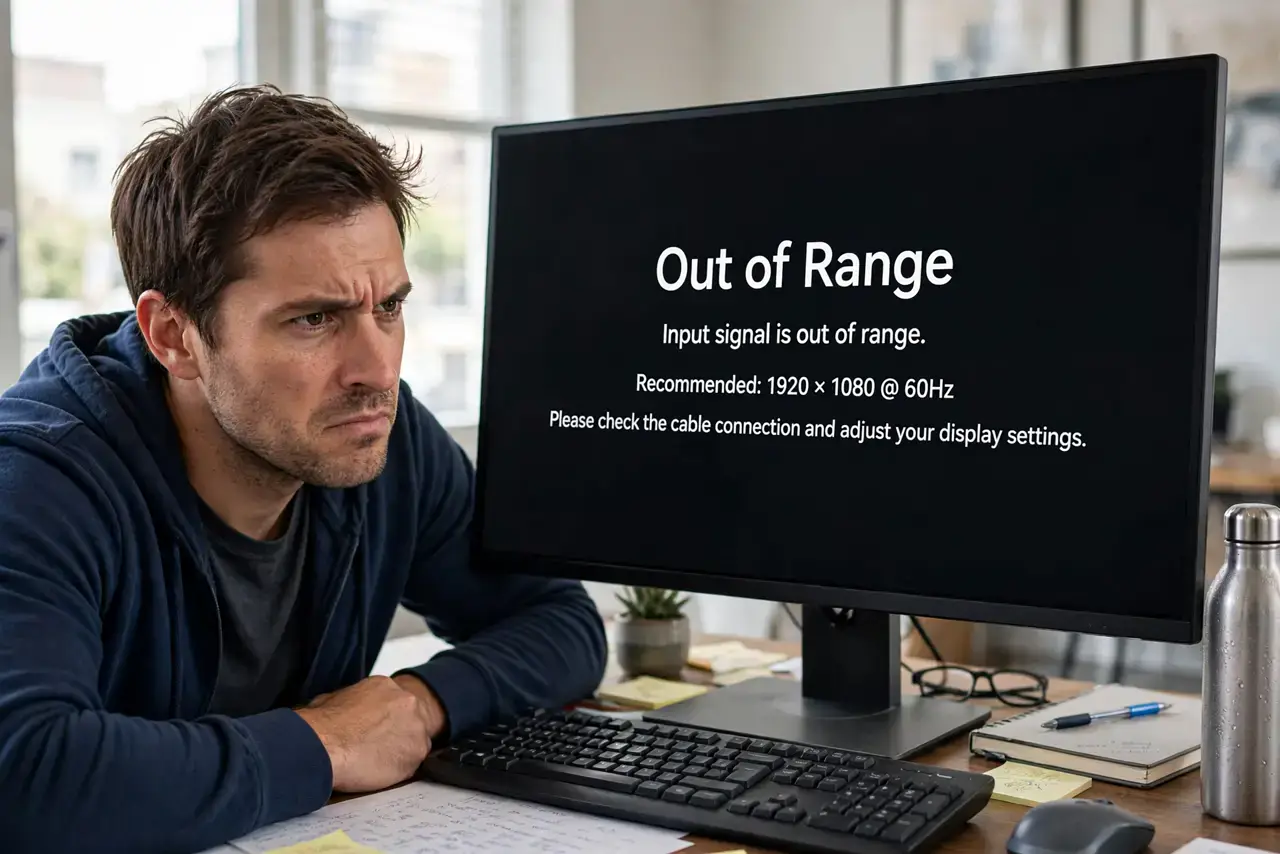
Your monitor shows 'Out of Range' or 'Input Not Supported' instead of a picture — usually right after changing resolution or refresh rate, or when connecting a new computer. The monitor is telling you the signal exceeds what it can display. This guide gets you back to a visible picture, starting with the resolution basics.
TL;DR / Quick Fix
Quick fix: boot into Safe Mode or low-resolution mode, where the signal is always compatible, then set resolution and refresh rate back to the monitor's native specs. The error means your settings exceed the monitor's limits — check its manual for the maximum supported.
Follow these steps
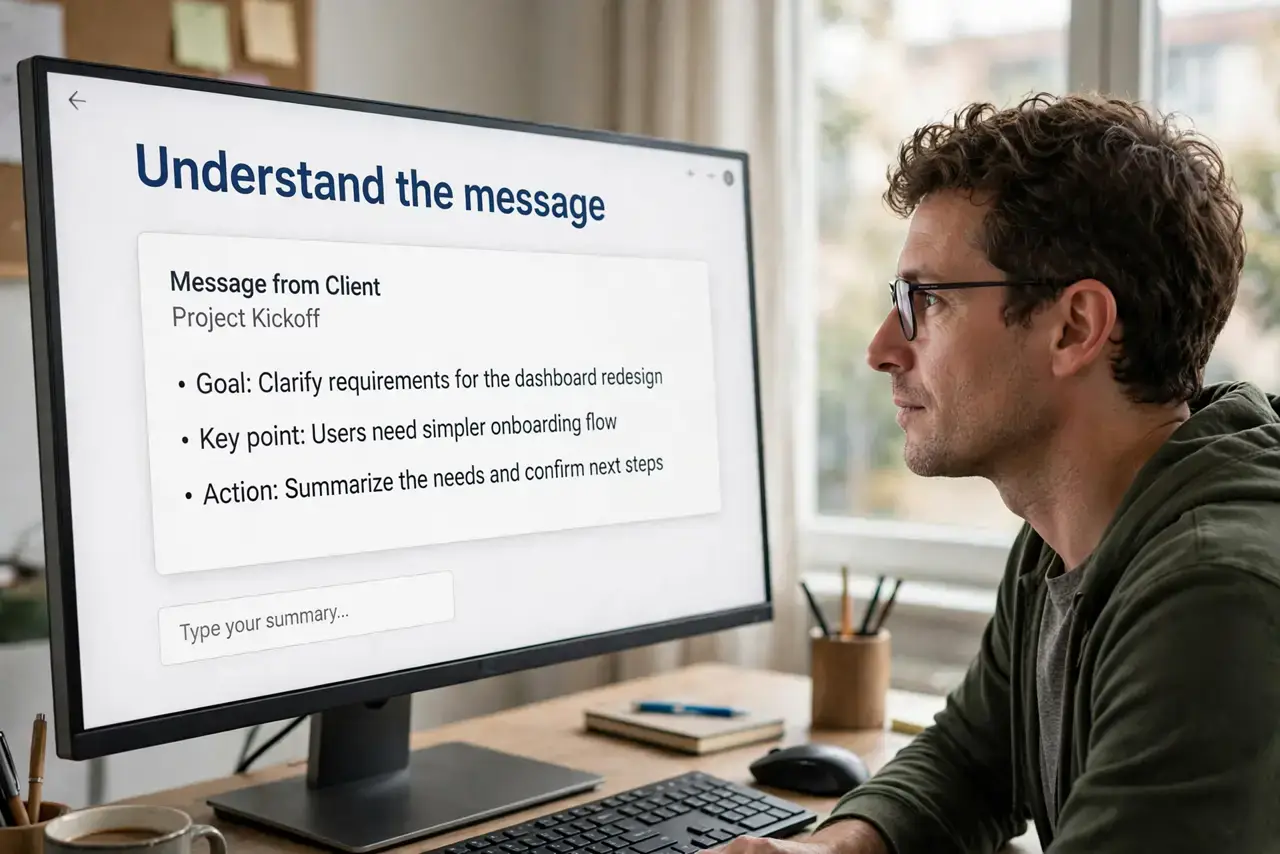
- Understand the message. Out of Range means the computer is sending a resolution or refresh rate the monitor cannot display. The monitor is fine; the settings are wrong.
- Boot into Safe Mode. Restart and boot to Safe Mode (or low-resolution video mode). Safe Mode uses basic compatible settings, so you will get a picture.
- Reset to native resolution. In display settings, set the resolution to the monitor's native spec — usually printed on the box or a rear label — and the refresh rate to 60Hz to start.
- Check the cable's limits. Old or low-quality cables cannot carry high resolutions. If the error returns at 4K but not at 1080p, the cable is the bottleneck — the same check as for capped resolutions.
- Try another port. Some ports on older graphics cards cap out below the monitor's specs. Moving to a different output can unlock the full range.
- Reset the monitor itself. Use the monitor's menu to factory-reset its settings. A monitor stuck expecting an odd input can report Out of Range for signals it could actually show.
What NOT to do
- Do not keep cranking the refresh rate up. Higher is not always better — exceeding the monitor's rated spec is exactly what causes this error.
- Do not buy a new monitor before checking the cable. A surprising number of 'Out of Range' cases are just cables that cannot carry the chosen signal.
- Do not change resolution blindly with no way back. Note the working settings before experimenting, or set a 15-second revert when the OS offers it.
- Do not assume a new GPU guarantees compatibility. The monitor's limits are fixed; the graphics card must respect them, not the other way around.
Frequently asked questions
What do 'native resolution' and 'refresh rate' mean?
Native resolution is the pixel grid the panel was built for — sharpest there. Refresh rate is how many times per second the image updates.
Why did this happen after a driver update?
New drivers sometimes default to the highest detected mode, which can exceed an older monitor's limits. Reset to native specs manually.
Can Out of Range damage my monitor?
Modern monitors simply refuse the signal rather than trying to display it. The message itself is the protection working.