Monitor Power Light Blinks? What It Means
A blinking monitor power light usually means the monitor is in standby, waiting for a signal, or struggling with power. The blink alone does not tell you which, so check power, cable, and input in order. A monitor that blinks and never shows a picture needs the same calm sequence, not a new monitor on day one. If the screen lights but flickers, that is a different fault with different fixes.
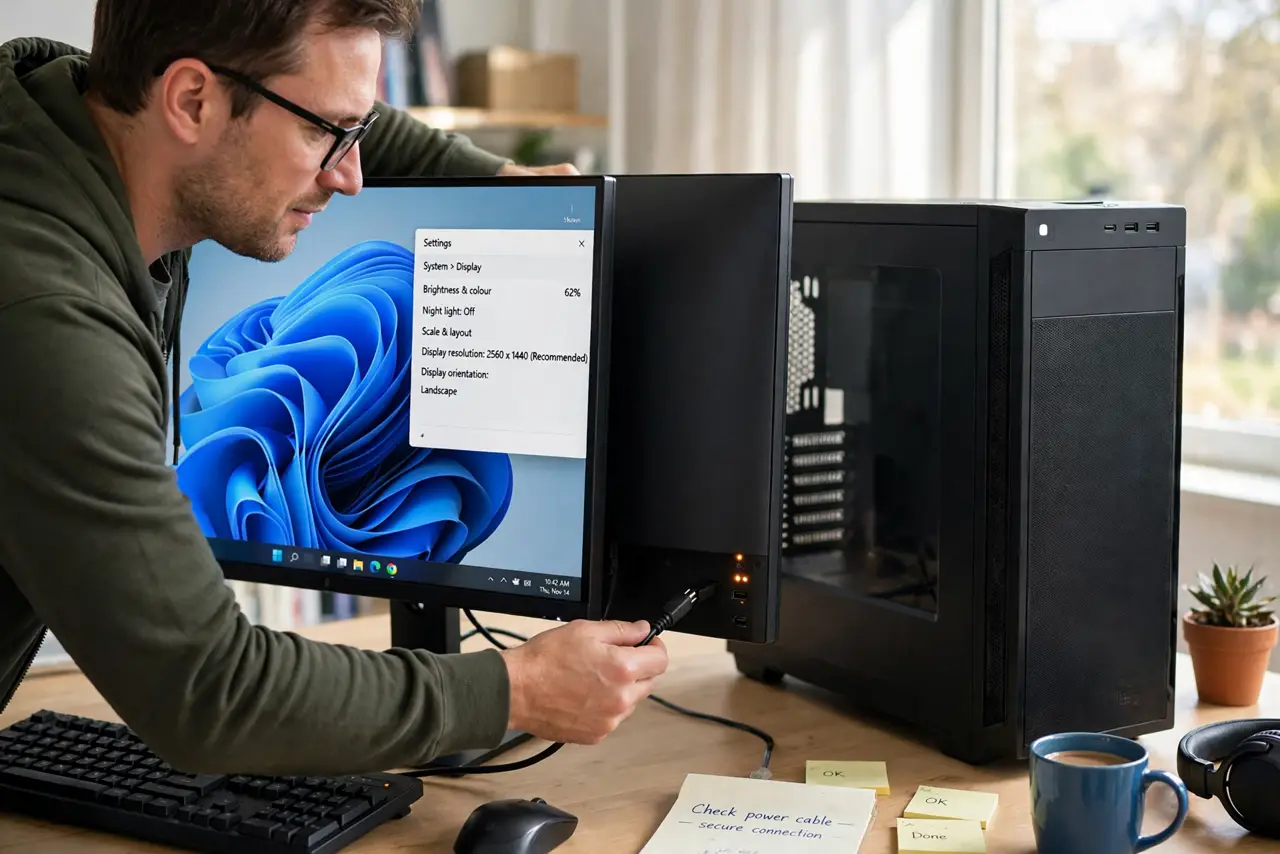
TL;DR / Quick Fix
Quick fix: Check the monitor power cable and socket. Press the monitor power button once, firmly. Then work through the remaining steps in order, checking one change at a time, and stop for a technician if you see damage, swelling, or a burning smell.
Follow these steps
- Check the monitor power cable and socket. Push the power cable firmly into the monitor and into a wall socket you know works. Try another socket, because a loose or dead socket can make the light blink without powering the screen.
- Press the monitor power button once, firmly. Press the power button once and wait a few seconds. A half-pressed button or a button stuck halfway can leave the monitor blinking between on and standby.
- Check the video cable and input. Push the video cable firmly in at both ends, and press the monitor input button to select the input your cable uses. A monitor with no signal often blinks in standby while waiting.
- Test the monitor on another PC or TV input. Connect the monitor to a second PC or a known-good device. A picture there proves the monitor works and the first PC or cable is at fault.
- Unplug the monitor for a full minute. Unplug the monitor power cable, wait a full minute, then plug it back in and power on. This clears a stuck standby state that a quick off-and-on does not.
- Note the blink pattern for the maker guide. Count the blinks and any pauses, then check the monitor maker guide for that pattern. Some makers use blink codes for power or backlight faults, and the pattern is the clue.
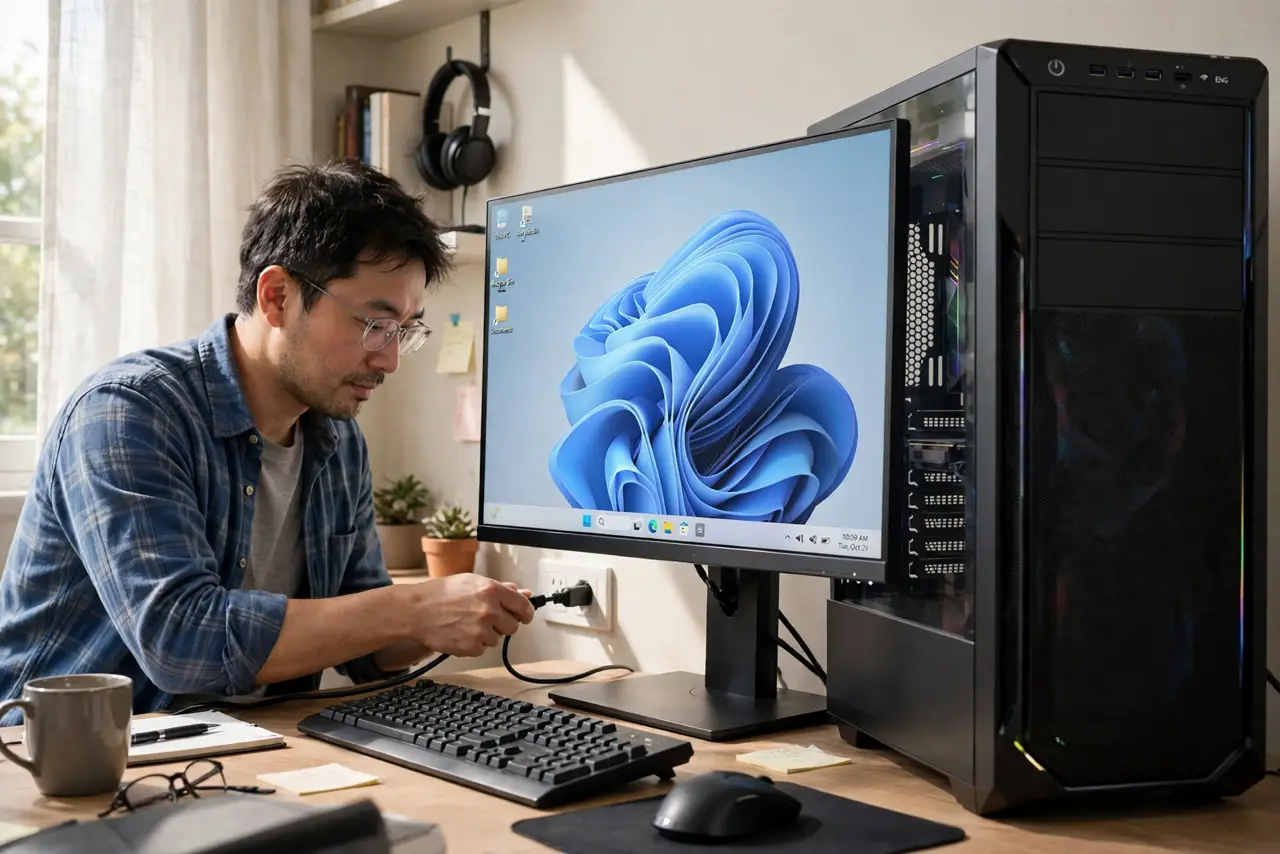
What NOT to do
- Do not keep pressing the power button rapidly. Rapid presses can confuse the standby logic and make a blinking monitor harder to read.
- Do not open a monitor to fix a blinking light. Monitors hold dangerous charge inside even unplugged, and their internals are never a user repair.
- Do not buy a new monitor before testing power, cable, and a second device. A loose power cable is a free fix, while a new monitor may not fix the real fault.
- Do not ignore a blinking light with a burning smell. Unplug the monitor at once and book a repair if you smell burning or see damage.
Frequently asked questions
Does a blinking light mean the monitor is dead?
No. Blinking usually means standby or no signal, which are fixable. A monitor that never lights at all, or smells of burning, is the more serious case.
Why does the light blink but the screen stays black?
The monitor may be waiting for a signal it never gets, because of a cable, input, or PC fault. Check the cable and input before judging the monitor.
What if unplugging for a minute does not help?
Test the monitor on another device. If it blinks everywhere, the monitor power or backlight needs a technician.