Monitor Speakers Produce No Sound? Fix It
Your monitor has built-in speakers, but no sound comes out — the PC insists audio is playing. Monitor speakers only work when the audio signal actually reaches the monitor over the right cable, and the system picks the monitor as the output. This guide traces the signal.
TL;DR / Quick Fix
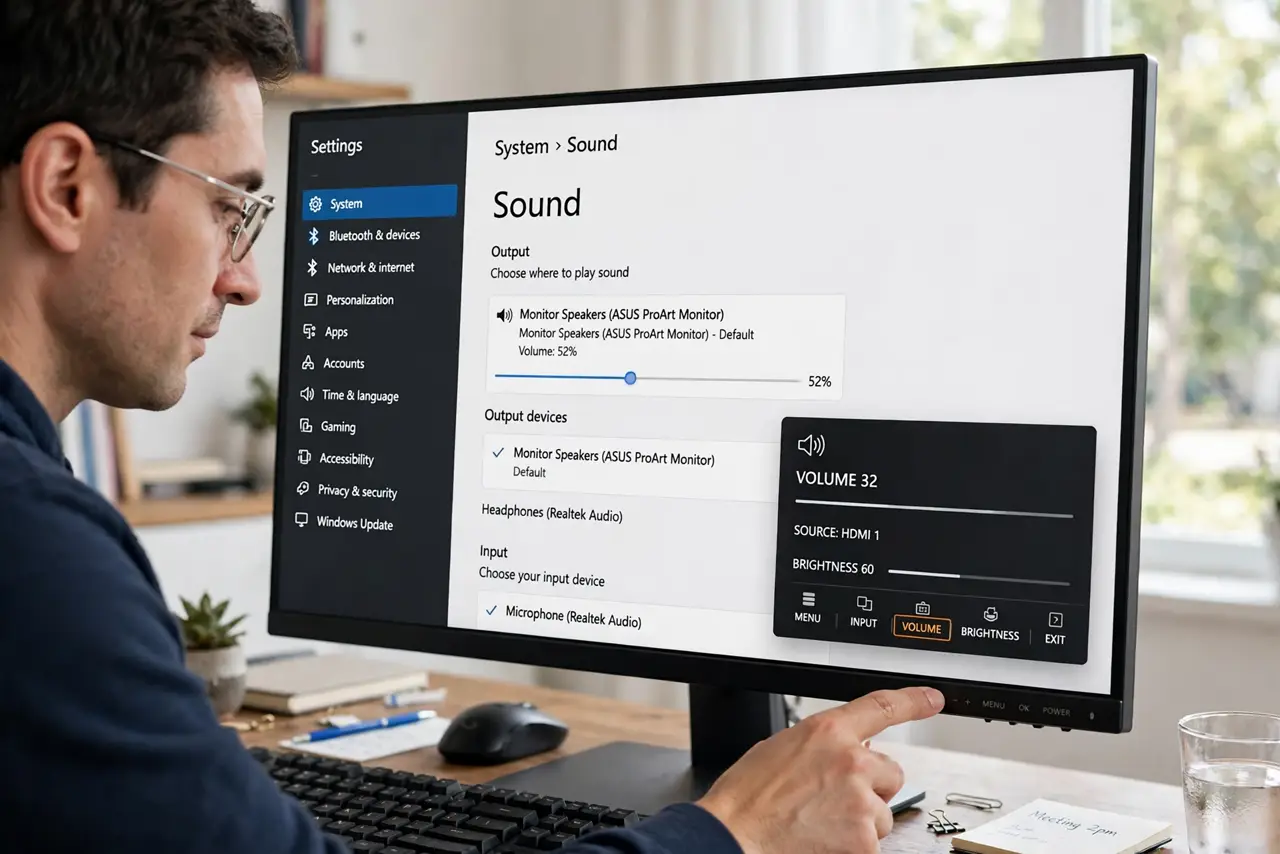
Quick fix: right-click the volume icon and set the monitor as the output device — the PC often keeps sending audio to old speakers. Then check the monitor's own volume in its on-screen menu. If the monitor is not listed at all, the cable may not carry audio.
Follow these steps
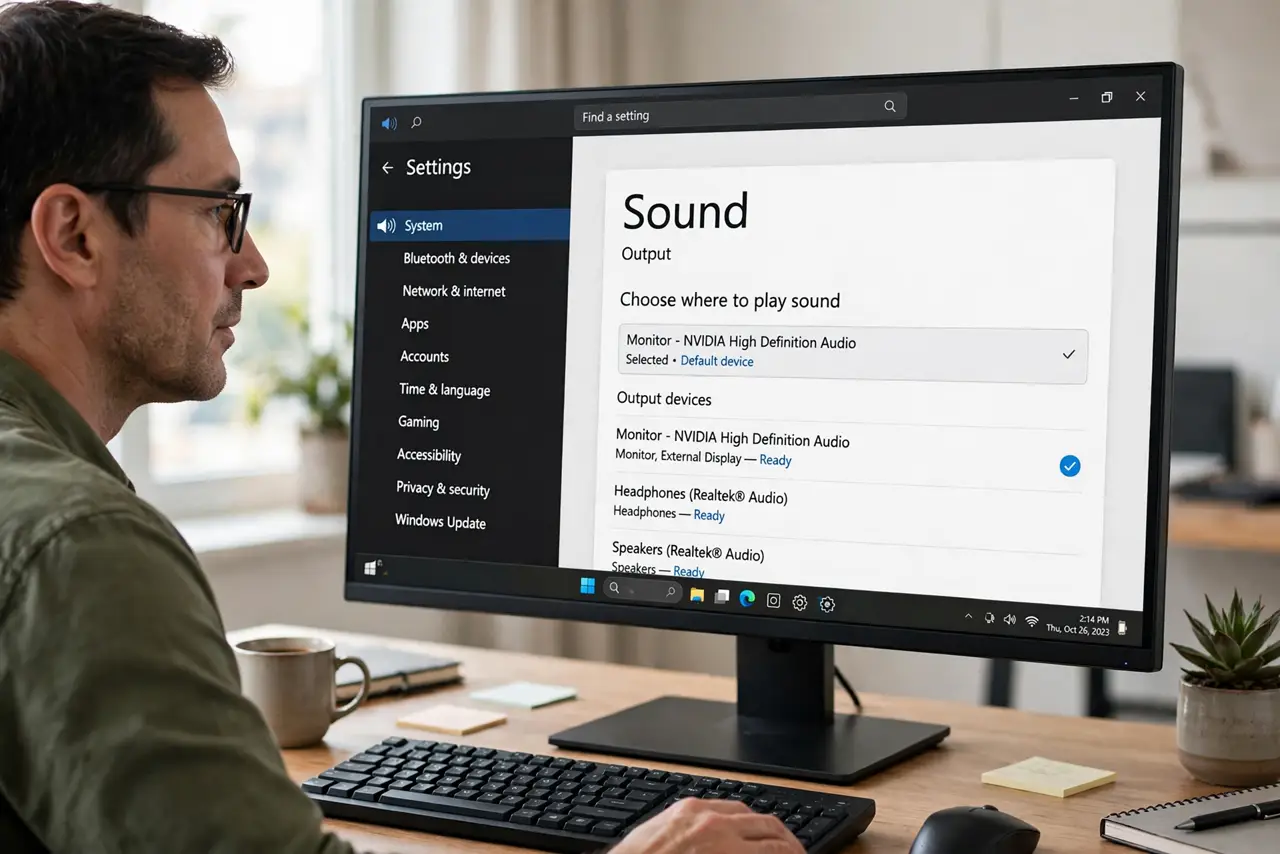
- Set the monitor as output. Open sound settings and select the monitor — usually named after the monitor or the HDMI/DisplayPort connection. The PC remembers old outputs and will not switch on its own.
- Check the monitor's own volume. Open the monitor's on-screen menu and check its volume and mute state. Monitor speakers have independent volume that starts at zero or muted surprisingly often.
- Confirm the cable carries audio. HDMI and DisplayPort carry audio; VGA and DVI do not. If you connected via an adapter from an audio-less standard, no setting will produce sound.
- Test with a known audio source. Play a video and watch the system's volume meter. A moving meter with no sound means the signal reaches the output stage but dies at the monitor.
- Try the monitor's audio-out jack. Many monitors pass audio to a headphone jack. Plug earbuds in: sound there proves the monitor receives audio and its speakers are the failure.
- Update the audio driver. If the monitor never appears as an output, update the graphics driver — HDMI and DisplayPort audio ride on the graphics driver, not the sound card.
What NOT to do
- Do not buy external speakers before checking the output device. Most 'dead monitor speakers' are just the PC sending audio elsewhere.
- Do not max the PC volume while the monitor is muted. Unmuting later at full blast is unpleasant — set levels after sound works.
- Do not assume all monitor speakers are good. Built-in speakers are a convenience, not hi-fi; fix them for system sounds, not for music.
- Do not forget the cable when troubleshooting. An audio-less cable makes every software fix futile — check the connection standard first.
Frequently asked questions
Why do my monitor speakers have no sound?
Usually the PC is sending audio to a different output, the monitor's own volume is muted, or the cable does not carry audio.
Do monitor speakers need a separate cable?
No — HDMI and DisplayPort carry audio with video. VGA and DVI need a separate audio cable.
Are monitor speakers worth fixing?
For system sounds and video calls, yes. For music, even cheap external speakers sound dramatically better.