Move 2FA to a New Phone
Your shiny new phone is set up — and now every two-factor code is still on the old one. Moving an authenticator to a new phone trips up a lot of people, and doing it wrong can lock you out of accounts for days. Do it in the right order, with the old phone still in hand, and the move takes twenty minutes.
TL;DR / Quick Fix
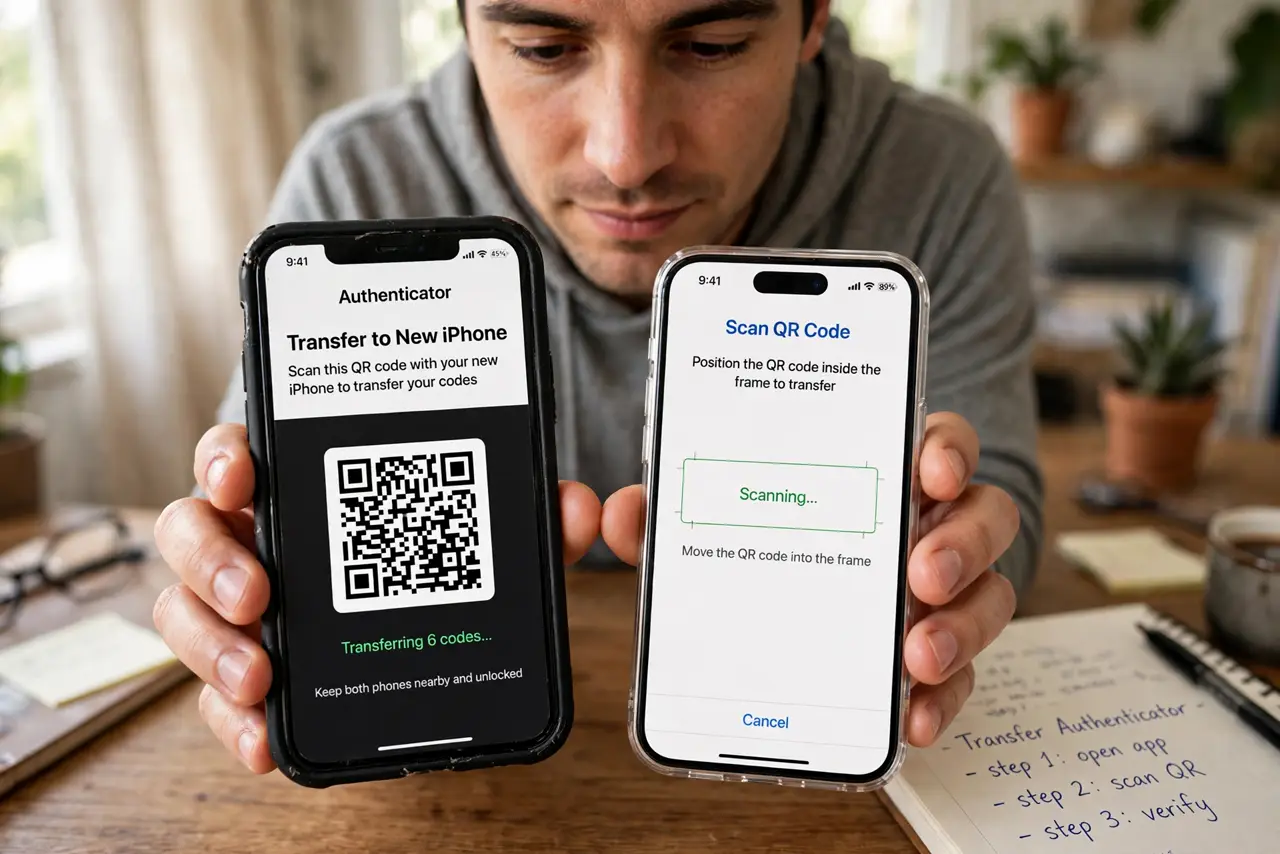
Quick fix: before wiping the old phone, install the authenticator app on the new phone and use each account's transfer or QR-code export to move the codes over. Verify each account works on the new phone first. Only then wipe the old phone — keep backup codes handy throughout.
Follow these steps
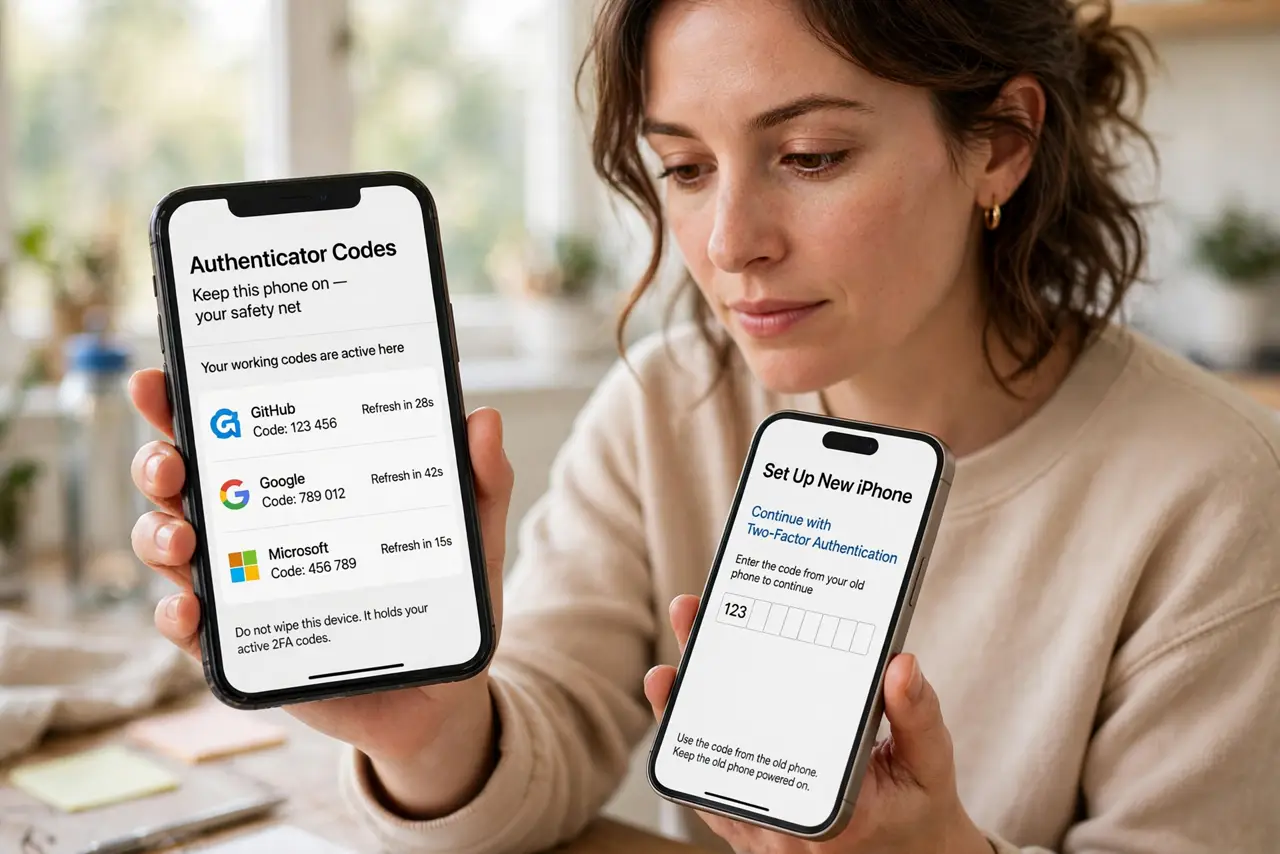
- Do not wipe the old phone yet. The old phone holds your working codes — it is your safety net. Everything below happens with both phones in hand and powered on.
- Install the authenticator on the new phone. Download the same authenticator app on the new phone and sign in if it supports cloud sync — some apps restore your accounts automatically from the cloud backup.
- Use the app's transfer or export feature. Most authenticator apps offer an export or transfer-accounts option that shows QR codes. Scan them with the new phone to move each account's codes across — see the transfer walkthrough for the exact taps.
- Verify every important account. On the new phone, check that each account shows a generating code. For email and bank especially, do a test sign-in with a fresh code before trusting the move.
- Keep backup codes within reach. If any account fails to transfer, its backup codes get you in to re-enroll the new phone. This is the moment those saved codes earn their keep.
- Wipe the old phone last. Only after every code works on the new phone should you factory-reset the old one. A wiped phone with untransferred codes is how lockouts happen.
What NOT to do
- Do not factory-reset the old phone first. Wiping before transferring is the number one cause of authenticator lockouts.
- Do not rely on screenshots of QR codes. Export secrets belong in the app's official transfer flow, not your camera roll.
- Do not skip verifying each account. Assuming 'it probably transferred' is how you discover a dead code at the worst moment.
- Do not throw away the old phone immediately. Keep it for a week as a fallback while you confirm everything works.
Frequently asked questions
What if my old phone is already broken or lost?
Use each account's backup codes or recovery process to sign in, then enroll the new phone fresh. It is slower — which is why the both-phones method is preferred.
Do I need to disable 2FA on every account first?
No — transferring moves the codes without disabling anything. Disabling and re-enabling is the clumsy route; use the app's transfer feature.
Will my codes transfer automatically with a phone backup?
Sometimes, if the authenticator syncs to the cloud. Many do not — verify each account rather than assuming.