Save 2FA Backup Codes
Two-factor codes protect your accounts — until your phone is lost, broken, or replaced, and the codes vanish with it. Every site that offers two-factor also gives you one-time backup codes for exactly this moment, but most people skip saving them. This guide makes sure you can always get back in.
TL;DR / Quick Fix
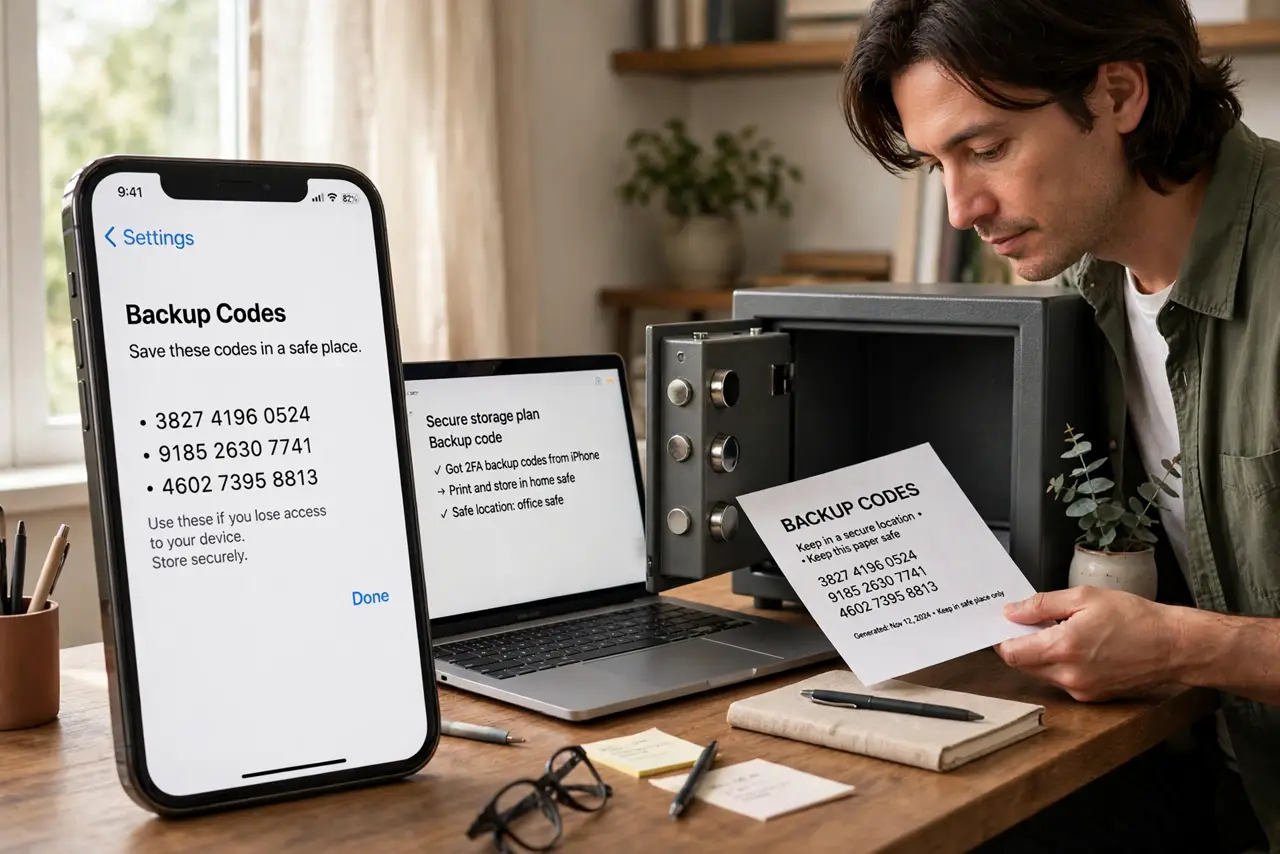
Quick fix: for each account with two-factor enabled, open its security settings and find the backup codes — usually 8-10 one-time codes. Print them or save them in your password manager, somewhere separate from your phone. If the phone is lost, one unused code gets you back in.
Follow these steps
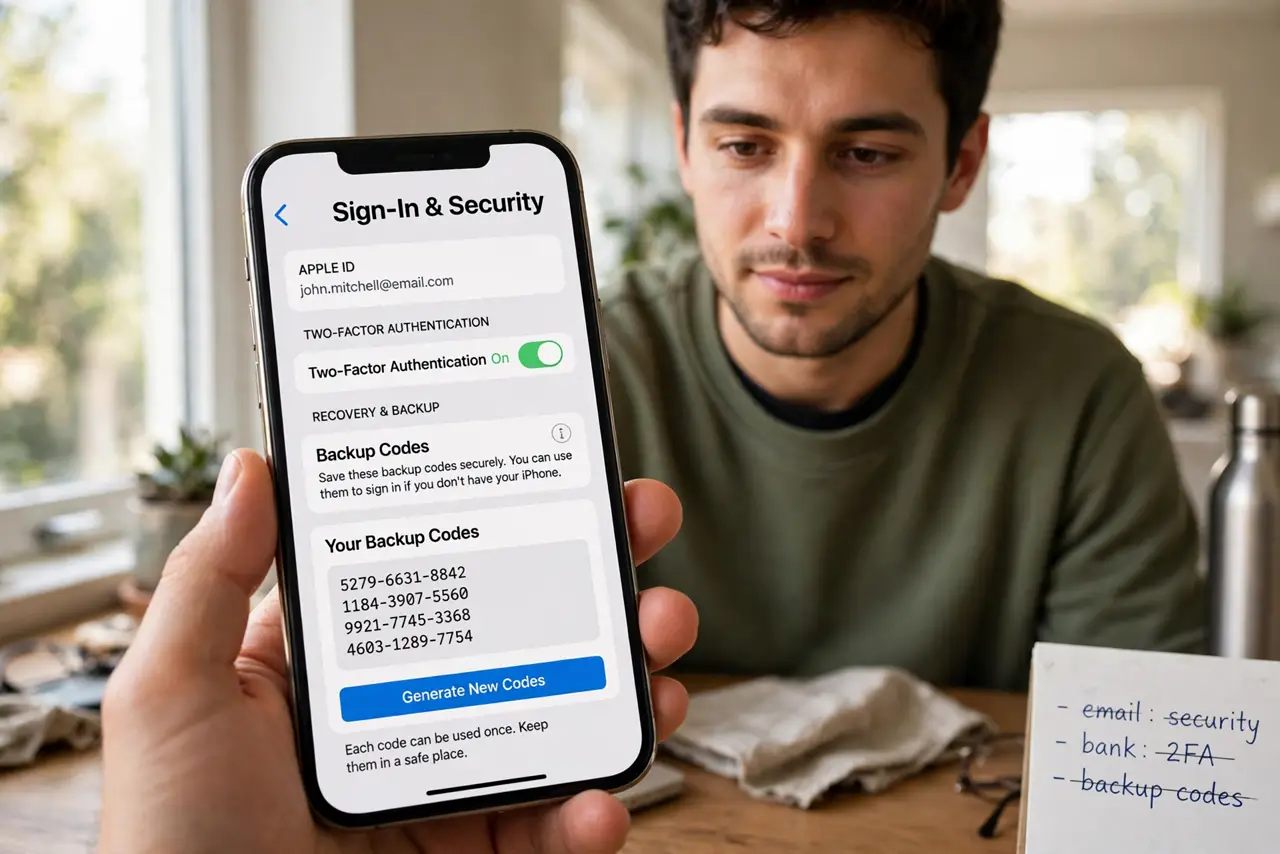
- Open each account's security settings. Go to the security or two-factor section of your email, bank, and other protected accounts. Look for 'backup codes,' 'recovery codes,' or 'one-time codes.'
- Generate a fresh set. If the site shows existing codes, you can usually regenerate them. Fresh codes invalidate the old set — do this if you suspect the old ones were exposed.
- Print them or save them in a password manager. Paper in a safe place works; a password manager works too. The key rule: store them somewhere that survives losing your phone — not in the phone's notes app.
- Prioritize your most critical accounts. Follow the dedicated backup-code routine: email first — your email resets everything else. Then bank, password manager, and cloud storage. Those four cover nearly every recovery path.
- Test one code. Use a single backup code to confirm the set works, then mark it used. A tested code beats ten untested ones.
- Regenerate after using several. Backup codes are one-time each. If you have burned through a few, generate a fresh set so you never run dry.
What NOT to do
- Do not screenshot backup codes into your camera roll. Photos sync to the cloud and get backed up everywhere — a leak exposes every account.
- Do not store codes only on the phone they protect. A lost phone must not take the recovery codes with it.
- Do not share backup codes with anyone, ever. Support staff will never ask for them — anyone who does is scamming you.
- Do not skip this because it feels tedious. Ten minutes now saves a multi-day account recovery nightmare later.
Frequently asked questions
How many backup codes do I get?
Usually 8 to 10 one-time codes per account. Each works once, then it is burned.
What if I already lost my phone and have no codes?
Use the site's account-recovery process — it is slower and stricter by design. Save codes now so you never need it.
Are backup codes safe in a password manager?
Yes, if the manager itself is well protected. It is far safer than an unprotected screenshot or a sticky note.