New SSD Won't Boot? Fix It
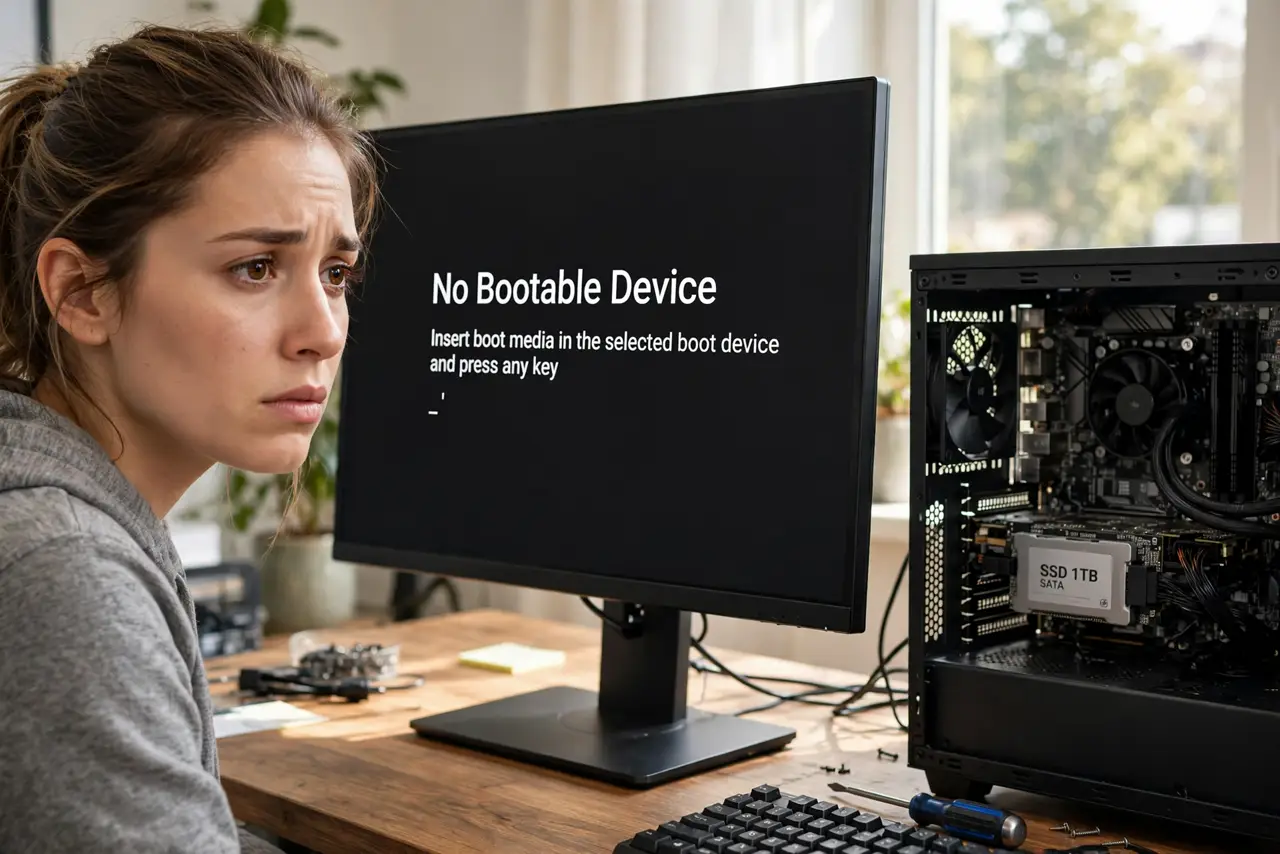
The SSD is installed, Windows is on it, and the PC says 'no bootable device' or loops back to the old drive. A new SSD that will not boot is almost always a firmware mismatch — boot mode, boot order, or a missing bootloader — not a dead drive. Work this checklist before assuming the SSD is faulty.
TL;DR / Quick Fix
Quick fix: enter firmware setup and confirm two things — the boot mode ([[UEFI vs Legacy|uefi-vs-legacy-boot]]) matches how the OS was installed, and the SSD is first in the boot order. If you cloned the drive, verify the bootloader copied too. Most 'dead' new SSDs are simply misconfigured, not broken.
Follow these steps
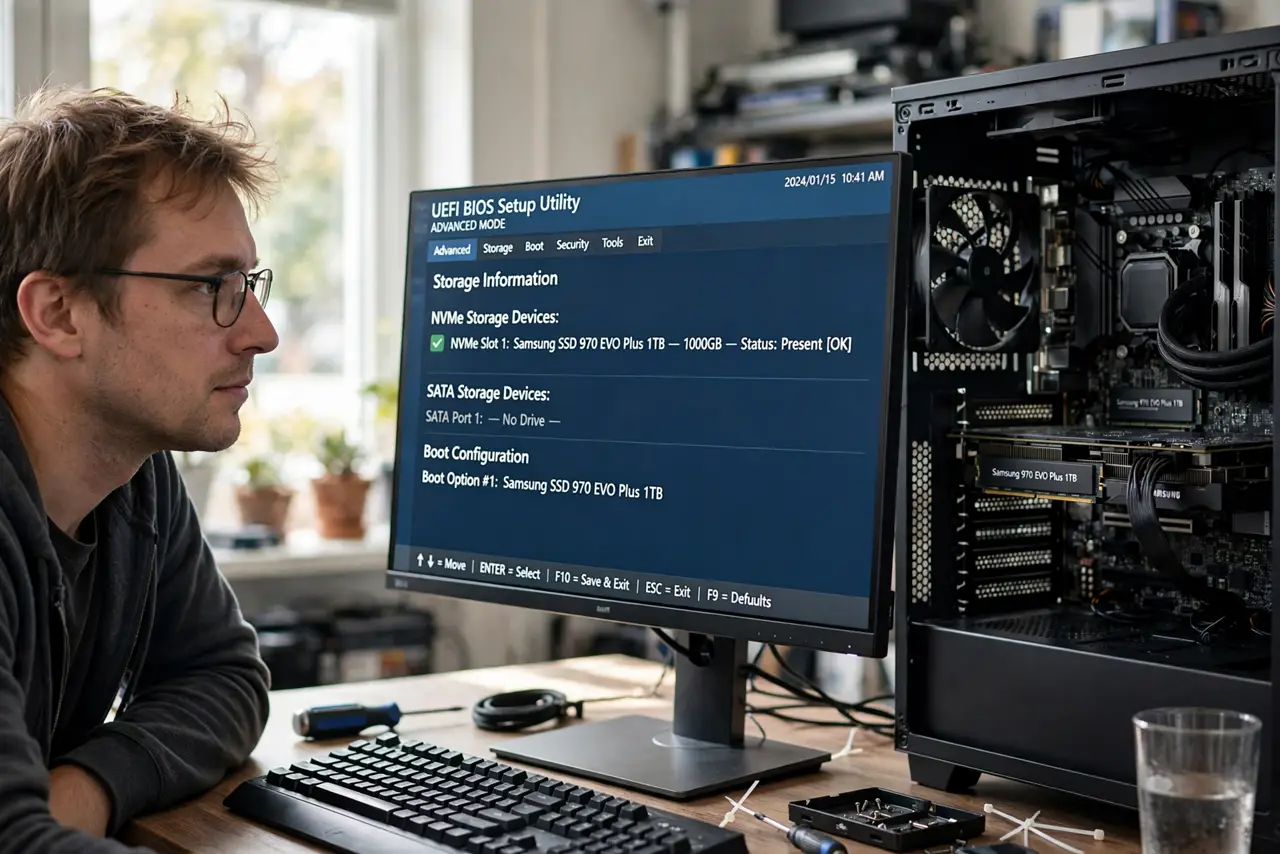
- Confirm the SSD appears in firmware setup. If the drive is not listed at all, stop here — this is a detection problem, not a boot problem. No setting fixes a drive the firmware cannot see.
- Match the boot mode to the installation. An OS installed in UEFI mode needs UEFI selected; Legacy needs Legacy. This single mismatch causes most new-SSD boot failures — see UEFI vs Legacy.
- Put the SSD first in the boot order. Open the Boot tab and promote the SSD above the old drive. PCs boot the first working device they find, not the newest one.
- Check the bootloader survived cloning. Cloned drives sometimes copy files but not the boot partition. Boot from the Windows installer USB and run Startup Repair to rebuild it.
- Disconnect the old drive temporarily. With both drives attached, the PC may keep booting the old one's bootloader. Unplug the old drive, boot once from the SSD, then reconnect it.
- Try a different SATA port or cable. A flaky cable can let the drive appear in setup yet fail under boot load. Swap both before declaring the SSD dead.
What NOT to do
- Do not return the SSD as defective before checking boot mode and order. Retailers see this mistake constantly.
- Do not reinstall Windows three times hoping it sticks. If the mode and order are wrong, every install fails the same way.
- Do not clone a failing drive and expect a healthy boot. Clone healthy sources; reinstall from dying ones.
- Do not flash the firmware as a first step. A BIOS update will not fix a boot-mode mismatch.
Frequently asked questions
Why does the SSD show in BIOS but not boot?
Detection and booting are different stages. The firmware sees the hardware, but the bootloader, the boot mode, or the boot order is wrong.
Should I install fresh or clone onto the new SSD?
Fresh installs boot most reliably. Cloning is fine from a healthy drive — see the cloning guide — but carries the old drive's quirks along.
The old drive still boots — is the SSD broken?
Almost certainly not. If the old drive boots, the PC is healthy and the issue is configuration: mode, order, or bootloader.