Handwriting Not Searchable in Notes? Fix It
Handwritten notes become searchable only when the app converts the handwriting to text, and that conversion needs the right language and a clear stroke. If conversion never ran, search has nothing to find.

TL;DR / Quick Fix
Quick fix: open the handwritten note, run the convert-to-text option if offered, and check the handwriting language matches what you wrote. Then sync the note and search for a word from the converted text. Last, test search with a converted word to confirm it.
Follow these steps
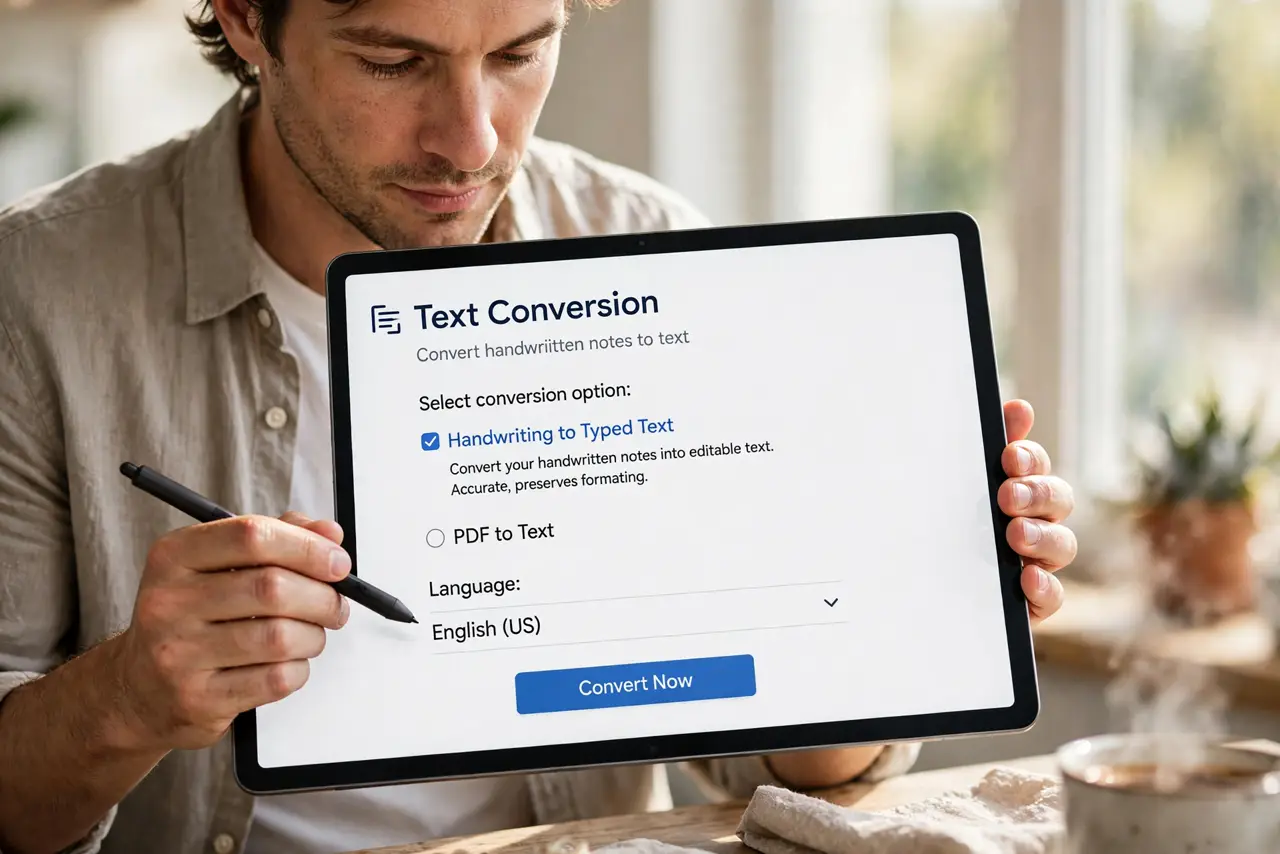
- Check whether the note offers text conversion. Open the handwritten note and look for a convert to text, or copy as text, option. If the app offers conversion, running it creates the searchable text search needs.
- Check the handwriting language setting. Confirm the handwriting recognition language matches the language you wrote in. A wrong language makes recognition fail or produce nonsense.
- Rewrite unclear words more clearly. If only some words fail, rewrite those words larger and more clearly, then convert again. Cramped or tiny handwriting is the hardest to recognize.
- Convert the note and save it. Run the conversion and save the note as text, or keep both versions if the app allows it. A saved text version is what search indexes.
- Sync the note after conversion. Wait for the note to sync after converting. Search on another device may lag until the converted text has synced.
- Test search with a converted word. Search for a word from the converted text. A match confirms conversion worked, and future notes will benefit from the same settings.
What NOT to do
- Do not expect search to read raw handwriting. Search needs converted text, so conversion is a required step, not an extra.
- Do not delete the handwritten original after converting. Keep it until you confirm the converted text is accurate.
- Do not write tiny notes in the margin and expect recognition. Size and clarity directly affect accuracy.
- Do not switch recognition languages mid-note. A single consistent language per note converts most reliably.
Frequently asked questions
Why is my handwriting not searchable?
The app may not have converted it to text, or the recognition language may not match what you wrote.
Can I search a scanned handwritten page?
Only if the app runs text recognition on the scan. Otherwise the page is an image, and search cannot read it.
Is converted text always accurate?
No. Check the converted text for errors, especially names and numbers, before relying on it.