Notes App Search Finds Nothing? Fix It
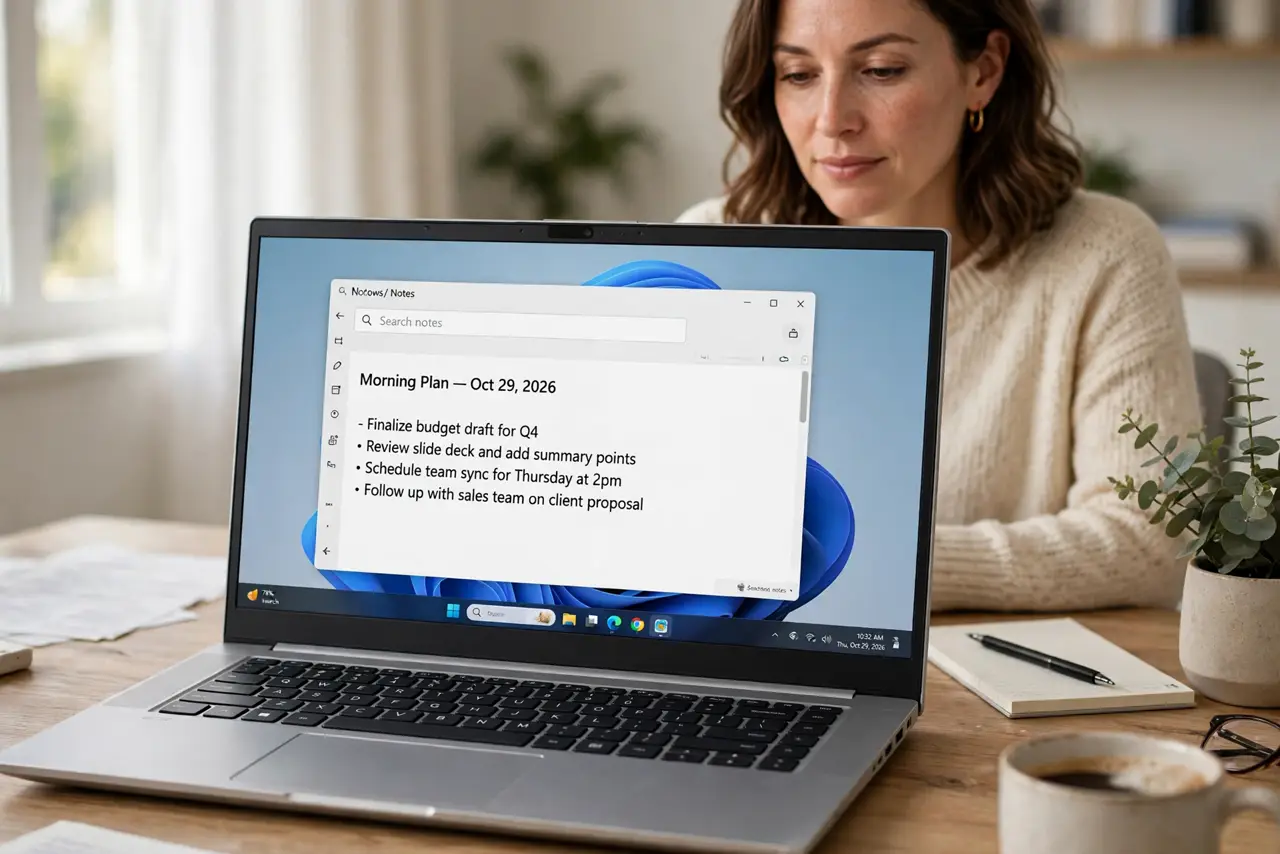
A notes search finds nothing when the note lives in another folder, another account, or under a word you did not type. Search broader first, because the note is usually present but filed elsewhere.
TL;DR / Quick Fix
Quick fix: search with a single distinctive word, check all folders and accounts, and clear any filter limiting results. If the note still hides, browse recent notes and check the trash or archive. Last, check trash and archive to confirm it.
Follow these steps
- Search with one distinctive word. Search for a single unusual word from the note, not a whole sentence. Exact phrases fail when you misremember one word, while a distinctive word usually matches.
- Check all folders, not just one. Search from the all-notes view, or check each folder in turn. A note filed in the wrong folder will not appear in a single-folder search.
- Confirm the right account. Check the notes app is signed in to the account that holds the note. A second account shows its own notes, which can look like a failed search.
- Clear search filters. Remove filters for date, type, or tags that limit results. A filter left over from an earlier search can hide the note you want.
- Browse recent notes. Scroll recent notes by date. If the note is recent, browsing finds it even when search terms fail.
- Check trash and archive. Look in trash and archive for the note. A note moved there by accident will not appear in a normal search.
What NOT to do
- Do not recreate the note immediately. A duplicate note creates confusion when the original turns up later.
- Do not search with long sentences. Short, distinctive words match more reliably than a misremembered phrase.
- Do not delete folders to clean up. A folder you delete may hold the note you are searching for.
- Do not assume search is broken after one failed term. Try another word before concluding the app failed.
Frequently asked questions
Why does search miss a note I know exists?
It may live in another folder or account, behind a filter, or under a word different from the one you typed.
Does search cover archived notes?
It depends on the app. Some apps exclude archive and trash from search, so check those places directly.
How do I make notes easier to find?
Use clear titles, a few consistent tags, and one main folder for active notes.