Turn Scans into Text
Your scanned PDF is a photograph of text — unsearchable, uncopyable, useless for quoting. OCR (optical character recognition) reads the image and adds a real text layer underneath: suddenly Ctrl+F works, paragraphs copy, and the document joins the searchable world. The scan was half the job; OCR finishes it.
TL;DR / Quick Fix
Quick fix: run OCR on the scanned PDF — on Mac use Preview or the Preview OCR path; on Windows the Snipping OCR covers screenshots, and free tools handle PDFs. Then verify the text layer by selecting and copying a paragraph. Clean scans OCR cleanly; blurry ones guess badly.
Follow these steps
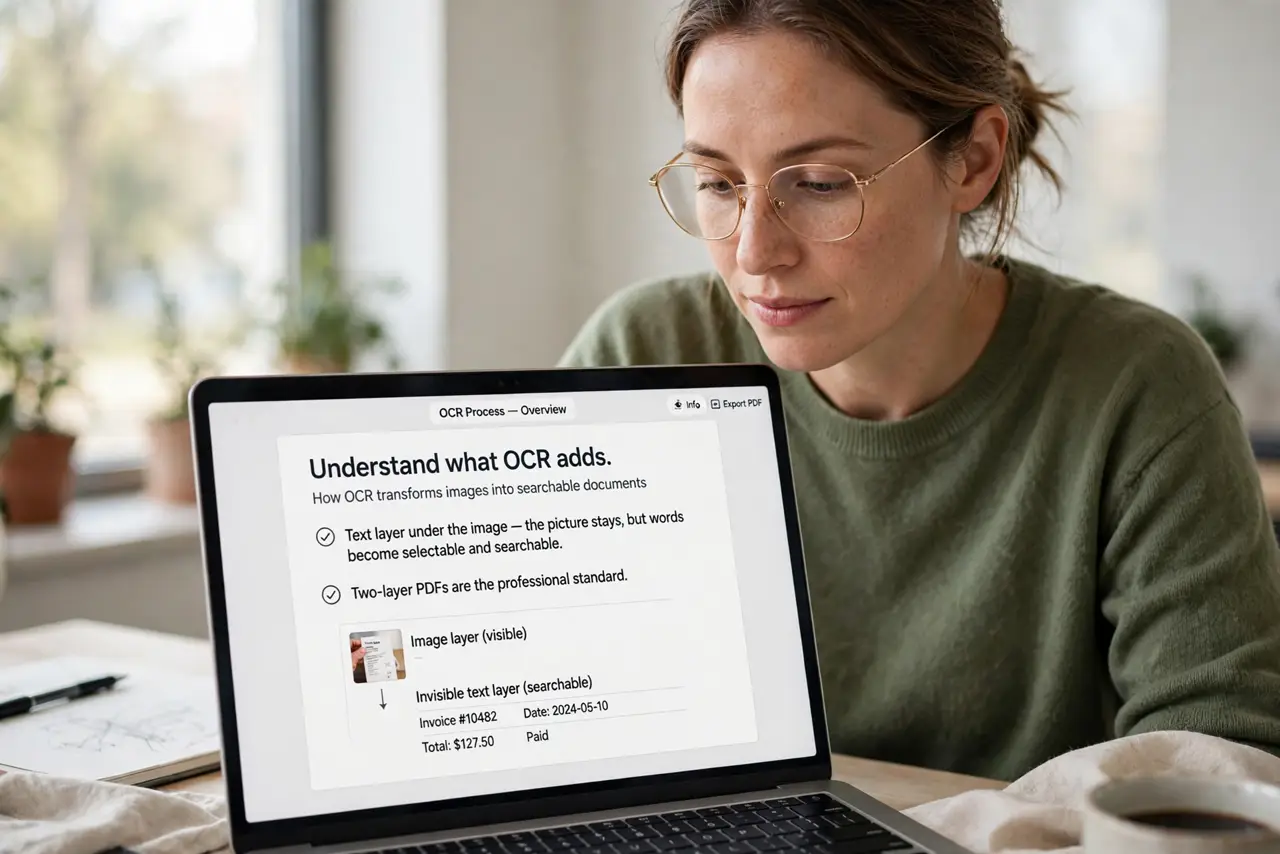
- Understand what OCR adds. A text layer under the image — the picture stays, but words become selectable and searchable. Two-layer PDFs are the professional standard.
- Run it on the Mac. Preview and Automator handle basic OCR; the Preview OCR path is the built-in route. Third-party tools add batch power for piles.
- Run it on Windows. The Snipping Tool OCR extracts text from screenshots; for full PDFs, free OCR tools process whole documents.
- Check the accuracy. Select and copy a paragraph — gibberish means the scan was too blurry. OCR quality tracks scan quality exactly; garbage in, garbage out.
- Fix the problem pages. Re-scan blurry pages at higher DPI rather than hand-correcting. Five minutes of re-scanning beats an hour of typo-hunting.
- Name the searchable file. Append OCR or searchable to the filename. Future-you searching the drive will thank present-you — the phone scan habit feeds this pipeline daily.
What NOT to do
- Do not OCR blurry scans and trust the output. Verify against the image — OCR hallucinates confidently on bad input.
- Do not expect handwriting miracles. Print OCR is excellent; handwriting is a different, harder problem.
- Do not skip OCR on archived scans. Unsearchable archives are write-only memory — the text layer is the whole value.
- Do not pay before trying free. Built-in and free OCR covers most needs; paid tools earn their keep only at volume.
Frequently asked questions
What does OCR stand for?
Optical Character Recognition — software that reads text from images and makes it selectable.
Is OCR accurate?
On clean printed scans: excellent, near-perfect. On blurry, skewed, or handwritten pages: verify everything.
Can OCR handle handwriting?
Poorly, in most tools — neat print sometimes works, cursive rarely. Treat handwriting as a manual job.