OneNote? The Plain Basics
You need a notes app that handles typed notes, handwriting, web clippings, and checklists without turning into a filing chore. OneNote is Microsoft's free digital notebook: an infinite canvas where you type anywhere, paste anything, and organize into notebooks, sections, and pages. It syncs across everything. Here is the beginner's tour.
TL;DR / Quick Fix
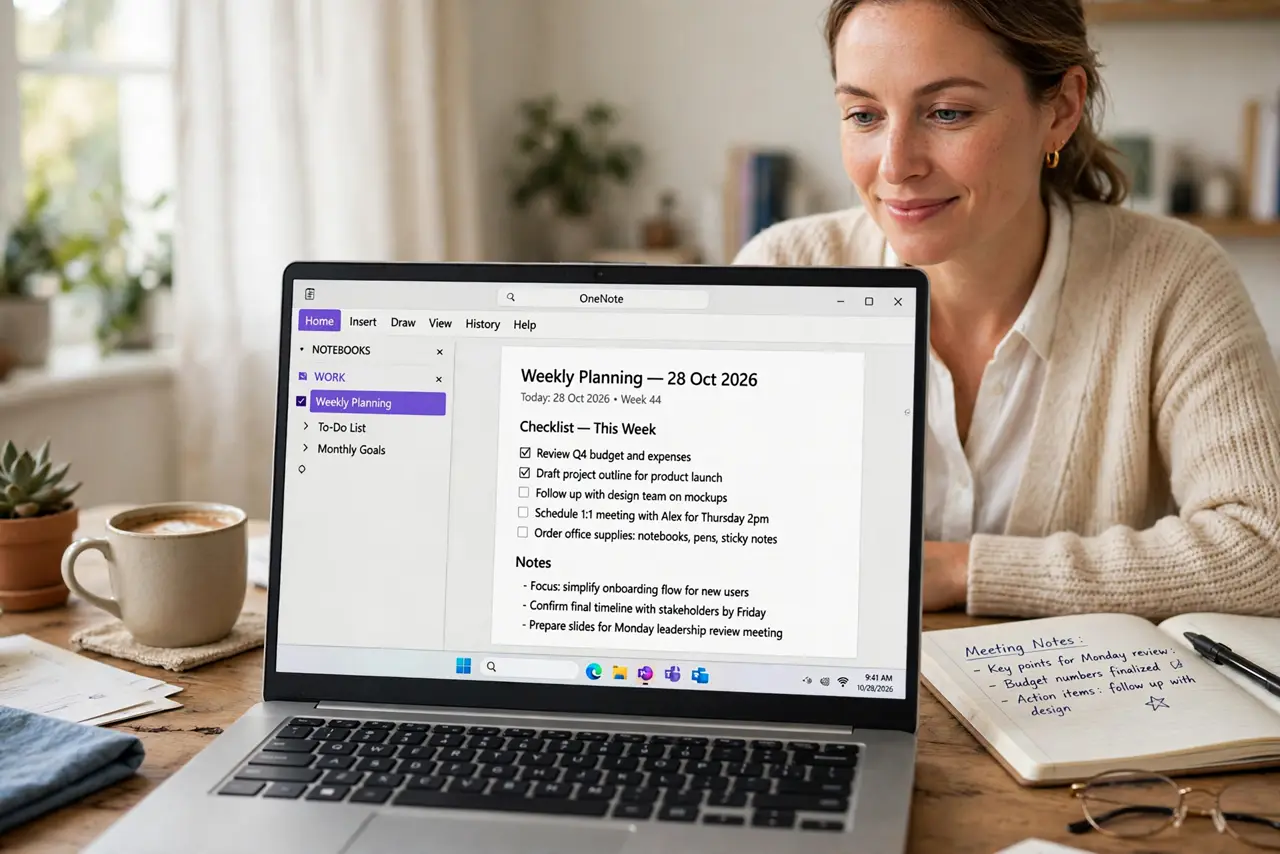
Quick fix: OneNote organizes notes into notebooks, sections (tabs), and pages — like a ring binder. Click anywhere and type; everything saves and syncs automatically. Start with one notebook, a few sections, and short pages. It is free with a Microsoft account on every device.
Follow these steps
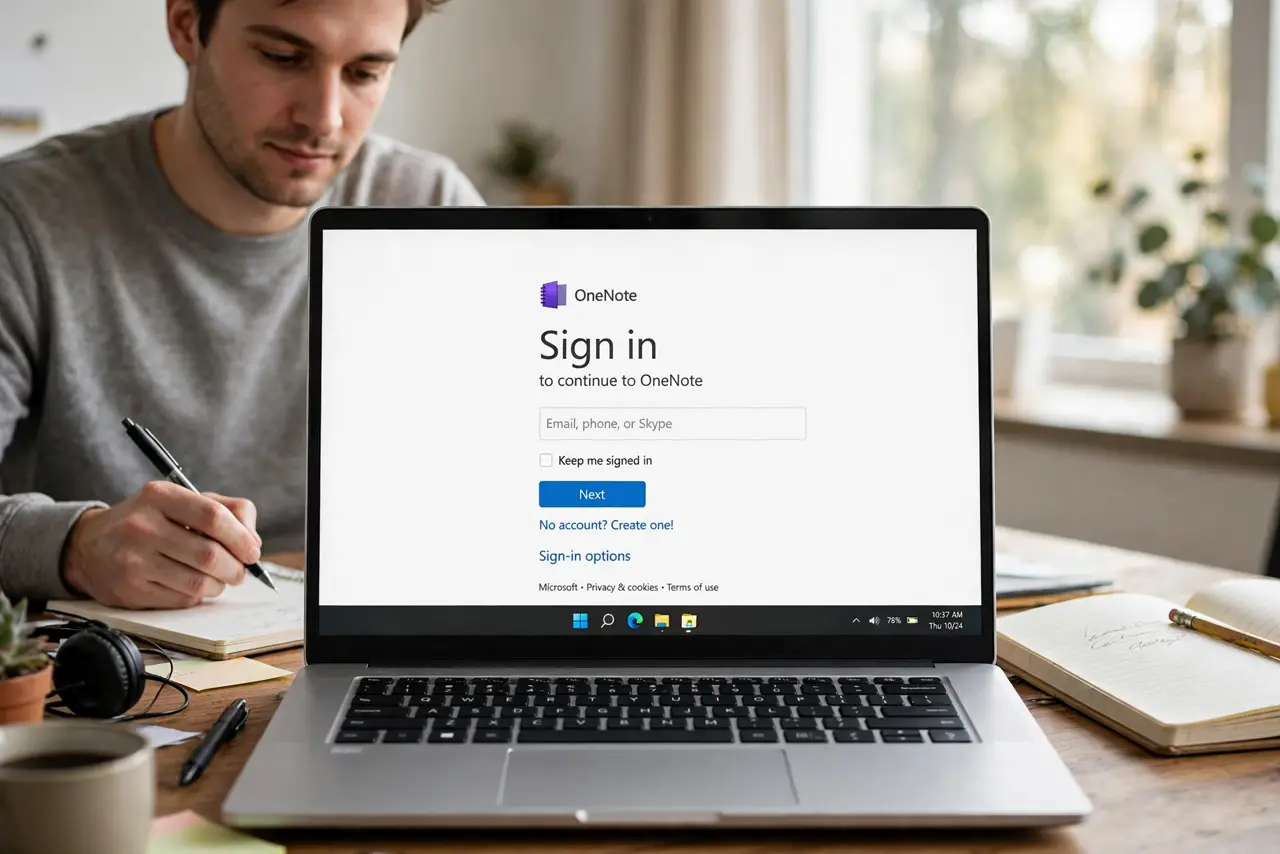
- Get OneNote and sign in. Download OneNote (free) on your devices and sign in with a Microsoft account. Signing in is what enables sync — without it, notes stay stuck on one device.
- Learn the notebook > section > page structure. Notebooks are the binders, sections are the colored tabs, pages are the sheets. Create a notebook for a project, add sections like 'Meeting Notes' and 'Ideas,' and put pages inside. Our notebooks guide goes deeper on organizing.
- Type anywhere — seriously. Click any blank spot on a page and start typing; text boxes land where you click. Drag them around freely. This freeform canvas is OneNote's signature — stop thinking in straight lines.
- Add more than text. Paste images, attach files, record audio, draw with a pen, make checklists with to-do tags. A meeting page can hold the agenda, a photo of the whiteboard, and the action items together.
- Search everything, including handwriting. The search box finds text in typed notes, images (OCR), and even handwriting. Stop organizing obsessively — with good search, a loose structure works fine.
- Rely on auto-save and sync. OneNote saves every keystroke and syncs continuously — there is no save button and no lost work from a crash. Check the sync status icon if a note seems missing on another device.
What NOT to do
- Do not build a deep folder maze on day one. Start flat — a few sections, short pages — and let structure grow from real use.
- Do not skip signing in. An unsigned OneNote is a local-only notebook; sign in or your notes never leave that device.
- Do not paste sensitive passwords as plain text. OneNote pages are not encrypted by default — use a password manager for secrets.
- Do not treat pages like Word documents. The freeform canvas rewards scattered thinking; forcing linear documents wastes its strength.
Frequently asked questions
Is OneNote really free?
Yes — the core apps are free with a Microsoft account, with generous storage. Paid Microsoft 365 adds storage and features, but most people never need it.
OneNote vs Word — when to use which?
OneNote for collecting, brainstorming, and evolving notes; Word for finished documents you will share or print. Draft in OneNote, polish in Word.
Can I use OneNote offline?
Yes — notes are stored locally and sync when you reconnect. Offline edits merge automatically, with rare conflicts flagged for you to resolve.