Add-ins Slowing Outlook? Fix It
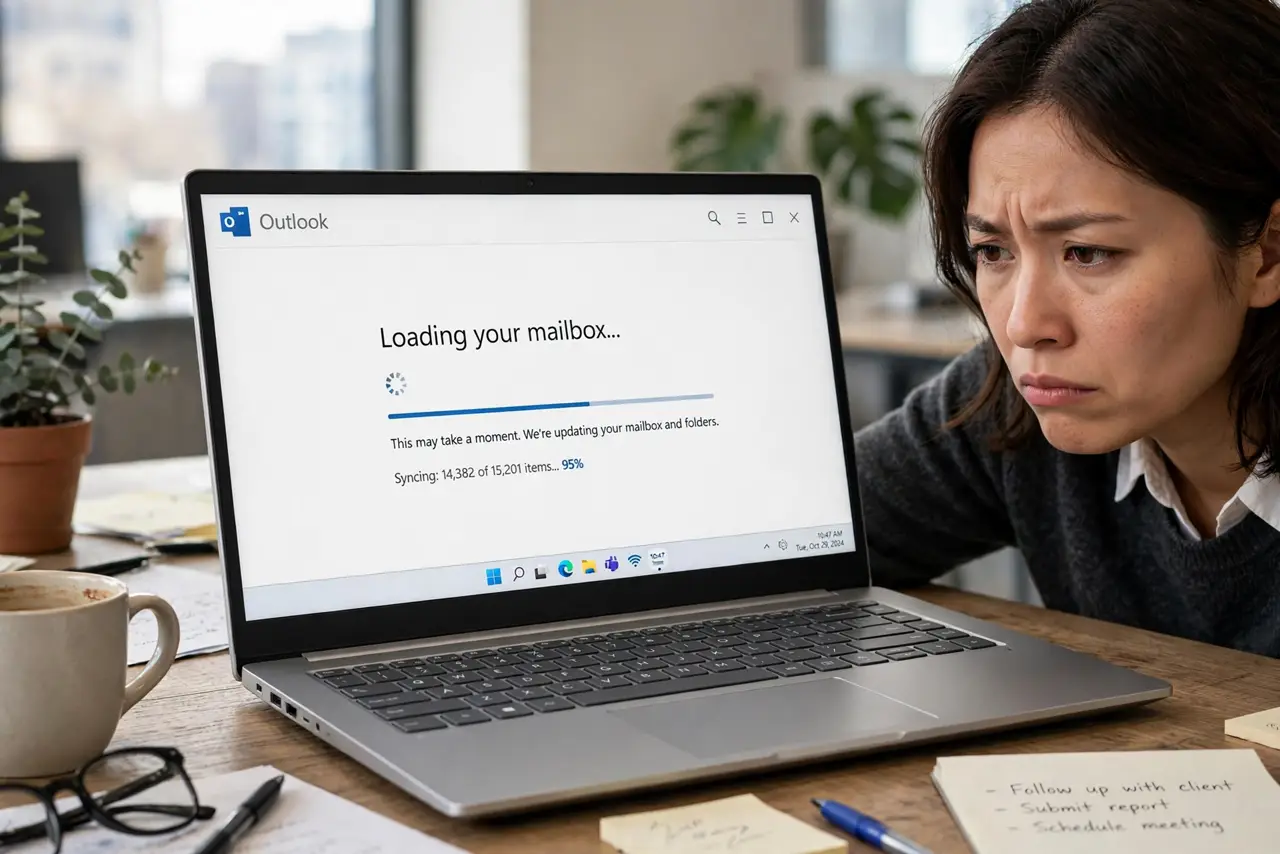
Outlook used to be fast, and now every click lags — typing stutters, switching folders takes seconds, and you dread opening it. The usual suspects are add-ins: little helper programs that load with Outlook and sometimes misbehave after updates. The fix is methodical, not mysterious: turn them off one by one until speed returns. Here is the routine.
TL;DR / Quick Fix
Quick fix: Outlook add-ins are mini-programs loading with Outlook, and a bad one can make it crawl or crash. Open File > Options > Add-ins, then use Manage COM Add-ins to uncheck suspects. Disable them one at a time, restarting Outlook — when speed returns, you have found the culprit.
Follow these steps
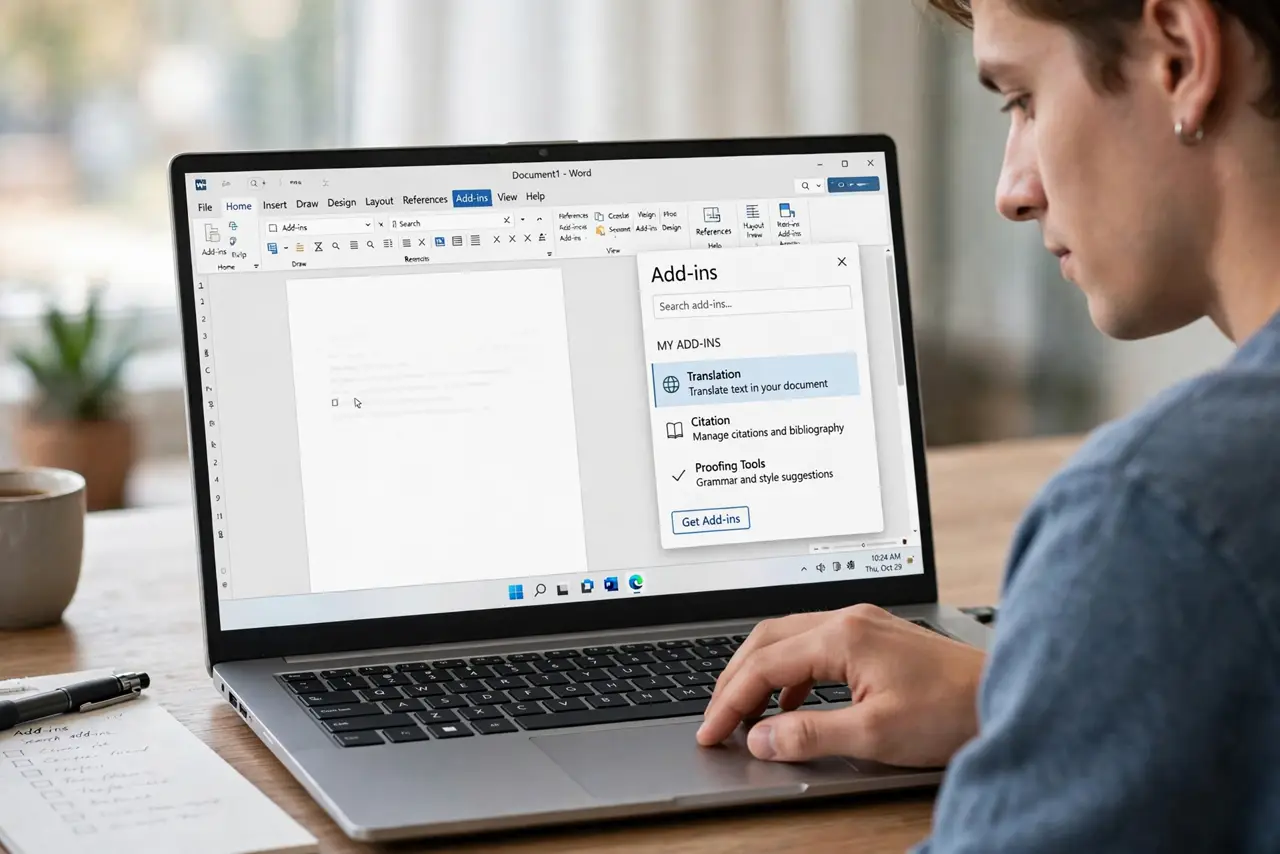
- Open the Add-ins list. Go to File > Options > Add-ins. The list shows every add-in and whether it is active — take a screenshot before changing anything.
- Start with COM Add-ins. At the bottom, set Manage to COM Add-ins and click Go. Uncheck everything, click OK, and restart Outlook.
- Test the speed. If Outlook is fast again, an add-in was the problem. If it is still slow, the cause is elsewhere — try Outlook Safe Mode to confirm.
- Re-enable one at a time. Turn add-ins back on one by one, restarting Outlook after each. When the slowness returns, the last one enabled is the culprit.
- Update or remove the culprit. Check the add-in maker's site for an update — many slowdowns follow an Outlook update the add-in has not caught up with. If none exists, leave it disabled.
- Watch out after every Outlook update. Updates re-enable or break add-ins regularly. If Outlook suddenly slows after an update, the add-in list is the first place to look.
What NOT to do
- Do not delete add-ins you do not recognize from the list blindly. Disable first — deleting makes undoing harder if you were wrong.
- Do not install 'Outlook speed booster' tools from ads. They are usually junk or malware; the manual disable routine is the real fix.
- Do not ignore the built-in Microsoft add-ins. Even official ones (like Teams Meeting or social connectors) can slow things down.
- Do not assume slow Outlook means a slow computer. If every other program is fine, it is Outlook-specific — almost always add-ins or a huge mailbox.
Frequently asked questions
Which add-ins are safe to disable?
Anything you do not actively use. Disabling never deletes data — you can re-enable in seconds if something you need stops working.
Can an antivirus add-in slow Outlook?
Yes — security suites love to bolt scanning add-ins onto Outlook, and they are frequent slowdown culprits. Try disabling them first.
Outlook is still slow with all add-ins off — what now?
Check mailbox size next. Enormous mailboxes are the other classic cause of a sluggish Outlook. A view reset can also help.