Reset the Folder View? How To
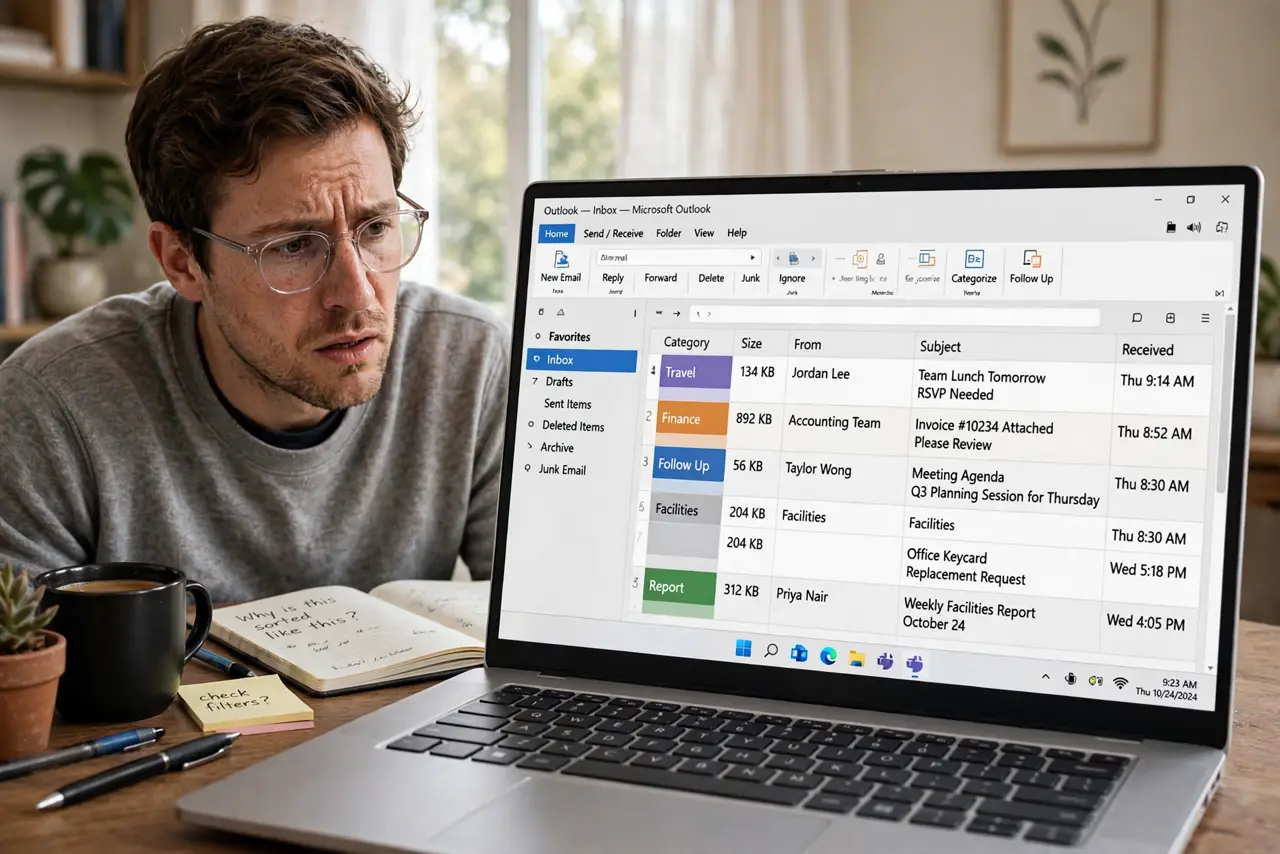
Your inbox suddenly looks wrong — columns vanished, sorting went strange, fonts shrank, or messages appear in a bizarre order. You did not lose any email; the folder's view settings got scrambled, often by an accidental click or drag. Resetting the view restores Outlook's default display in seconds, touching nothing else. Here is how.
TL;DR / Quick Fix
Quick fix: if your inbox looks wrong — missing columns, odd sorting, tiny fonts — reset the folder view to undo every display tweak. Open View > Current View > Reset View, or run outlook.exe /cleanviews for a full reset. Your emails are untouched; only the display returns to defaults.
Follow these steps
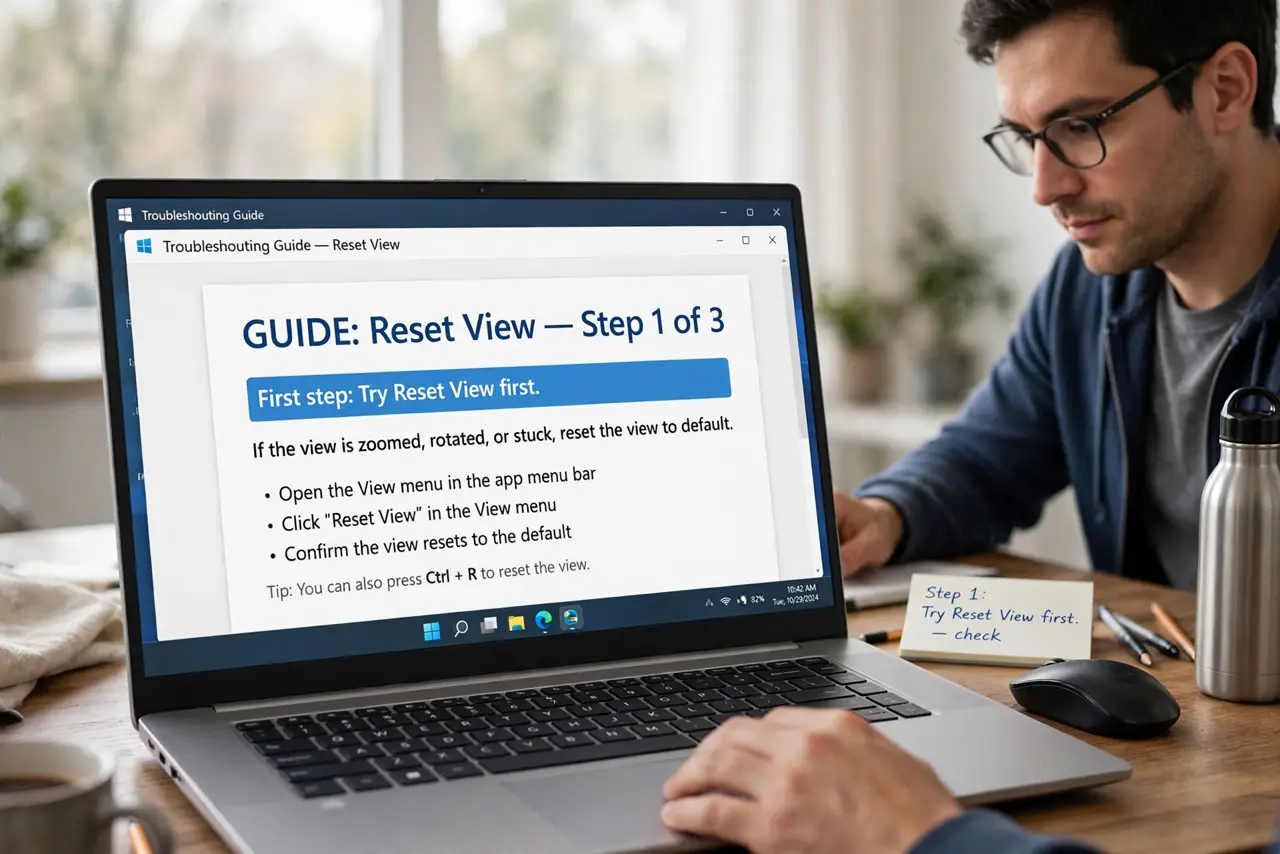
- Try Reset View first. Open the View tab, click Current View (or Change View), and choose Reset View. This restores the current folder's default display instantly.
- Know what it fixes. Column order, sorting, grouping, fonts, and filters — every display tweak — return to defaults. Your emails, folders, and rules are untouched.
- Use /cleanviews for stubborn cases. If Reset View is grayed out or does not help, close Outlook, press Windows + R, type outlook.exe /cleanviews, and press Enter. This resets all custom views at once.
- Recreate intentional customizations after. If you had a beloved custom view, you will need to rebuild it — including conditional formatting rules, which are view settings too.
- Check whether it is just one folder. View settings are per folder. If only the inbox looks odd, reset just the inbox — do not nuke every folder's view with /cleanviews.
- Prevent the next scramble. Most scrambles come from accidental column drags. Once the view is clean, leave the header row alone — or lock in your layout by noting it down.
What NOT to do
- Do not reinstall Outlook over a weird-looking inbox. A view reset takes seconds; a reinstall takes an afternoon and fixes nothing here.
- Do not run /cleanviews casually. It wipes every custom view in every folder — fine as a fix, wasteful as a first guess.
- Do not confuse a view problem with missing mail. If emails seem gone, check Focused Inbox and filters before assuming deletion.
- Do not keep tweaking a broken view hoping it heals. Reset to clean defaults first, then re-customize deliberately.
Frequently asked questions
Will resetting the view delete my emails?
Never. Views control display only — columns, sorting, fonts. Your messages, folders, and account are completely unaffected.
Why does my view keep changing by itself?
Usually accidental drags on column headers, or an add-in rearranging things. If it recurs, suspect an add-in and reset again after disabling it.
Reset View is grayed out — what now?
That means the view is already at defaults, or policies lock it. Use outlook.exe /cleanviews from the Run dialog as the stronger reset.