The Archive Button? What It Does
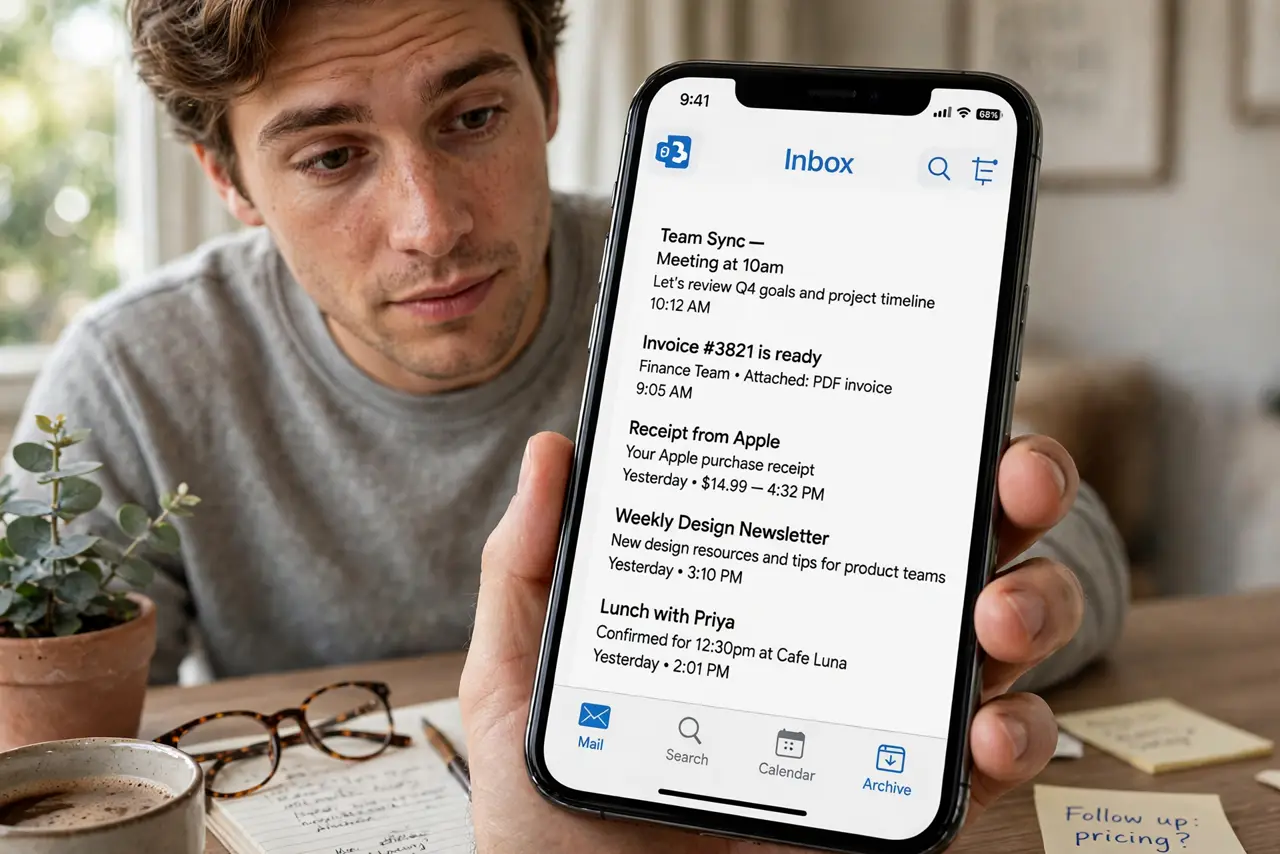
The Archive button sits right next to Delete, and plenty of people click it by accident — then panic when the email 'disappears.' Archiving simply moves a message out of your inbox into the Archive folder, without deleting anything. It is Outlook's gentle way of tidying up: the email still exists, fully searchable, just out of sight. Here is what the button does, where archived mail goes, and how to undo it.
TL;DR / Quick Fix
Quick fix: the Archive button moves an email from your inbox to the Archive folder — it does not delete anything. To find archived mail, open the Archive folder or search. To undo, return the message to the inbox. Archiving is the way to clear your inbox without losing messages.
Follow these steps
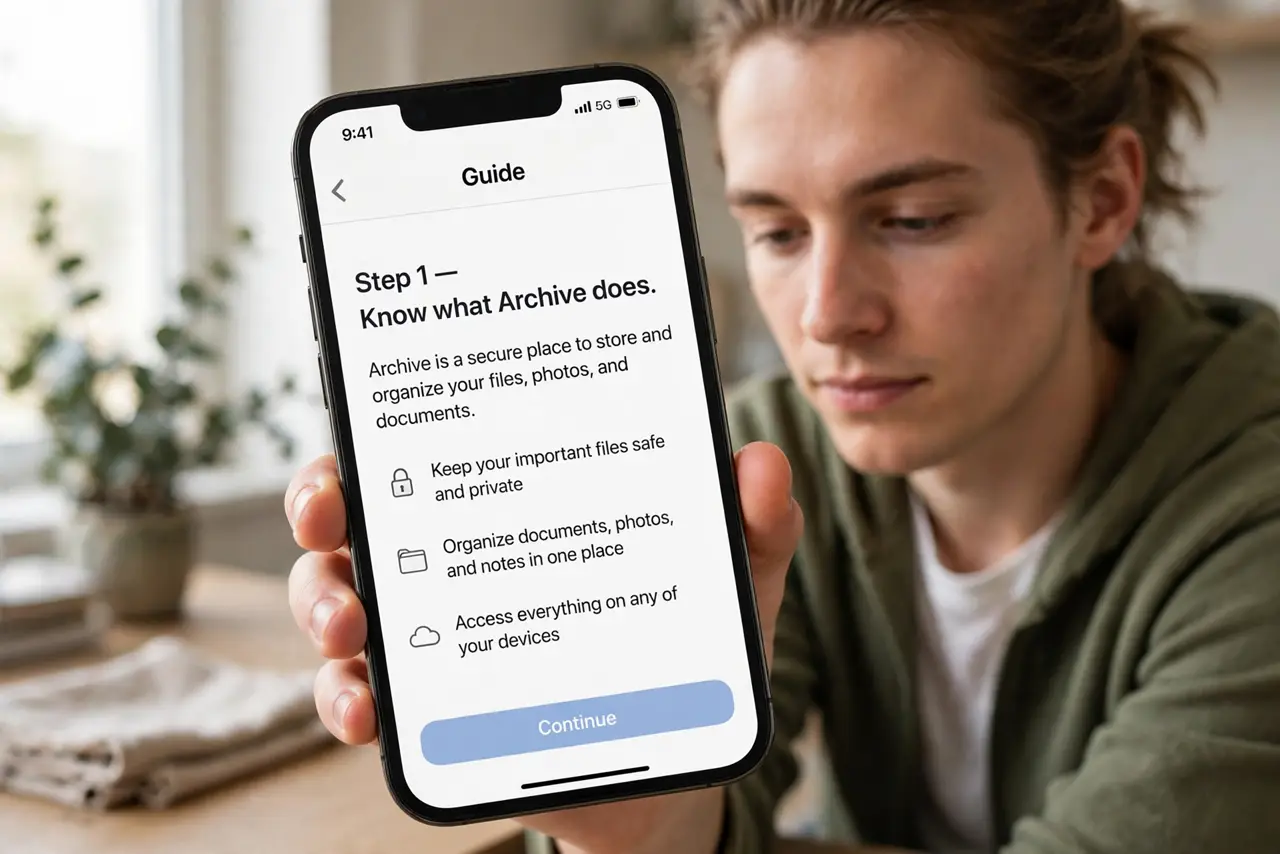
- Know what Archive does. One click moves the selected message to the Archive folder. It leaves every other folder alone — nothing is deleted, nothing is flagged.
- Find the button. In Outlook it sits on the Home ribbon, next to Delete. On the mobile app it appears when you swipe an email or open the message menu.
- Understand where mail goes. Archived mail lands in a folder literally named Archive, at the same level as your inbox. It stays fully searchable and readable.
- Retrieve an archived message. Open the Archive folder, select the message, and choose Move > Inbox. It returns exactly as it was.
- Use Archive instead of Delete for 'maybe' mail. Receipts, old threads, and reference emails you might need later are Archive candidates. Clean up conversations first to shrink long threads, then archive what remains.
- Set Archive as your swipe default. In the Outlook mobile app, settings let you choose Archive (not Delete) as the swipe action — the safer default for accidental swipes.
What NOT to do
- Do not use Archive as your only filing system. A thousand-message Archive is a junk drawer — archive deliberately, and use folders or color categories for what you keep.
- Do not panic if an archived email seems gone. It is in the Archive folder or findable via search — Archive never deletes.
- Do not archive emails with pending tasks and forget them. Archive hides them; a flag for follow-up keeps the task visible.
- Do not confuse Archive with the Deleted Items folder. Deleted Items empties on a schedule; Archive keeps messages indefinitely.
Frequently asked questions
Does archiving free up mailbox space?
No. Archived messages still count against your mailbox quota — they are just moved, not removed. If you are running out of space, you need to delete or export, not archive.
Can I archive a whole folder at once?
Yes — select the folder, select all messages inside, and archive them together. Double-check first, since fishing one message out of a bulk archive is tedious.
Is Archive the same in Outlook on the web?
Essentially, yes. The button and the Archive folder work the same in Outlook on the web, the desktop app, and mobile — the message ends up in the same place.