Conditional Formatting in Outlook?
Your inbox is a wall of identical black text, and the emails that matter drown in it. Conditional formatting is Outlook's automatic highlighter: you define rules — 'emails from my boss turn red,' 'project threads turn blue' — and Outlook colors matching messages as they arrive. It changes only the display, never the mail itself. Here is how to set it up.

TL;DR / Quick Fix
Quick fix: conditional formatting in Outlook colors incoming emails that match your rules — red for your boss or blue for a project. Open View > View Settings > Conditional Formatting, add a rule with a condition and a color. It only changes how mail looks, never the mail itself.
Follow these steps
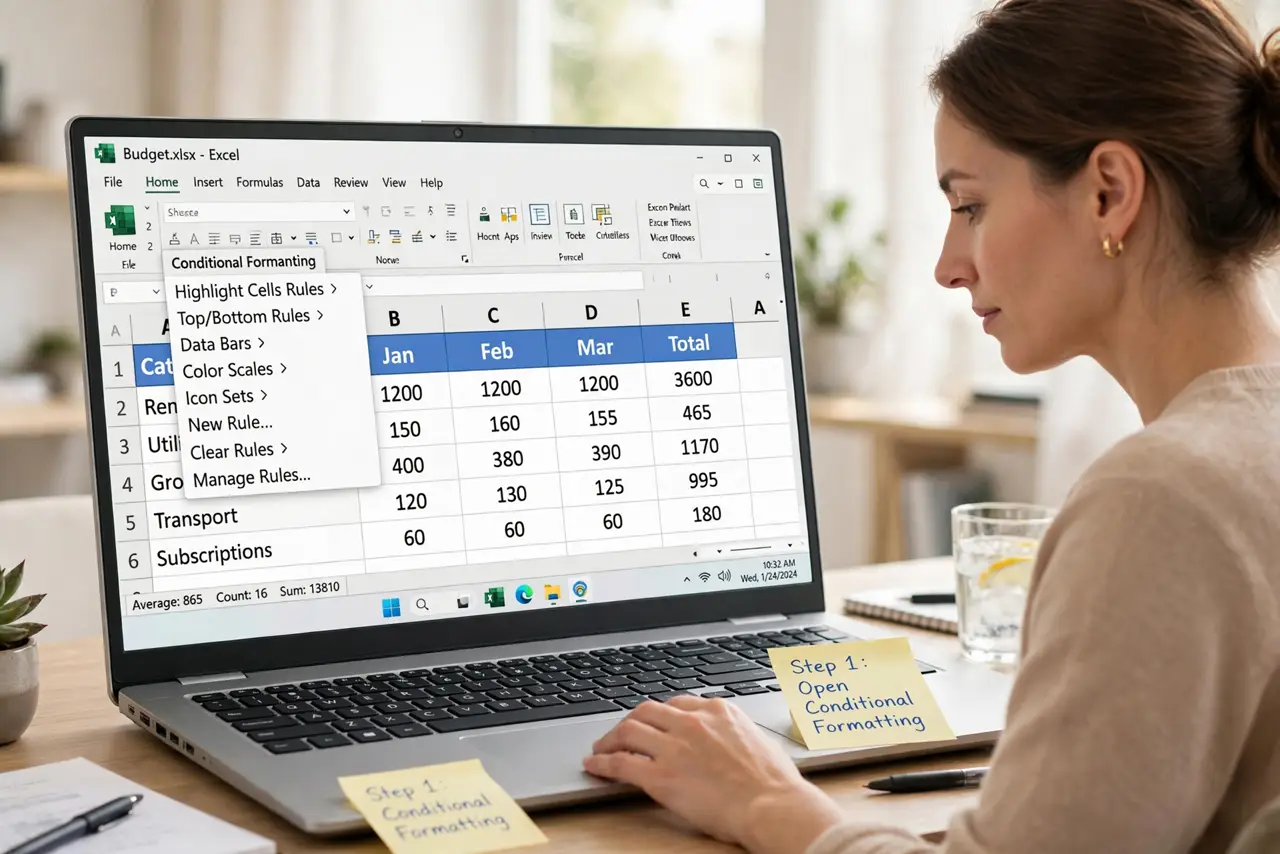
- Open Conditional Formatting. Go to View > View Settings > Conditional Formatting. You will see Outlook's built-in rules plus room for your own.
- Add a new rule. Click Add, name it something clear like 'Boss — red,' then click Font to pick the color and style.
- Set the condition. Click Condition and define what matches — sender address, subject words, or who it was sent to. Keep conditions specific so the rule does not fire on everything.
- Order rules sensibly. When several rules match one message, the topmost rule wins. Put your most important rules first.
- Preview before committing. The dialog shows a sample of the formatting. If your whole inbox turned red, the condition is too broad — narrow it.
- Combine with categories for power sorting. Colors catch the eye; color categories add searchable labels. Together they make triage almost automatic.
What NOT to do
- Do not color everything. Five colors help; twenty colors are just noise — the eye stops noticing.
- Do not use formatting as your only organization. Colors are visual only — pair them with folders, rules, or search folders for real structure.
- Do not pick colors that clash with unread bold. If read and unread look identical in your scheme, you will miss new mail.
- Do not forget these are per-view settings. A view reset wipes your formatting rules — note them down if they are elaborate.
Frequently asked questions
Will conditional formatting work on my phone?
No — these are desktop Outlook view settings. Your phone shows its own standard formatting regardless.
Can I format based on message content?
Yes, conditions can match words in the subject or body. Body matching on huge mailboxes can slow the view slightly.
Why did my colors disappear?
Usually a view reset or a profile change. Reopen View Settings > Conditional Formatting — if the rules are gone, recreate them from your notes.