Tame the Focused Inbox
Outlook sorts your mail into Focused and Other, and the sorting is... confident. Important mail lands in Other, newsletters land in Focused, and you never quite trust either tab. The good news: you can train it, and if training fails, you can turn it off entirely. Here is both paths.
TL;DR / Quick Fix
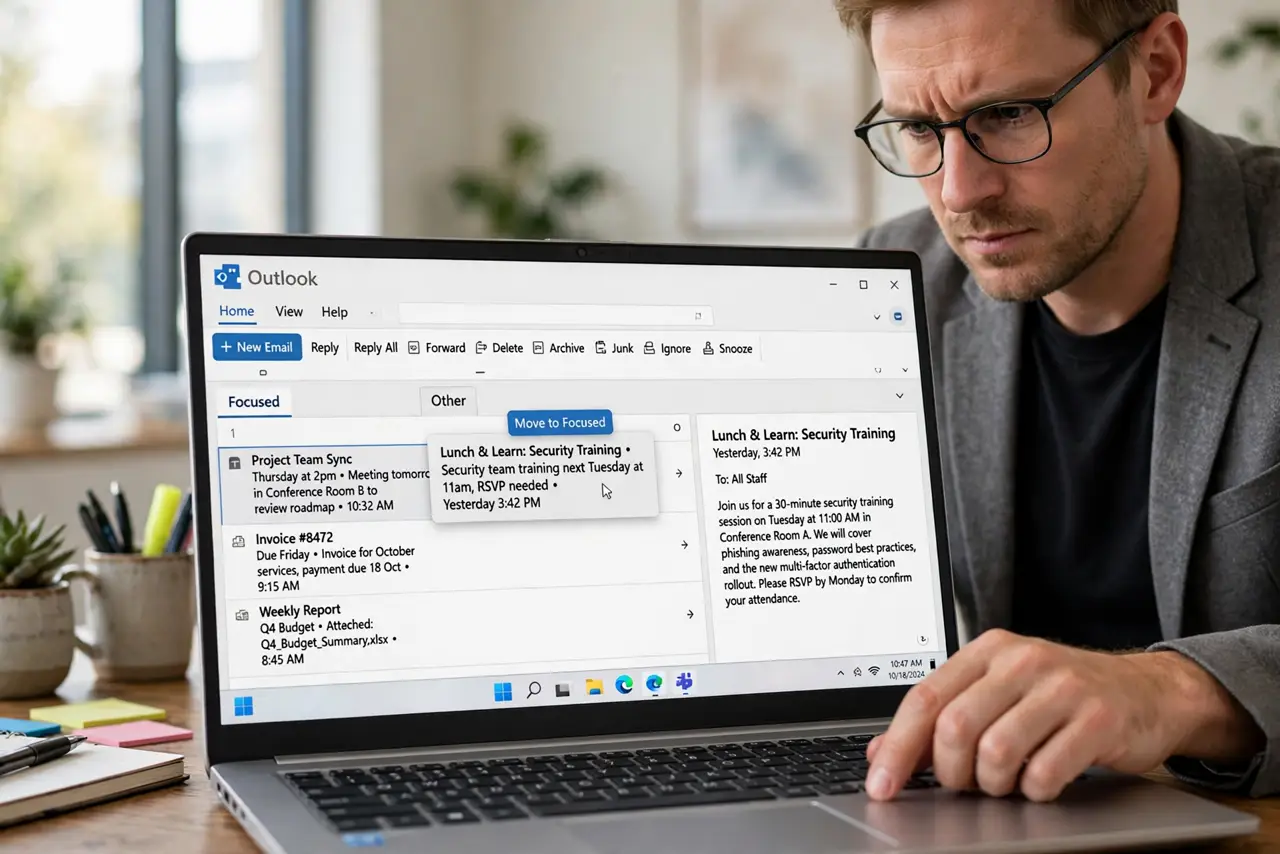
Quick fix: when Outlook misfiles, right-click the email and choose Always Move to Focused (or to Other) — this trains the sorting. Give it two weeks of corrections. If it still misbehaves, turn Focused Inbox off in settings and go back to one trusted inbox.
Follow these steps
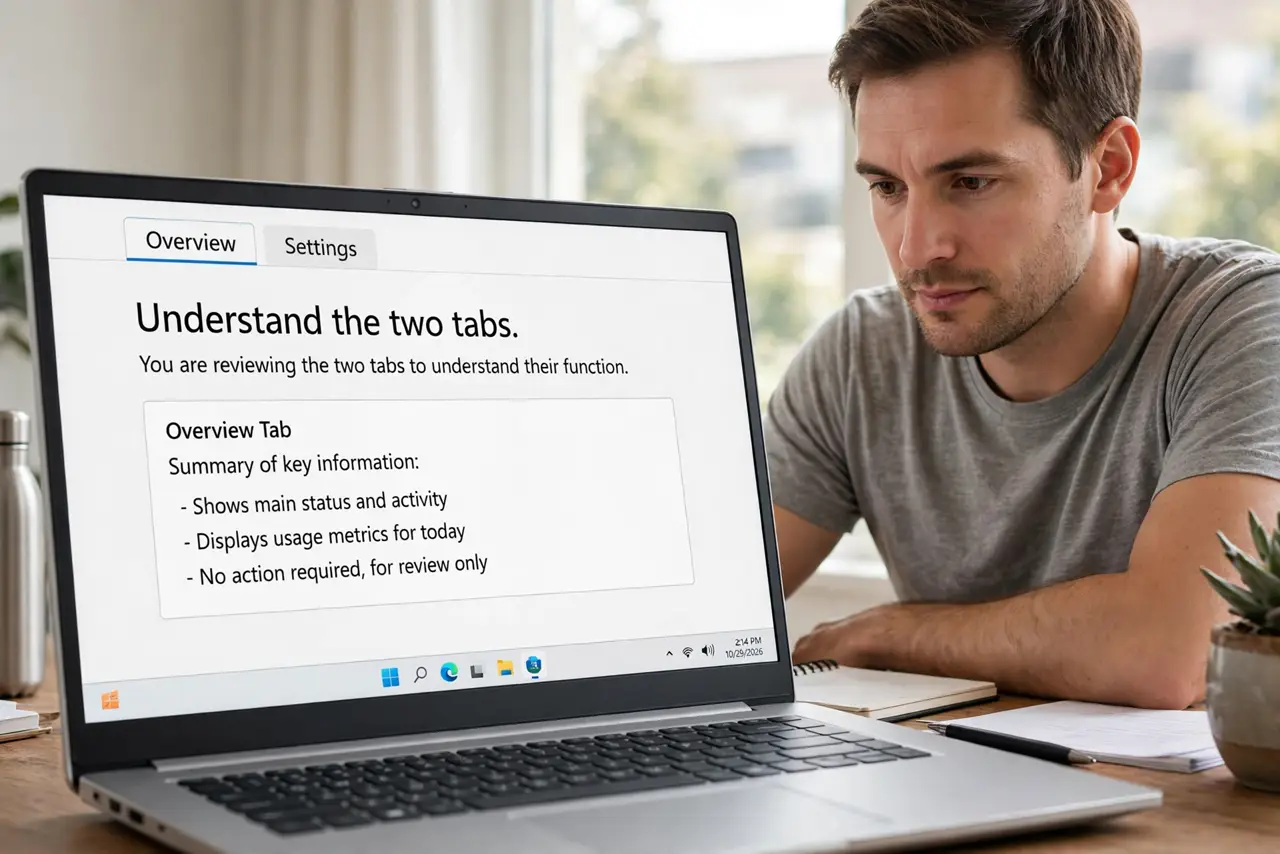
- Understand the two tabs. Focused is supposed to hold important mail; Other catches the rest. It is a guess, not a rule — Outlook learns from your behavior, which means it starts dumb and improves.
- Train it deliberately. Right-click any misfiled email and choose Move to Focused or Move to Other, checking 'always' when offered. Every correction is a training signal — a week of steady corrections transforms it.
- Check Other daily during training. While it learns, glance at the Other tab once a day. The training period is when important mail is most likely misfiled — a quick scan catches the strays.
- Decide after two weeks. If corrections are sticking and the tabs feel right, keep it. If you are still dragging mail daily after two weeks, the feature is not learning your patterns — move to the next step.
- Turn it off if it fails. In Outlook settings, under Mail, toggle off Focused Inbox. One unified inbox with good rules beats a smart-sorting feature you cannot trust.
- Replace with rules. With Focused off, use rules to file newsletters and notifications automatically. Deterministic rules you wrote beat probabilistic sorting you did not.
What NOT to do
- Do not trust it blindly during training. The learning period is exactly when misfiling peaks — check both tabs.
- Do not train inconsistently. Correcting the same sender both ways teaches nothing — pick a tab per sender and stick to it.
- Do not keep a feature you fight daily. Two weeks of failure is the verdict — turn it off without guilt.
- Do not forget the Other tab exists. The classic Focused Inbox disaster is the unseen important email — check Other or disable the split.
Frequently asked questions
Can I turn off Focused Inbox?
Yes — in settings under Mail, toggle it off. Your mail merges into a single inbox, and nothing is deleted in the process.
Does it work the same on mobile?
The tabs and training sync across desktop, web, and mobile on a Microsoft 365 account — train once, everywhere learns.
Why is everything in Other?
You may have trained it aggressively early, or it never learned your patterns. Reset by turning it off and on, or just turn it off.