Use Multiple Signatures
One signature for clients, one for internal mail, one for the job hunt — a single sign-off cannot serve every audience. Outlook lets you keep several signatures and switch per message. Here is how to set them up and stop sending the wrong one.
TL;DR / Quick Fix
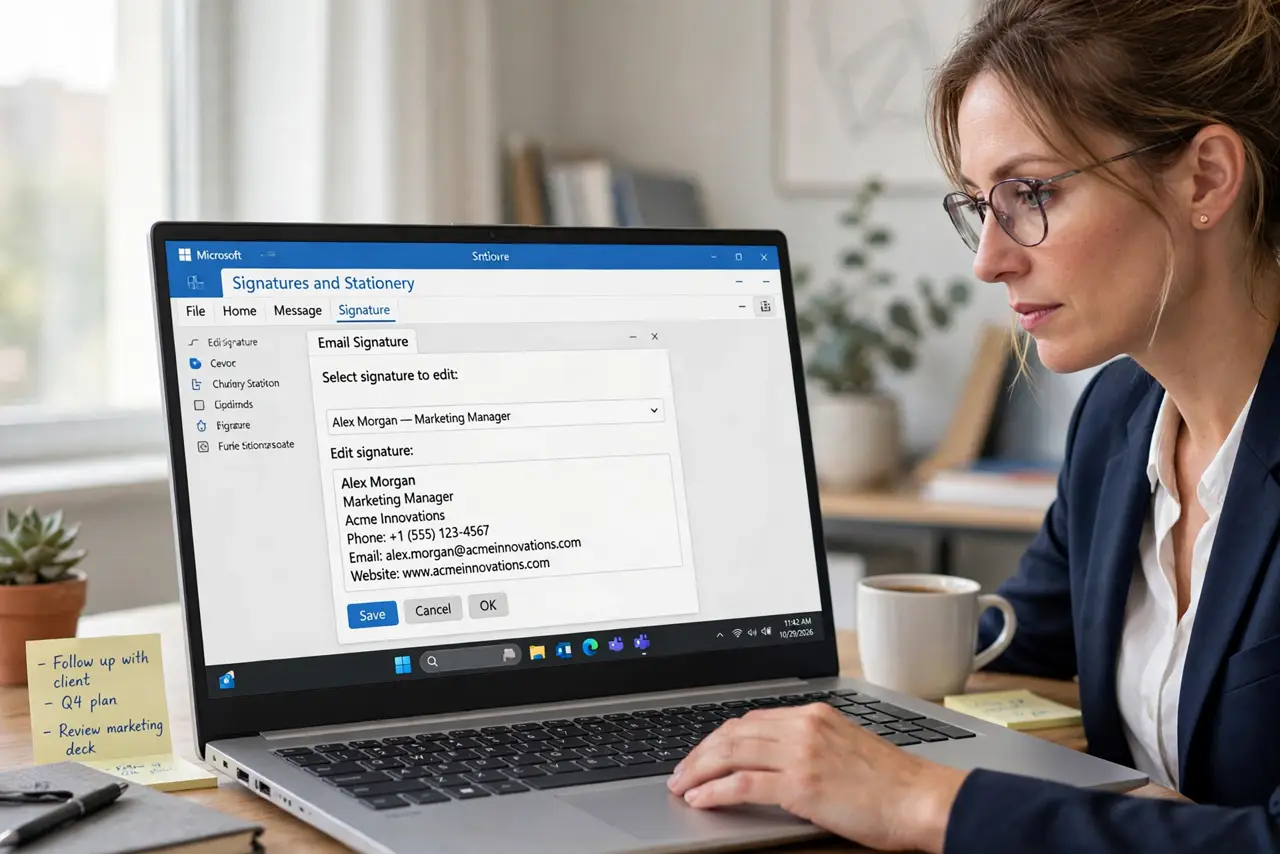
Quick fix: in Outlook go to Settings > Mail > Compose and reply, create each signature, and set defaults for new messages and replies. Switch per message from the signature menu while composing. Keep each signature short — name, role, phone, nothing more.
Follow these steps
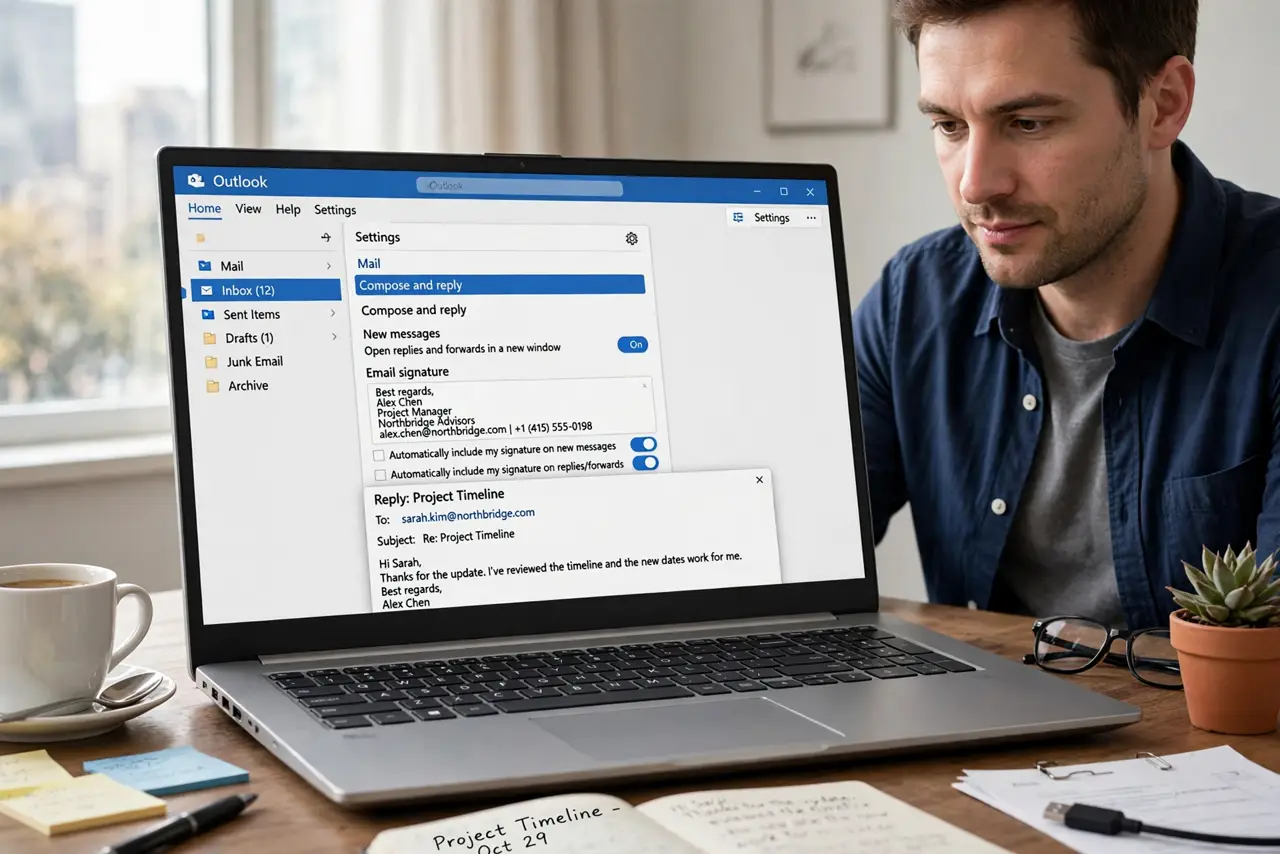
- Open the signature settings. Settings > Mail > Compose and reply > Email signature — new Outlook and web. Classic: File > Options > Mail > Signatures.
- Create each signature. Click + or New, name it — Client, Internal, Personal — and compose the text. Keep it to name, title, phone, and one link.
- Format lightly. Bold your name, plain text for the rest. Fancy fonts and big logos render unpredictably — and break images on replies.
- Set the defaults. Choose which signature applies to new messages and which to replies and forwards, per account. Defaults do the routine work.
- Switch per message. In the compose window, open the signature menu — or Insert > Signature — to swap for the odd one out. Check it before sending.
- Sync or recreate per device. Signatures may not roam to your phone — set them in Outlook mobile separately, shorter.
What NOT to do
- Do not use one giant signature for everything. Clients do not need your internal extension list.
- Do not stuff signatures with images and disclaimers. They bloat every thread and break on replies.
- Do not forget which signature is default on a second account. Cross-account sends with the wrong sign-off happen daily.
- Do not include your home address. A signature goes everywhere your email goes.
Frequently asked questions
Why does my signature look broken on replies?
Image hosting and formatting often break in reply chains — see the signature images guide. Simpler signatures survive better.
Do signatures sync between desktop and phone?
Not reliably — set them separately in each Outlook app, and keep the mobile one minimal.
How many signatures is too many?
Past four, you will pick wrong as often as right. Most people need two or three.