Reduce Mailbox Size? Steps
A mailbox does not fill up overnight — it fills up one attachment at a time until Outlook starts complaining. Shrinking it is not one trick but a short routine: empty the trash-like folders, hunt the biggest messages, move old mail out, and set up automation so it stays small. Work the steps in order and you will reclaim space without losing anything important.
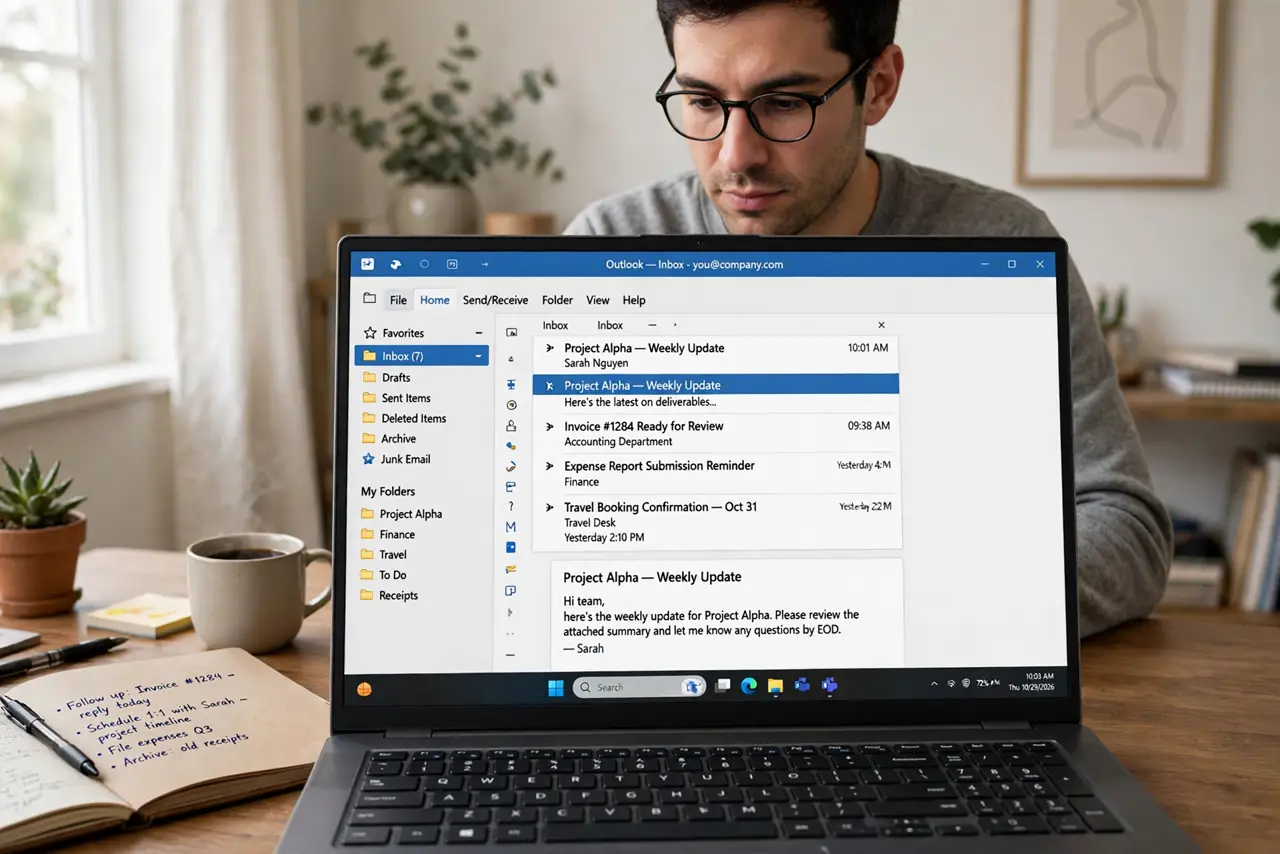
TL;DR / Quick Fix
Quick fix: start with the biggest wins — empty Deleted Items and Junk, then sort folders by size and delete or export the largest emails. Move mail older than a year into a PST file. Turn on AutoArchive to keep it small, and verify the new size in account settings.
Follow these steps
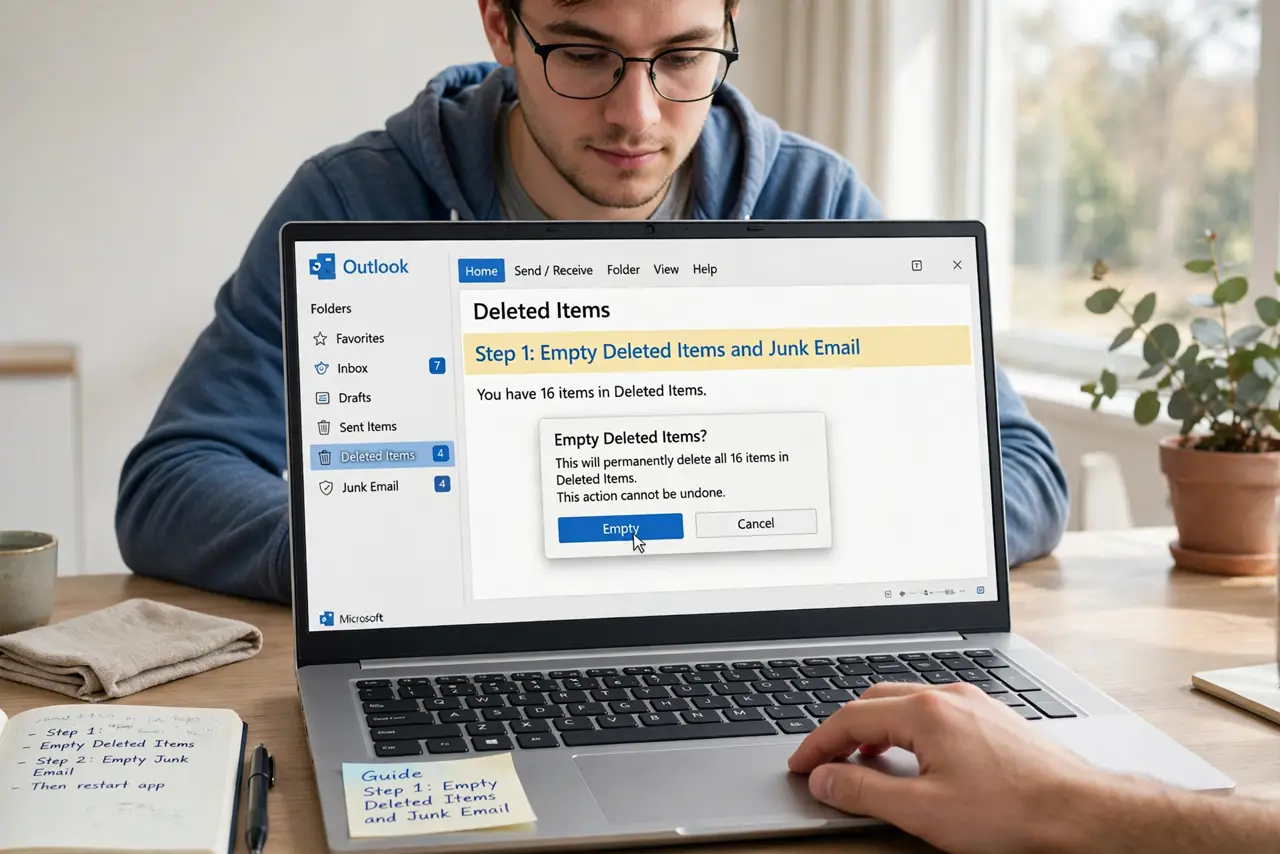
- Empty Deleted Items and Junk Email. Right-click each folder and empty it. This is the fastest space win and takes ten seconds.
- Sort every big folder by size. Inbox, Sent Items, and any archive folders — sort by Size and deal with the top offenders first instead of nibbling at small mail.
- Save what matters, delete the rest. Download attachments you truly need to your files, then delete the message. A photo saved to your disk does not need to live in your mailbox too.
- Move old mail to a PST file. Export mail older than a year into a PST file on your computer. It is out of the quota but still openable any time.
- Archive finished threads instead of hoarding. Use the Archive button to clear the inbox — but remember archived mail still counts toward quota, so this step is about tidiness, not space.
- Turn on AutoArchive for the future. Set AutoArchive to periodically move aging mail out of the mailbox automatically. Future you will not face this chore again.
What NOT to do
- Do not export to a PST and then delete the originals the same day. Open the PST, confirm the mail is really there, then delete.
- Do not set AutoArchive to delete old mail. Archiving moves it; deleting destroys it — pick the safe option.
- Do not forget the Sent Items folder. It is the most overlooked space hog in almost every mailbox.
- Do not treat this as a one-time fix if the mailbox keeps filling. The routine — or AutoArchive — is what keeps it small.
Frequently asked questions
How often should I shrink my mailbox?
Quarterly is plenty for most people. If you receive many large attachments, monthly keeps the warnings away.
Is it safe to delete everything in Deleted Items?
Yes — that folder is the trash can. Emptying it is the point. Just glance for anything you deleted by accident first.
Does AutoArchive work on all account types?
AutoArchive works with POP and local data files. Some Exchange and Microsoft 365 setups use server-side archive policies instead — check with your admin.