Outlook Rules? Plain Basics
Your inbox fills faster than you can read it, and manually sorting every message is a losing game. Outlook rules do the sorting for you — automatically filing, flagging, or forwarding messages as they arrive. A few well-built rules can turn a chaotic inbox into one that practically organizes itself. This guide covers the basics without the confusing jargon.
TL;DR / Quick Fix
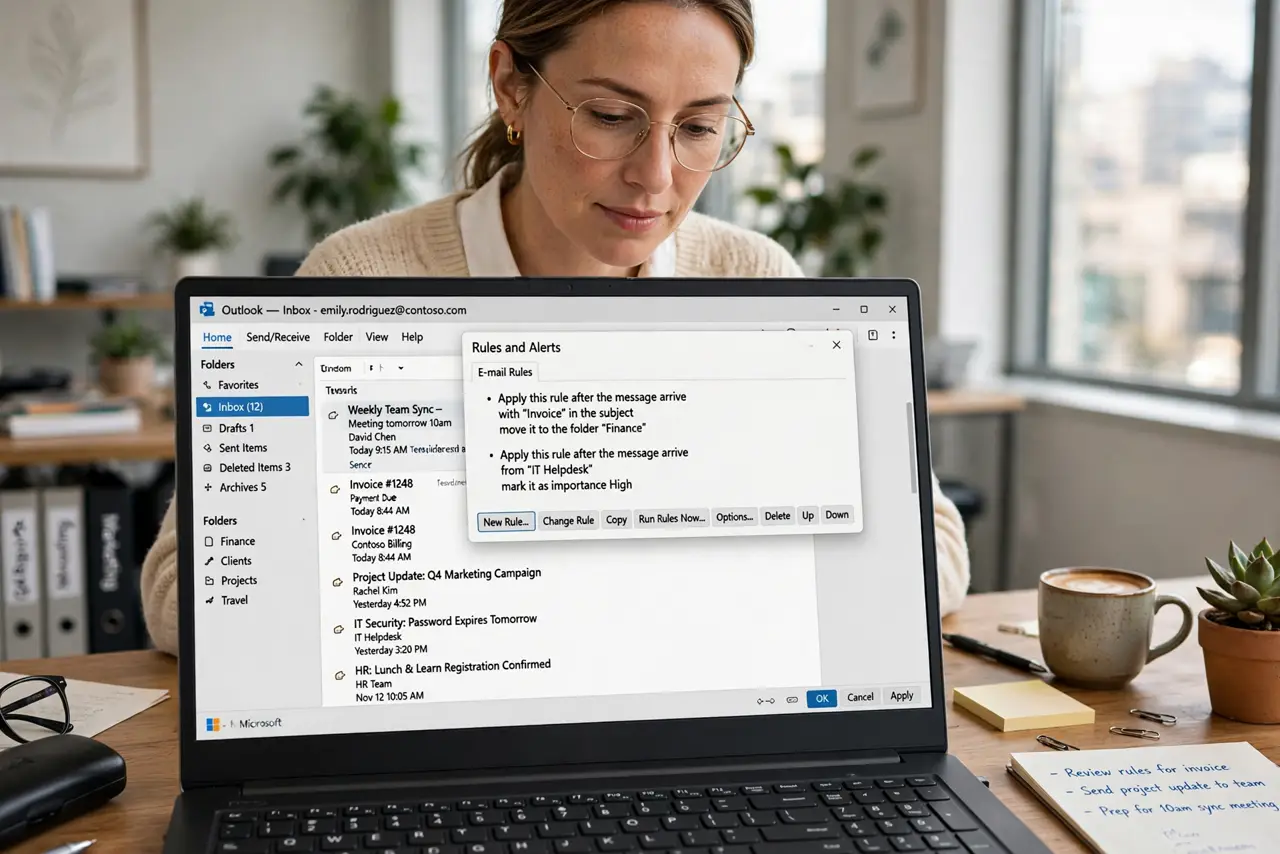
Quick fix: in Outlook, right-click a message and choose Rules to auto-file similar emails into folders. Start with two or three rules — newsletters to a Read Later folder, receipts to Finances. Test each rule on existing mail first so a bad rule can't hide important messages.
Follow these steps
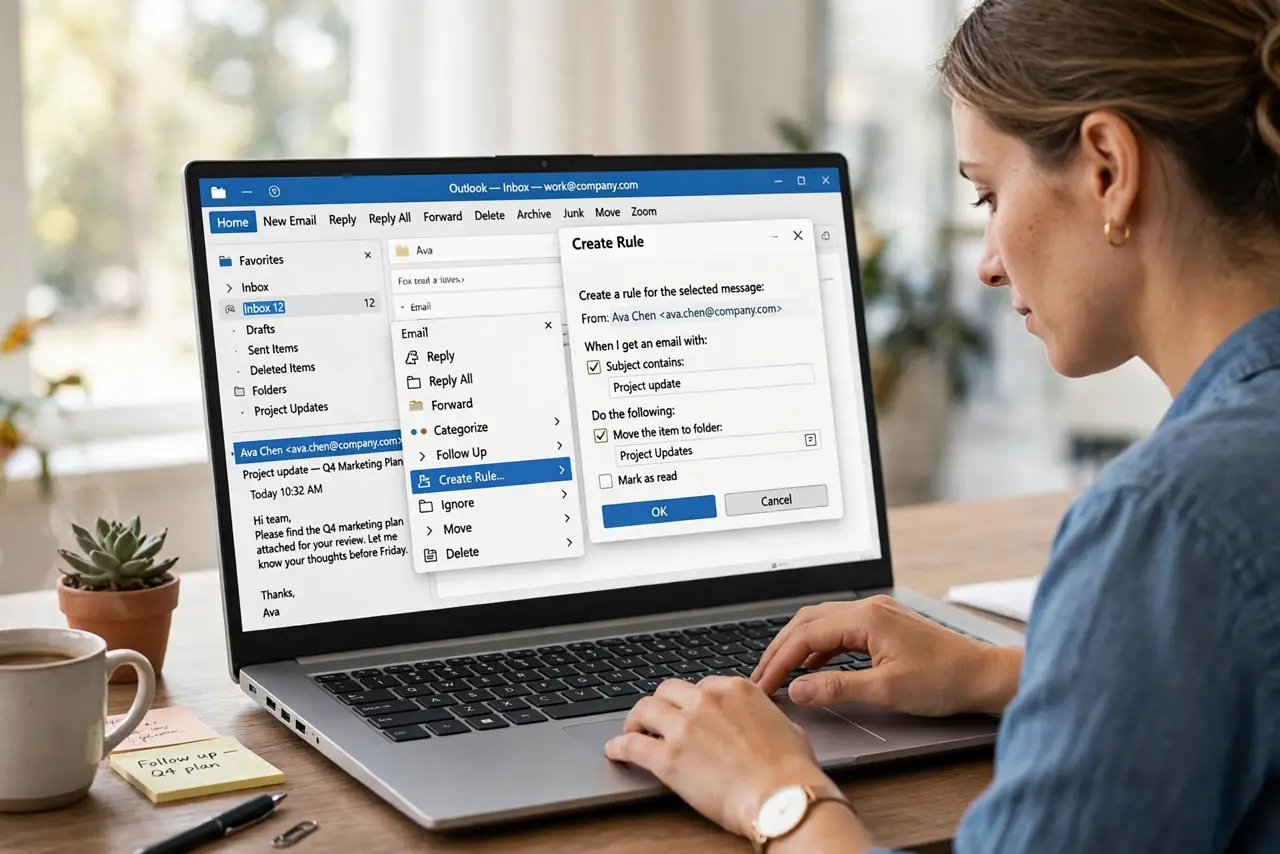
- Create a rule from an existing message. Right-click any message, choose Rules, then Create Rule. Outlook pre-fills the conditions from that message — sender, subject words — so you don't start from a blank form.
- Pick one clear condition. The best rules trigger on one obvious thing: the sender's address or a subject keyword. Overly clever conditions misfire — keep it simple and predictable.
- Choose the action. Move to a folder is the classic, but rules can also flag, categorize, mark as read, or forward. For newsletters, move plus mark-as-read keeps the inbox clean without losing anything.
- Run it on existing mail. Check the option to run the rule on messages already in the folder when creating it. This tests the rule immediately — if it grabs the wrong messages, you see it now, not in three weeks.
- Order matters for multiple rules. Outlook runs rules top to bottom, and a message can match several. Put specific rules above general ones, and use the stop-processing option when a message should only match one.
- Review rules a few times a year. Old rules rot — the newsletter you unsubscribed from, the project that ended. A quick rules audit every few months keeps the automation helping instead of hiding things.
What NOT to do
- Do not auto-delete with a rule unless you're certain. Filing to a folder is reversible; deletion isn't. A misfiring delete rule can silently eat important mail for months.
- Do not build rules on vague subject words. A rule matching 'report' will catch half your inbox — use the sender address or exact phrases instead.
- Do not forward work mail to a personal address with a rule. That can violate company policy and leak sensitive data — check your IT policy first.
- Do not create dozens of rules at once. Start with two or three, live with them a week, then expand — a rule explosion is harder to debug than no rules.
Frequently asked questions
Why isn't my rule working?
The usual causes: the rule is disabled, conditions are too narrow, or another rule above it grabs the message first. Open Rules settings, check the order, and use the run-rules-now option to test it on demand.
Can rules work on the Outlook phone app?
Rules run on the server, so they apply no matter which device you read mail on. You just can't create or edit most rules from the phone app — use the desktop or web version for that.
What's the difference between a rule and a Quick Step?
Rules run automatically on incoming mail; Quick Steps are one-click actions you trigger manually. Use rules for automatic sorting and Quick Steps for repetitive triage you do by hand.