Outlook Safe Mode? How To
Outlook crashes on launch, freezes constantly, or crawls — and you have no idea whether it is Outlook itself or something bolted onto it. Safe Mode is Outlook's diagnostic start: it launches with add-ins disabled and default settings, so if the problem vanishes, you know an add-in or customization caused it. It changes nothing permanently. Here is how to use it.
TL;DR / Quick Fix
Quick fix: Outlook Safe Mode starts Outlook with add-ins disabled and default settings, showing whether an add-in causes crashes or slowness. Hold Ctrl while launching Outlook, or run outlook.exe /safe. If it works in Safe Mode, disable add-ins one by one to find the culprit.
Follow these steps
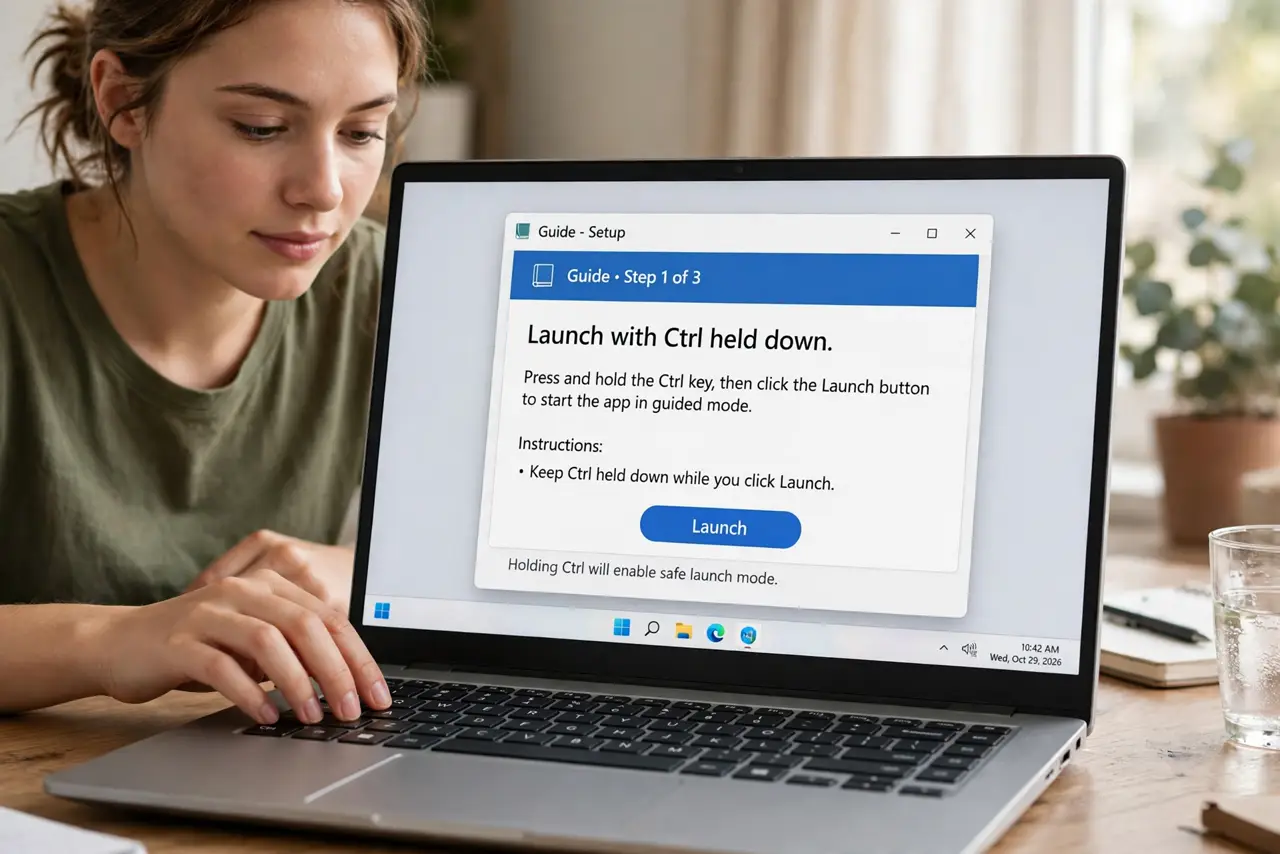
- Launch with Ctrl held down. Hold the Ctrl key, then start Outlook. Confirm the Safe Mode prompt — Outlook opens with a plain look and no add-ins.
- Or use the run command. Press Windows + R, type outlook.exe /safe, and press Enter. Same result, useful when Outlook will not start normally at all.
- Test the problem behavior. Do whatever was crashing or freezing. If it works fine now, an add-in or custom setting is the cause — Outlook itself is healthy.
- Hunt the bad add-in next. Close Safe Mode and open File > Options > Add-ins. Disable them one at a time, restarting normally each time, until the problem returns — the last one re-enabled is guilty. See Add-ins Slowing Outlook for the full routine.
- Know Safe Mode changes nothing. It does not delete mail, settings, or accounts. It is a temporary diagnostic start, not a reset.
- Return to normal use. Just close Outlook and reopen it normally. If the culprit add-in stays disabled, normal mode should behave like Safe Mode did.
What NOT to do
- Do not keep using Safe Mode as your daily Outlook. It disables features you probably want — fix the add-in instead.
- Do not disable ALL add-ins permanently in a panic. Find the one bad actor; the rest may be genuinely useful.
- Do not assume Safe Mode fixes the underlying issue. It only diagnoses — the fix is removing or updating the offending add-in.
- Do not confuse Outlook Safe Mode with Windows Safe Mode. This is Outlook-only; Windows runs completely normally.
Frequently asked questions
Will Safe Mode delete my emails or settings?
No. It temporarily skips add-ins and customizations for that session only. Everything is exactly as you left it afterward.
Outlook works in Safe Mode but crashes normally — now what?
An add-in is almost certainly the cause. Disable them one by one as described in step 4 until normal mode is stable.
Can I make a Safe Mode shortcut?
Yes — create a shortcut with the target outlook.exe /safe. Handy if you need the diagnostic start often while troubleshooting.