Scheduling Assistant? Basics
The Scheduling Assistant is Outlook free and busy grid — the tool behind find a time everyone is free. It deserves its own tour: reading the bars, using AutoPick, and handling the tricky cases like tentative blocks and time zones.
TL;DR / Quick Fix
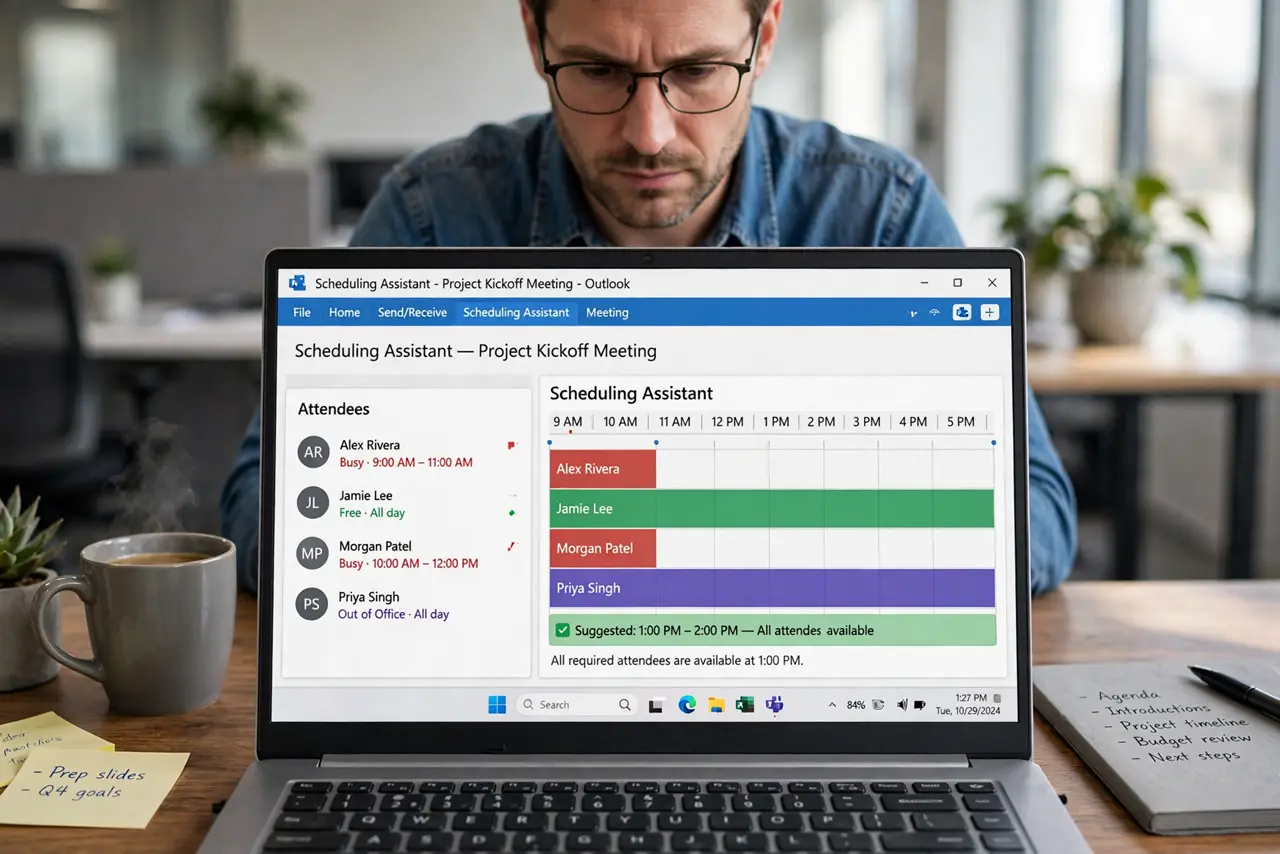
Quick fix: in a meeting invite open the Scheduling Assistant tab — each row is an attendee, white means free, solid bars mean busy. Use AutoPick to jump to the next free slot. Striped bars are tentative: ask before booking over them. The grid only knows what calendars say.
Follow these steps
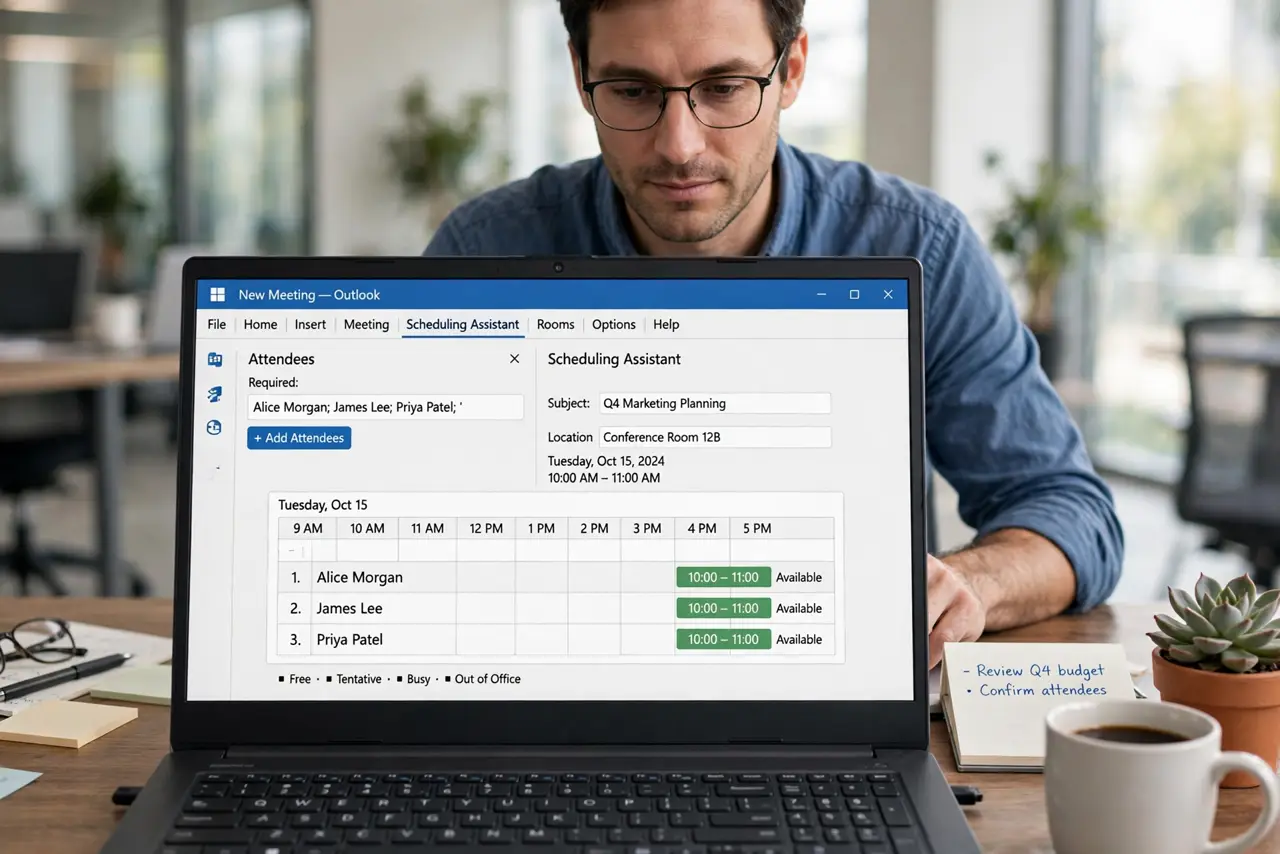
- Open it on the invite. New meeting > Scheduling Assistant tab. Add attendees first — the grid is empty without them.
- Read each row. One row per attendee, one column per time block. White is free, solid is busy, striped is tentative or out-of-office.
- Use AutoPick. Click AutoPick — or Suggested times — to jump to the next slot where everyone is free. It respects working hours and the meeting length.
- Drag to adjust. Click and drag the meeting block to a better slot, or drag its edges to change length. The grid updates live.
- Handle tentative blocks. Striped means maybe — message the person before claiming it. Booking over tentative without asking is how conflicts are born.
- Check the time zone strip. When attendees span zones, the time zone ruler keeps you honest. A 4 p.m. slot for you might be dinner for them.
What NOT to do
- Do not trust the grid blindly. It shows calendar truth, not real truth — people forget to block focus time.
- Do not book over out-of-office stripes. That is a vacation, not an opening.
- Do not add the whole company to see availability. Every row slows the grid and annoys the invited.
- Do not skip the body text. The grid picks the time; the agenda tells people why.
Frequently asked questions
Why is someone row blank or hatched?
They share no free or busy detail, or the data has not synced. Ask them to check their sharing settings.
Does AutoPick consider travel time?
No — it sees calendar blocks only. Pad the meeting yourself if someone needs transit between rooms.
Can external guests use the Scheduling Assistant?
You see their free or busy only if their organization shares it. Otherwise, propose times and let them pick.