Sweep Newsletters Away
Your inbox drowns in newsletters and promos you never read — and unsubscribing one by one takes forever. Outlook's Sweep deletes all mail from a sender at once and can keep deleting future ones automatically. One sweep per noisy sender, and the promo pile-up ends without the unsubscribe marathon.
TL;DR / Quick Fix
Quick fix: in Outlook, select a promo email, choose Sweep, and pick 'delete all from this sender' — optionally blocking future mail too. Do one sweep per noisy sender. For senders you like but get too much of, choose 'keep only the latest' instead.
Follow these steps
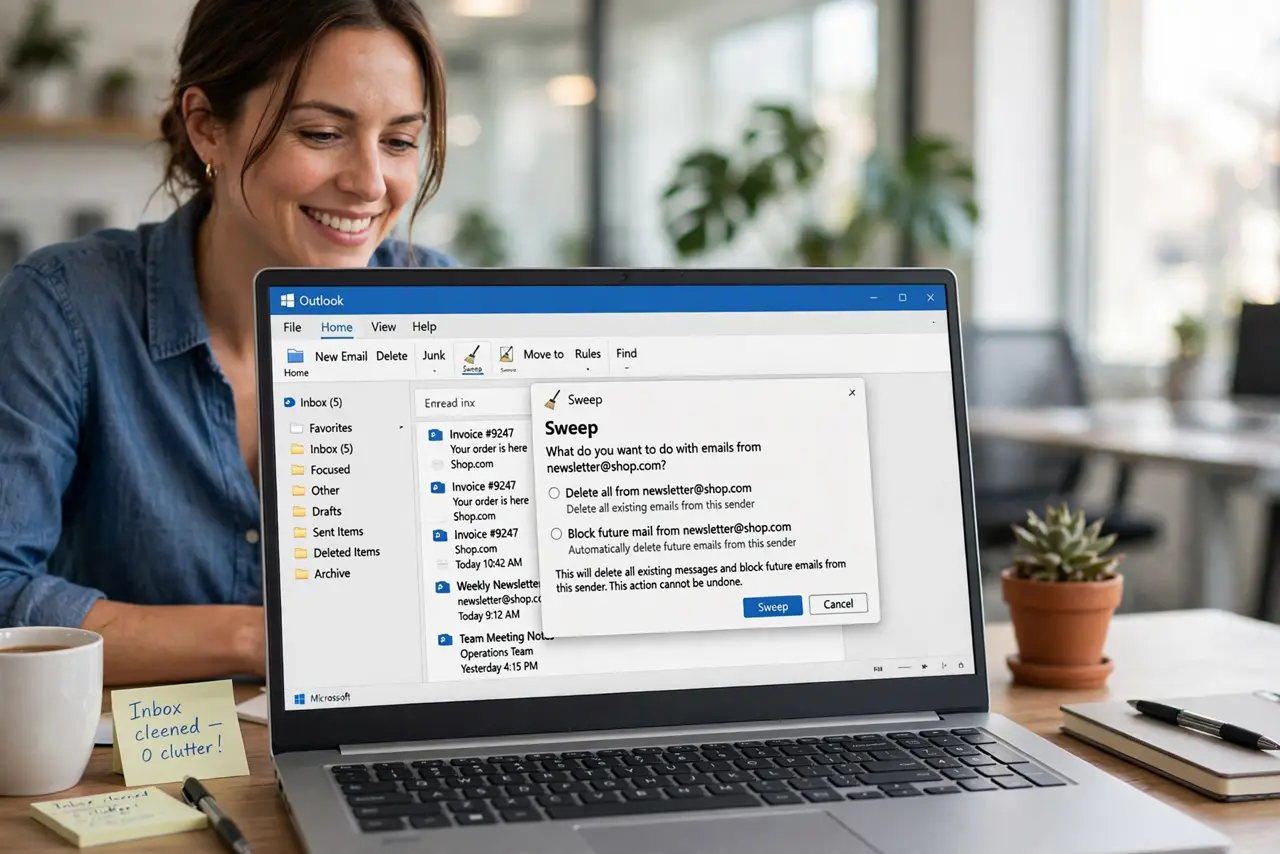
- Select the offender. Click any email from the noisy sender — the newsletter you never open, the daily promo. One example is all Sweep needs.
- Open Sweep. In the toolbar, choose Sweep (sometimes under the three-dot menu). The dialog offers choices about this sender's mail — past, present, and future.
- Choose your sweep level. Delete all from sender for pure noise. Keep only the latest for senders you like but over-receive. Block future mail for the truly relentless — the nuclear option.
- Apply and watch. Confirm, and Outlook clears the backlog instantly — hundreds of emails gone in seconds. Future mail follows the rule you set automatically.
- Repeat per sender. One sweep per noisy sender, maybe five minutes total for the worst offenders. The inbox transforms faster than any other single action.
- Unsubscribe the survivors. For senders you actually want occasionally, use the real unsubscribe link instead. Sweep handles the noise; unsubscribing handles the relationship.
What NOT to do
- Do not sweep a sender you might need. 'Delete all from sender' is thorough — check it is really just promos before confirming.
- Do not use Sweep for important mail. Sweep is for noise; misapplied to real correspondence it is automated destruction.
- Do not forget the 'keep latest' option. For over-frequent but useful senders, keeping the newest is smarter than blocking all.
- Do not skip the unsubscribe for keepers. Sweep manages volume; only unsubscribing ends the relationship cleanly.
Frequently asked questions
Where do swept emails go?
To Deleted Items, where they sit until the folder empties. A mistaken sweep is recoverable — check there first.
Can I undo a sweep?
Yes, within the Deleted Items window — restore the emails, then be more careful with the sender choice.
Does Sweep work on the web too?
Yes — Outlook on the web has the same Sweep option, and rules sync across devices on Microsoft 365 accounts.