Organize with PARA
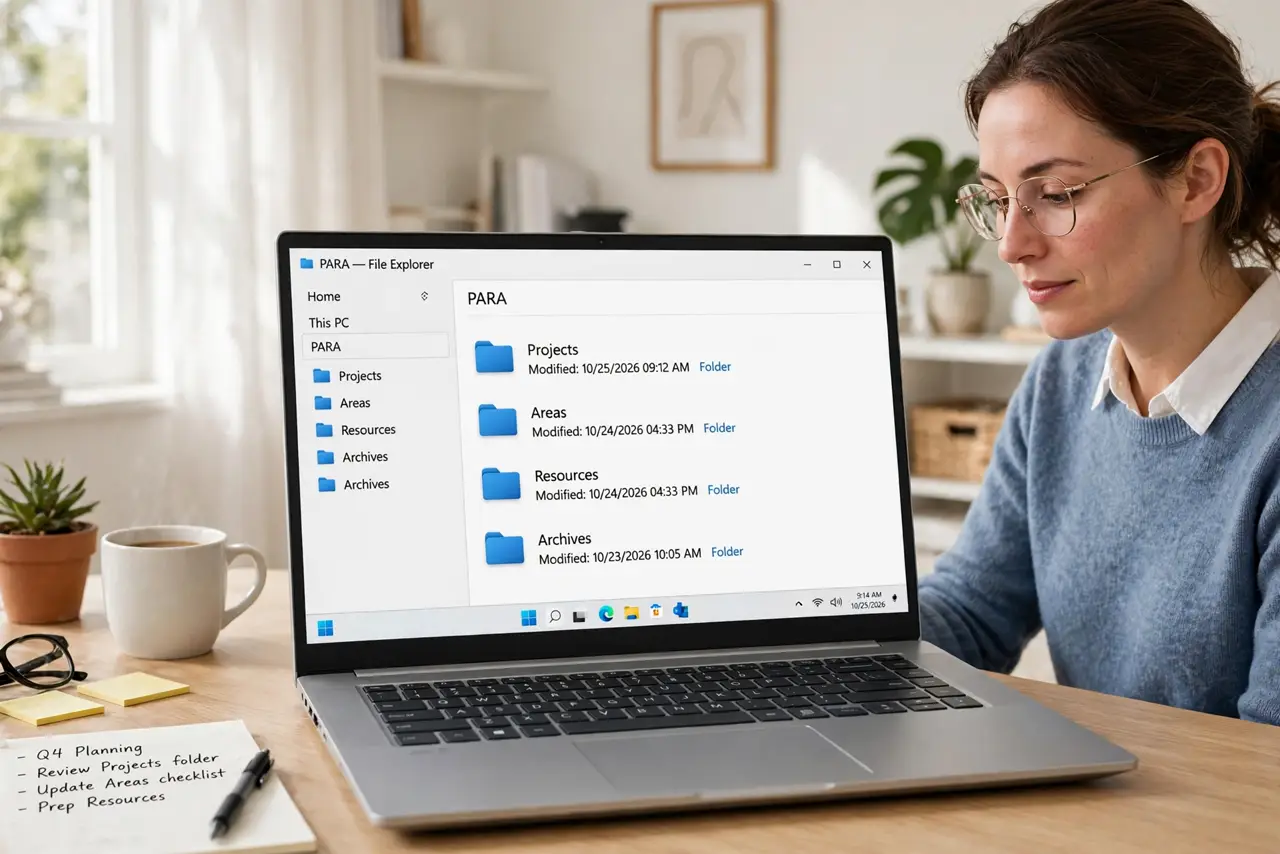
Your files and notes are scattered across desktops, downloads, and five apps — organized by topic in folders you never open, so everything is technically filed and practically lost. PARA, from Tiago Forte's Building a Second Brain, sorts by actionability instead: Projects (active, with a goal), Areas (ongoing responsibilities), Resources (reference), Archives (inactive). Four buckets, organized by what things do for you, not what they are about.
TL;DR / Quick Fix
Quick fix: PARA sorts everything into four buckets — Projects (active, with deadlines), Areas (ongoing responsibilities), Resources (reference material), and Archives (inactive). File by actionability, not topic. Start by listing your active projects; everything else falls into place. Review weekly and archive finished projects promptly.
Follow these steps
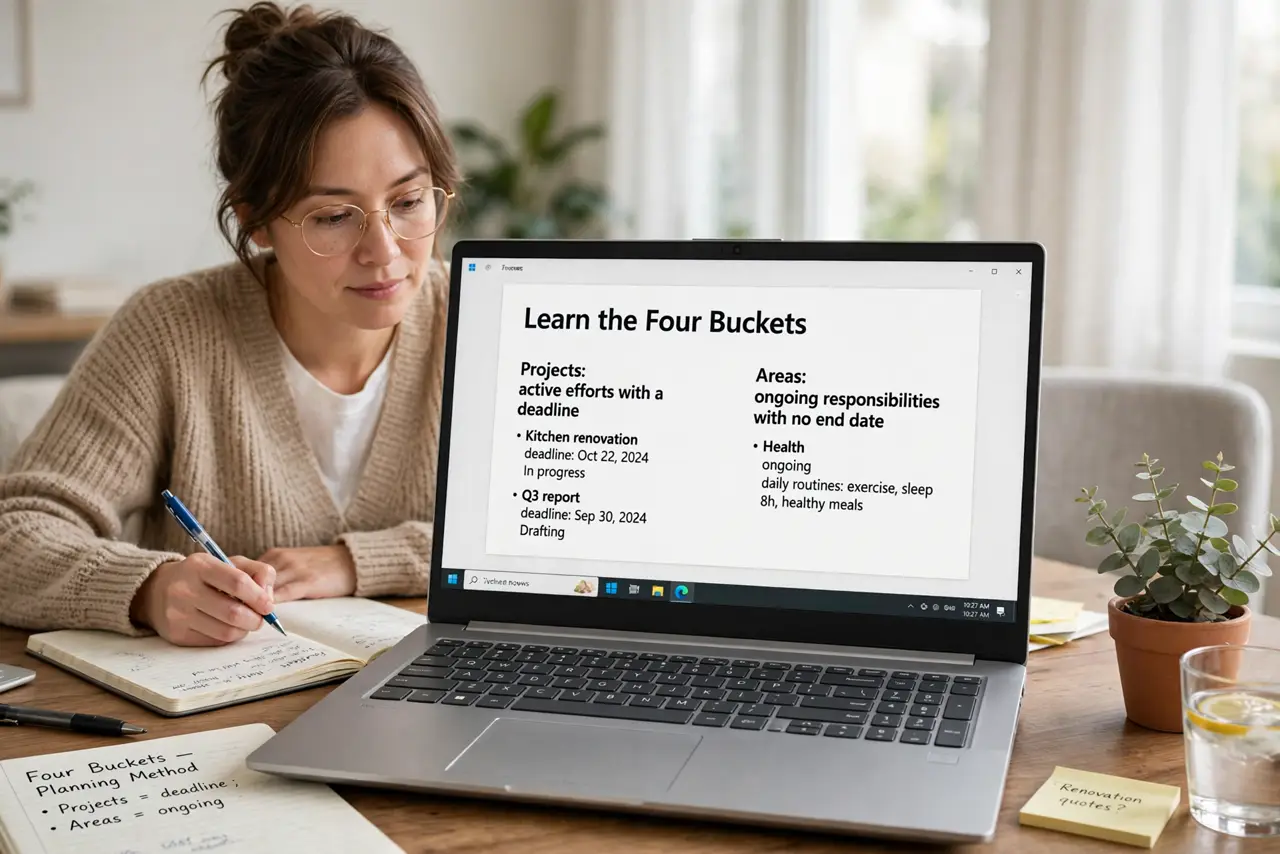
- Learn the four buckets. Projects: active efforts with a deadline — the kitchen renovation, the Q3 report. Areas: ongoing responsibilities with no end date — health, finances, home. Resources: reference material you might need — articles, templates, research. Archives: everything inactive, kept just in case.
- List your active projects first. Write down every current project — usually 5 to 15. These become your Projects folders, and they are the organizing center: everything else exists to serve them. No project list, no PARA.
- File everything else by actionability. For each file or note ask: does it serve an active project? An ongoing area? Might I reference it? Or is it done? The answer picks the bucket — one question, four answers, no agonizing.
- Keep projects few and current. A project ends → its folder moves to Archives, complete. A new project starts → new folder. Stale projects are the rot: review monthly and archive the finished, the abandoned, and the someday-maybe.
- Let resources grow wild. Resources is the only bucket allowed to sprawl — it is a library, not a to-do list. Organize it lightly (a few subfolders max); search handles the rest. Perfectionism belongs nowhere near Resources.
- Use it inside a bigger system. PARA is the organizing layer of a second brain — pair it with note-taking methods for capture and sorted note types for filing. Together they cover capture, organize, and retrieve.
What NOT to do
- Do not organize by topic. Fifty topic folders feel tidy and function as fifty junk drawers — actionability is the axis that stays useful.
- Do not keep dead projects in Projects. Finished or abandoned work in the active bucket trains you to ignore the whole system — archive ruthlessly.
- Do not over-organize Resources. A library needs rough order and good search, not a taxonomy — curation energy belongs in Projects.
- Do not create Areas for everything. Areas are ongoing responsibilities (health, money, home), not interests — hobbies without obligations live in Resources.
Frequently asked questions
How many projects is too many?
If the list exceeds about 15 active, you do not have projects — you have wishes. Demote the aspirational ones to Archives until they are real.
Does PARA work on paper?
The buckets work anywhere, but digital search makes Resources and Archives actually retrievable. Paper PARA suits minimalists with few files — most people should go digital.
What is the difference between Areas and Resources?
Areas are responsibilities you actively maintain (health, finances); Resources are material you consult (articles, references). If it needs your ongoing attention, it is an Area.