Recover a Lost Passkey
Your phone held your passkeys, and now the phone is gone — lost, stolen, or swimming. Panic is natural, but passkeys were designed with this scenario in mind: synced passkeys return with your account sign-in, and every site has an account recovery path. Here is the calm, ordered recovery.
TL;DR / Quick Fix
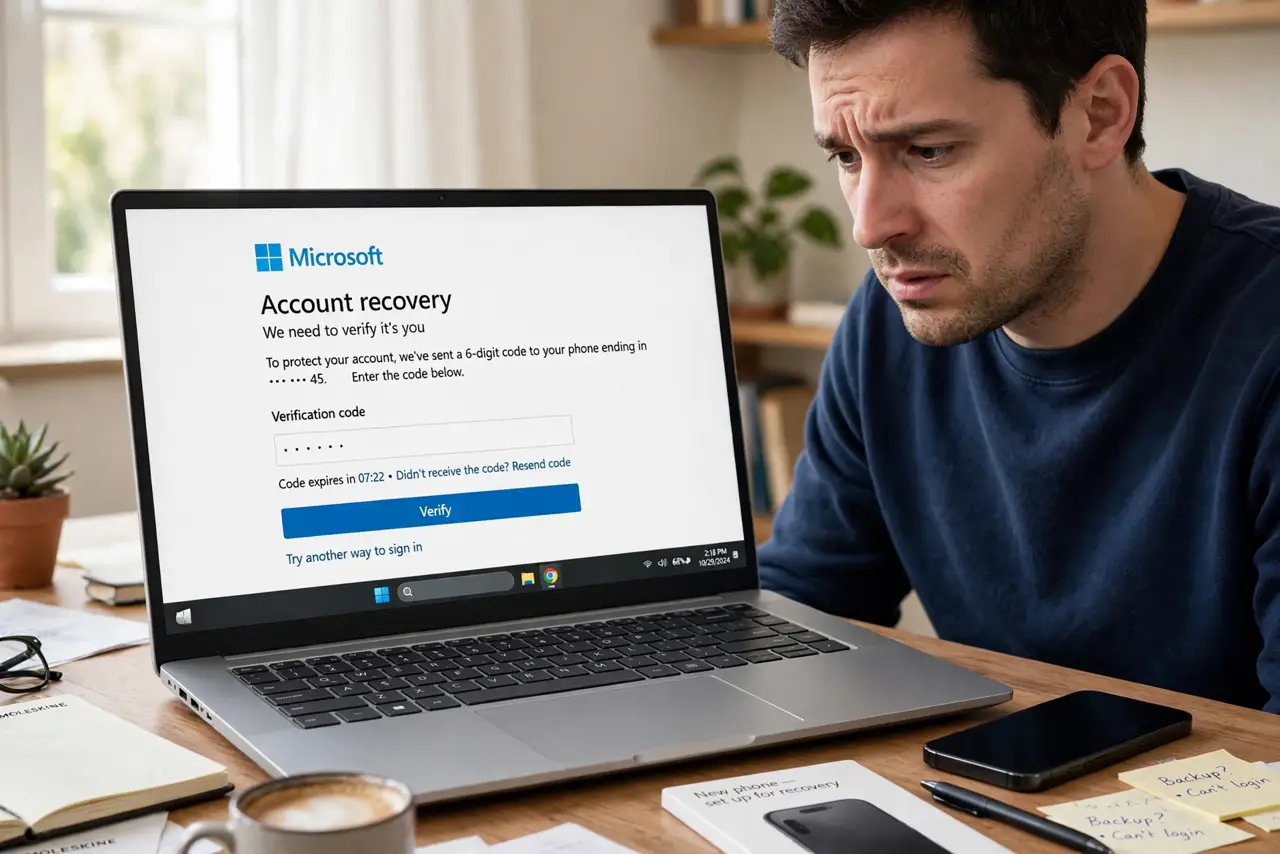
Losing the device that held your passkeys is recoverable: if passkeys synced through your Apple, Google, or password-manager account, signing in on a new device restores them. If device-bound, use each site's account recovery with backup codes. On a stolen device, remotely lock it fast.
Follow these steps
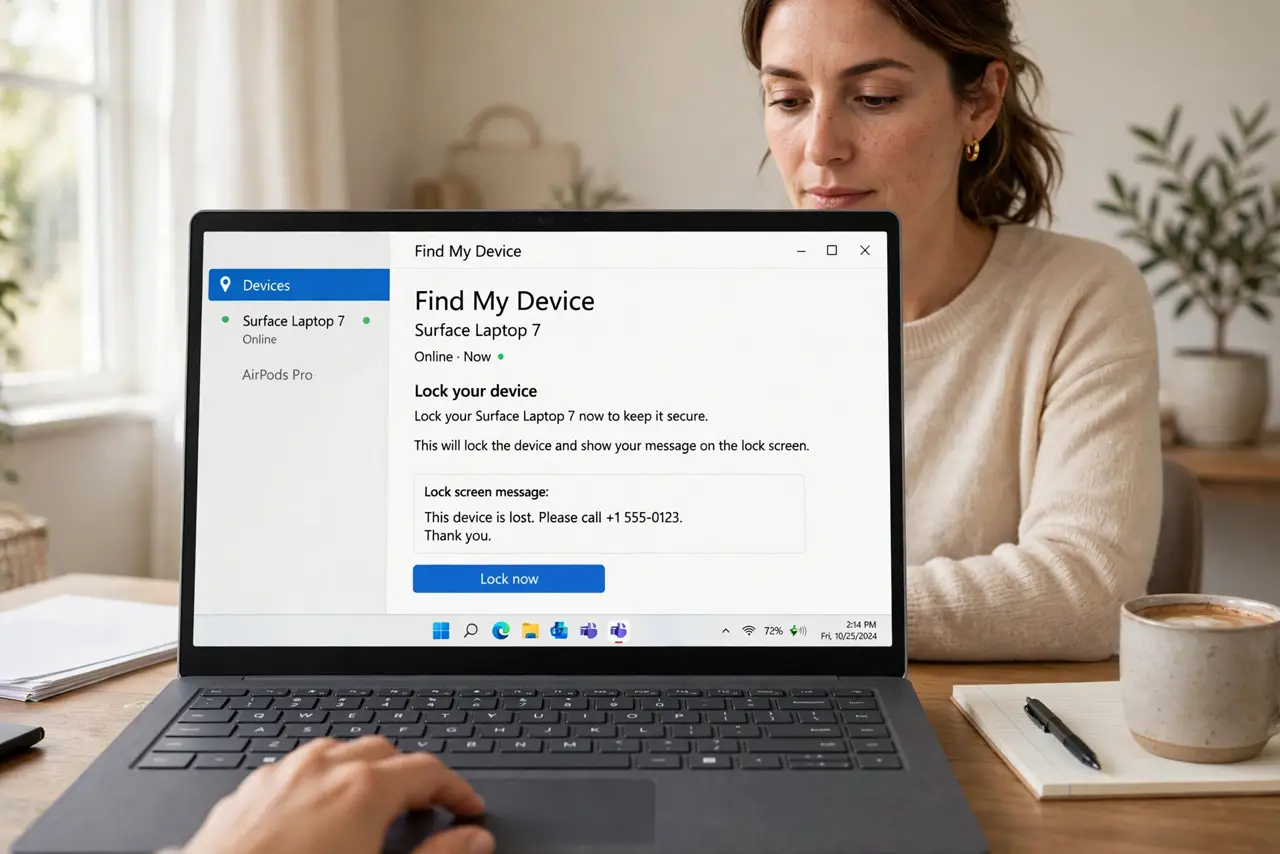
- Lock or erase the lost device remotely. Use Find My (Apple) or Find My Device (Google) to lock the device immediately. Your passkeys are protected by biometrics, but a locked device removes the whole question.
- Check whether your passkeys were synced. Passkeys in iCloud Keychain, Google Password Manager, or a password manager sync to your account. Sign into that account on a new device — synced passkeys reappear automatically.
- Recover device-bound passkeys per site. Passkeys stored only on the lost device (some security keys, some platform setups) cannot be restored. For each site, use account recovery: backup codes, email verification, or a second registered device.
- Use your saved backup codes. This is the moment backup codes earn their keep. Work through your important accounts — email first, since email unlocks recovery for everything else.
- Revoke sessions on the lost device. In each important account's security settings, sign out all other sessions. This cuts off the lost device even if someone bypasses the lock screen.
- Set up sync before the next scare. Once recovered, move passkeys into a synced manager and register a second device or security key. The passkey sync explainer shows how sync prevents a repeat.
What NOT to do
- Do not delay locking a stolen device. Every hour unlocked is an hour someone could attempt the lock screen — remote lock takes thirty seconds.
- Do not assume all passkeys sync. Device-bound passkeys die with the device; know which of yours are synced before disaster strikes.
- Do not skip email recovery. Your email account is the master key to most other recoveries — secure and recover it first.
- Do not store backup codes only on the lost phone. Codes live in a second location (printed, or in a manager accessible elsewhere) or they are useless when needed.
Frequently asked questions
Are my passkeys safe if someone has my phone?
Yes, practically — passkeys require your biometrics or PIN to use, and a remote lock or erase removes access. The risk is low, but act fast anyway.
What if I never set up sync or backup codes?
You fall back to each site's manual account recovery — usually email verification plus a waiting period. It works, but it is slow; set up sync afterward.
Should I delete the passkeys from the lost device?
After recovering on a new device, remove the lost device's passkeys from each account's security settings so the old device can never sign in again.