Use Passkeys on iPhone
Typing passwords on an iPhone is miserable — the tiny keyboard, the switching to symbols, the typos. Passkeys end it: you set one up once per site, and from then on you log in with Face ID or Touch ID. No typing, no remembering, nothing to phish. Here is how to create and use them on iPhone, step by step.
TL;DR / Quick Fix
Quick fix: on a site that offers passkeys, go to its security settings and choose to create a passkey — your iPhone saves it to iCloud Keychain. Next login, choose the passkey option and glance at the phone. Start with your email account; it unlocks password resets everywhere else.
Follow these steps
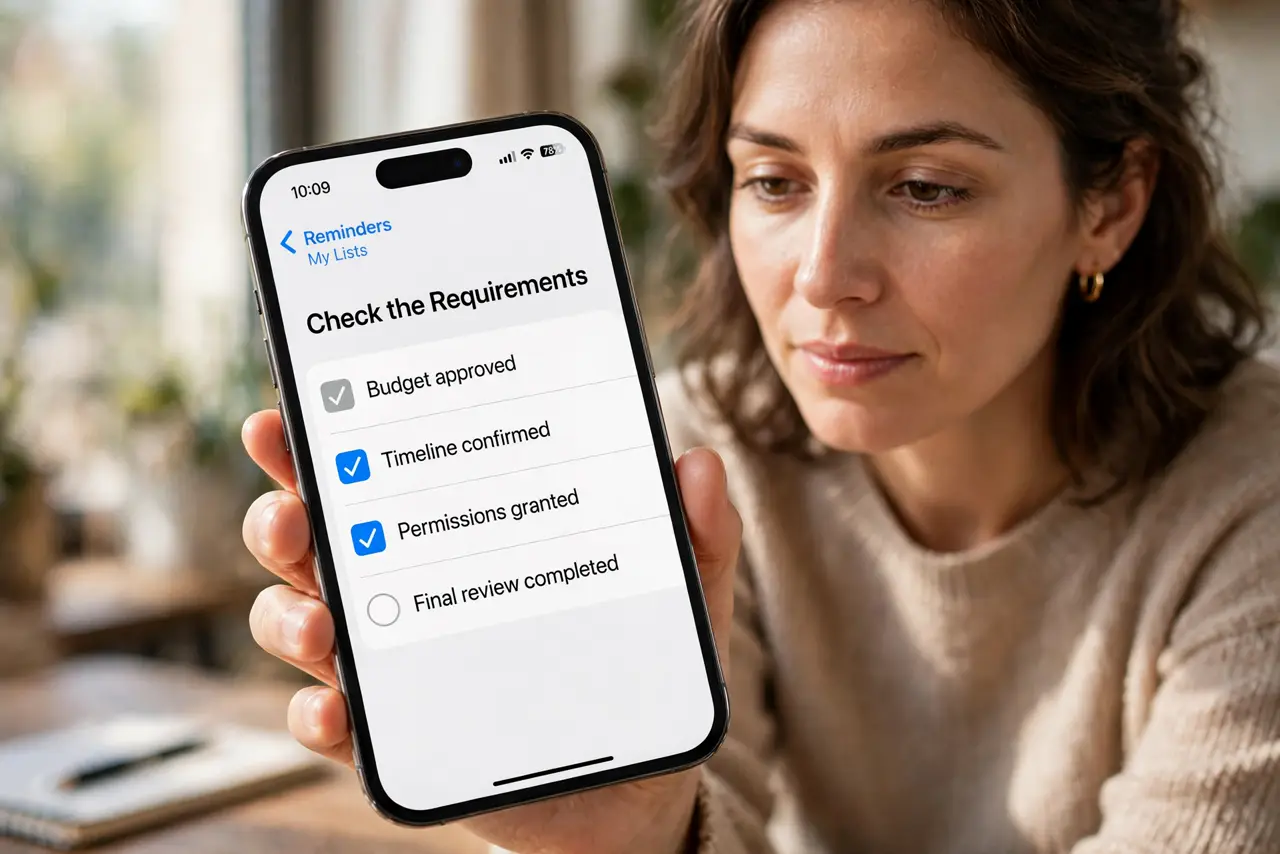
- Check the requirements. You need iOS 16 or later and iCloud Keychain turned on in Settings, then your name, then iCloud. Without Keychain syncing, passkeys stay stuck on one phone — the sync is what makes them practical.
- Find a site that supports passkeys. Go to the site's account security settings and look for Passkeys, Passwordless, or Sign in with a passkey. Big email providers, banks, and password managers increasingly offer it — the list grows monthly.
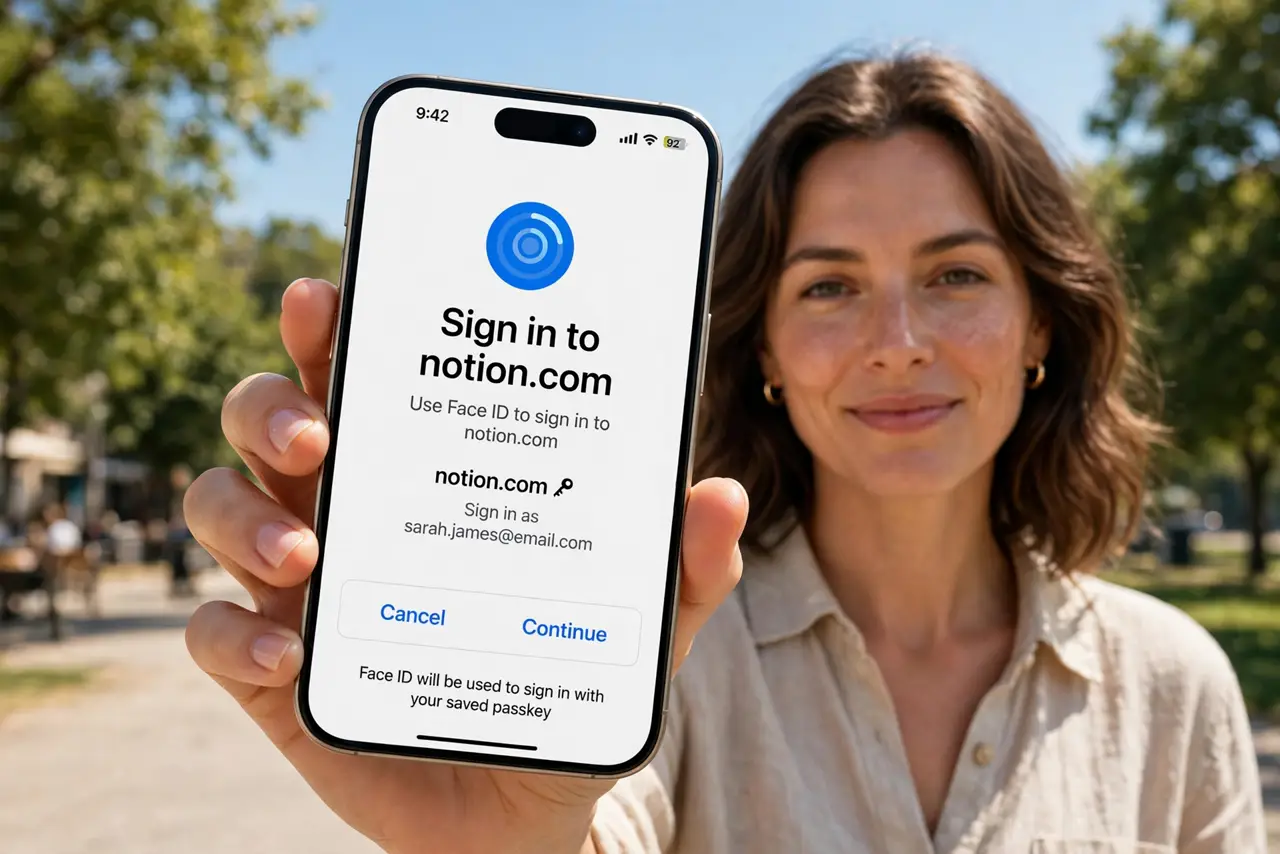
- Create the passkey. Choose the create option and confirm with Face ID or Touch ID. The iPhone generates the key pair, keeps the private key, and gives the site the public one. Ten seconds, no typing.
- Log in with it. Next visit, choose Sign in with passkey instead of typing a password. The phone prompts for Face ID, and you are in. Notice what is missing: no password field, nothing to intercept.
- Verify it synced. Check Settings, then Passwords, and confirm the passkey entry appears. If you have a second Apple device, check there too — synced passkeys mean a lost phone is an inconvenience, not a lockout.
- Keep a recovery path. For each important account, confirm the recovery options still work — a second device, printed codes, or the old password kept for now. See the lost-device recovery steps before you need them.
What NOT to do
- Do not delete your password the same day. Keep it until passkey logins work smoothly on every device you use.
- Do not create passkeys with iCloud Keychain off. They will be trapped on one phone with no sync and no backup.
- Do not use passkeys on someone else's iPhone. The key lives on that device — convenient for them, a lockout for you.
- Do not ignore the site's recovery settings. A passkey without a configured fallback is a future support ticket.
Frequently asked questions
Do passkeys work in apps or just Safari?
Both. Apps that support passkeys trigger the same system Face ID prompt — it is not limited to the browser.
What if Face ID fails?
The phone falls back to your device passcode. The passkey still works; only the unlock method changes.
Can I use my iPhone passkey to log in on a Windows PC?
Yes — the PC shows a QR code, you scan it with the iPhone, and confirm with Face ID. The key never leaves the phone.