Drivers After Building
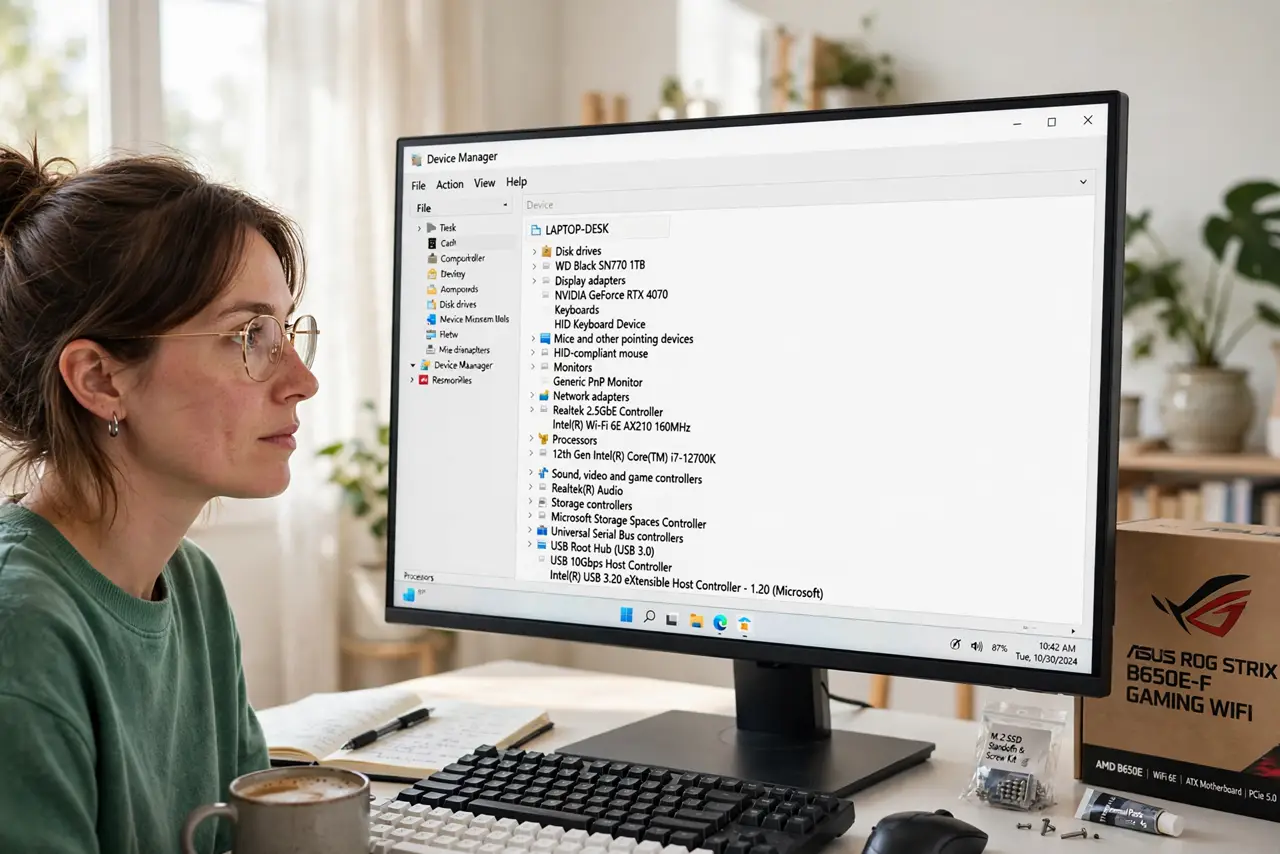
Windows is installed, the desktop glows, but the Wi-Fi does not work, the screen resolution is wrong, and something called 'Unknown Device' lurks in Device Manager. Welcome to driver installation — the final ten percent of the build that makes everything actually function. Do it in the right order from the right sources and it takes twenty minutes. Your BIOS settings got you here.
TL;DR / Quick Fix
Quick fix: after building, install the motherboard chipset drivers first, then graphics, network, and audio — from the makers' official sites, not random download portals. Check Device Manager for yellow warnings; each one is a driver still missing. Reboot after the chipset and graphics drivers, then verify everything works.
Follow these steps
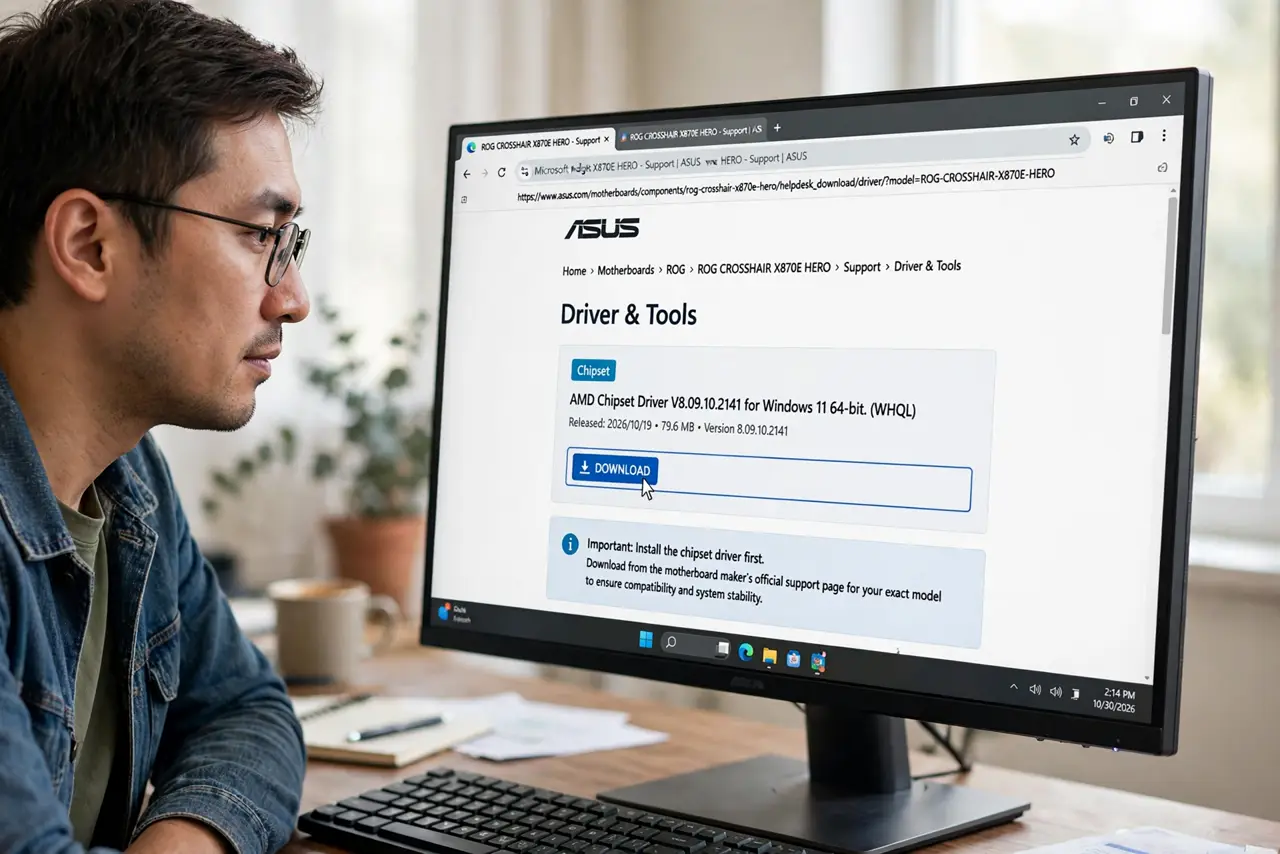
- Install the chipset driver first. From the motherboard maker's official support page for your exact model. The chipset driver lets Windows properly talk to the board — everything else builds on it.
- Install the graphics driver. From NVIDIA, AMD, or Intel directly — never from a random portal. The GPU maker's own driver is always the newest and safest.
- Install network drivers. Ethernet and Wi-Fi drivers from the motherboard or adapter maker. If Windows has no network yet, download these on another PC via USB.
- Install audio and remaining drivers. Audio, Bluetooth, and any extras from the motherboard page. Device Manager's yellow warning icons point at whatever is still missing.
- Run Windows Update. After the manual drivers, let Windows Update fetch the rest — it handles many peripherals automatically once the core drivers exist.
- Verify everything works. Test sound, network, USB ports, and the display resolution. A quick pass now beats discovering a dead port weeks later — then stress test the whole system.
What NOT to do
- Do not use driver-updater utilities. They bundle junkware and wrong drivers — manual installs from official pages are safer and free.
- Do not install drivers from random download sites. Repackaged drivers are a classic malware vector.
- Do not install every optional utility. Motherboard pages list RGB software and trials you do not need — drivers yes, bloat no.
- Do not skip the reboot between major drivers. Chipset then reboot, graphics then reboot — order and restarts prevent conflicts.
Frequently asked questions
What order do drivers go in?
Chipset, graphics, network, audio, then the rest. Windows Update finishes the job afterward.
Windows installed some drivers automatically — is that enough?
For basics, often yes. But the official chipset and graphics drivers are newer and better — install them manually.
What is the yellow warning in Device Manager?
A device Windows cannot identify — a missing driver. Right-click it for the hardware ID, then match it on the maker's site.