First BIOS Settings
The build posts, the fans spin, and the screen shows... the BIOS. Congratulations — your PC works. Now this blue-and-gray settings maze decides how fast your RAM runs, which drive boots first, and whether your fans scream or whisper. Three settings cover nearly everything a new build needs; the rest can wait. You earned this moment after the build checklist.
TL;DR / Quick Fix
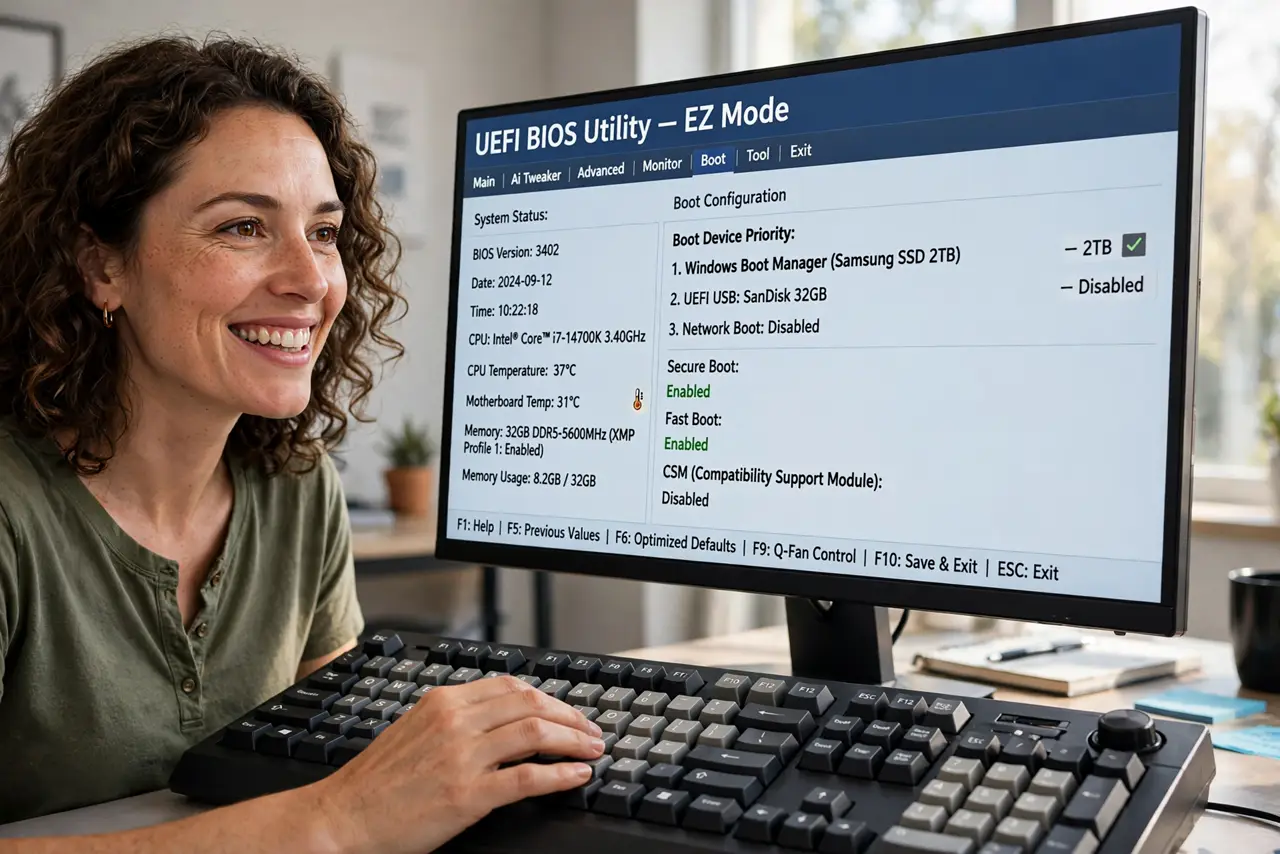
Quick fix: on first boot, enter the BIOS and enable XMP for your RAM speed, set the correct boot drive order, and check that all drives and fans are detected. Save and exit — three settings cover ninety percent of what a new build needs.
Follow these steps
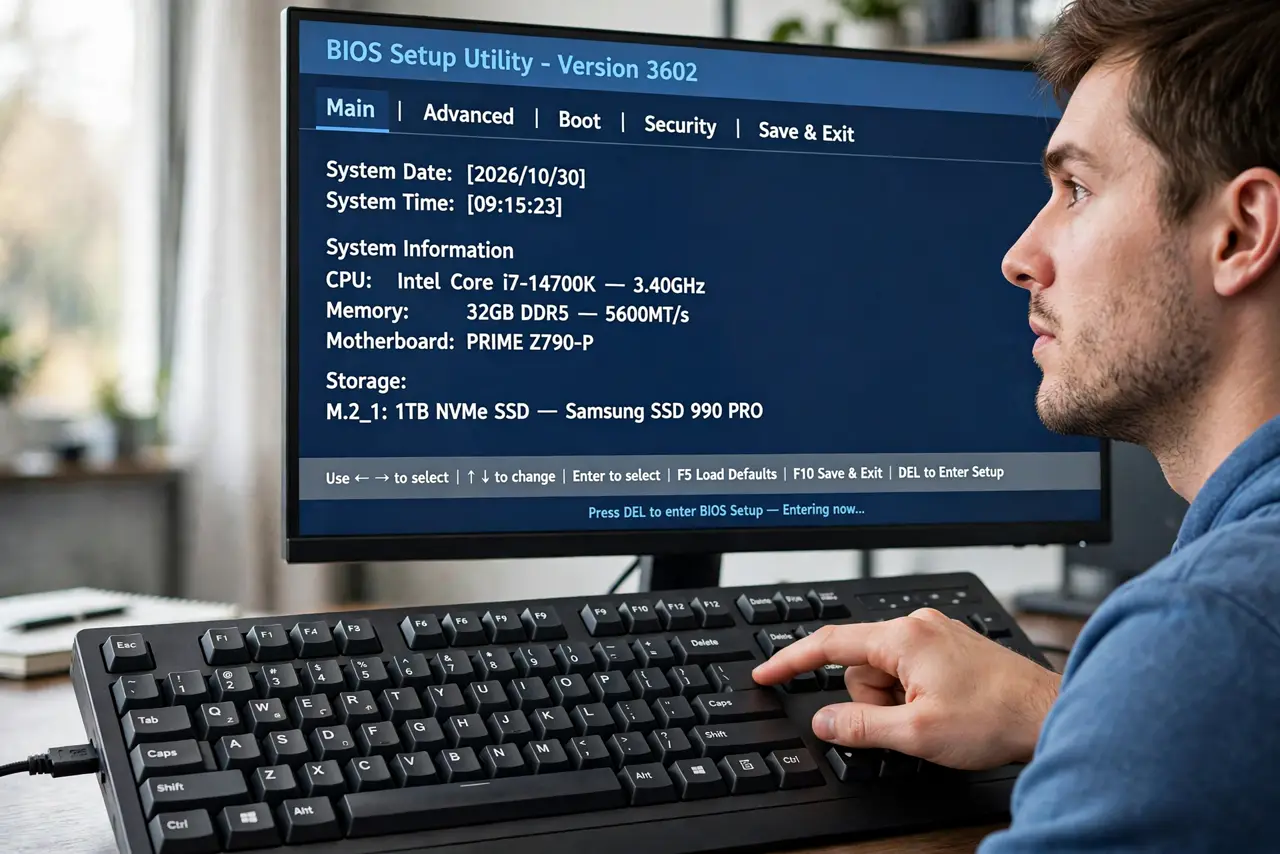
- Enter the BIOS. Press Delete or F2 repeatedly during boot — the screen usually names the key. If Windows starts instead, you were too slow; restart and try again.
- Enable XMP/EXPO for full RAM speed. RAM defaults to a slow safe speed until you enable its rated profile — called XMP on Intel boards, EXPO on AMD. One toggle, free performance you already paid for.
- Set the boot order. Put your Windows install USB first for now, then the SSD you will install to. Wrong boot order is why 'no bootable device' appears on healthy builds.
- Verify all drives appear. Check the storage section lists every SSD and hard drive you installed. A missing drive means a loose cable or a missed M.2 slot — fix it now.
- Check fan detection. The BIOS shows connected fans and their speeds. A fan showing zero RPM is unplugged or on the wrong header — the fan curve guide tunes them later.
- Save and exit. F10 usually saves and restarts. The BIOS keeps your settings — you will barely need to return until an upgrade.
What NOT to do
- Do not change settings you do not understand. The BIOS lets you break things that software cannot fix — stick to the three in this guide.
- Do not update the BIOS on day one 'just because.' If the build works, leave the firmware alone until you have a reason.
- Do not skip XMP. Running expensive RAM at half speed because the toggle stayed off is the most common free-performance loss.
- Do not panic at the unfamiliar interface. Every BIOS looks intimidating; the basics are the same everywhere.
Frequently asked questions
What is XMP and why does it matter?
It is the RAM's rated speed profile. Without it, your 3200MHz RAM runs at 2133MHz — you paid for speed you are not getting.
How do I get back into the BIOS later?
Restart and press Delete or F2 during boot, same as the first time. It is always available.
Should I set a BIOS password?
For a home PC, unnecessary. For shared or office machines, it prevents casual tampering — but a forgotten BIOS password is its own headache.