Stress-Test New Builds
The build boots, drivers are in, and everything looks perfect — but is it actually stable? A PC that crashes under load has a cooling problem, a power problem, or a seating problem, and you want to discover that today, not during a deadline render or a ranked match. An hour of deliberate stress testing now buys years of confidence. Run it after the driver installation.
TL;DR / Quick Fix
Quick fix: stress-test a new build with an hour of combined CPU and GPU load while watching temperatures — stable and cool means a solid build. Crashes or overheating on day one beat discovering them during important work. If it survives the hour, your build is ready for real life.
Follow these steps
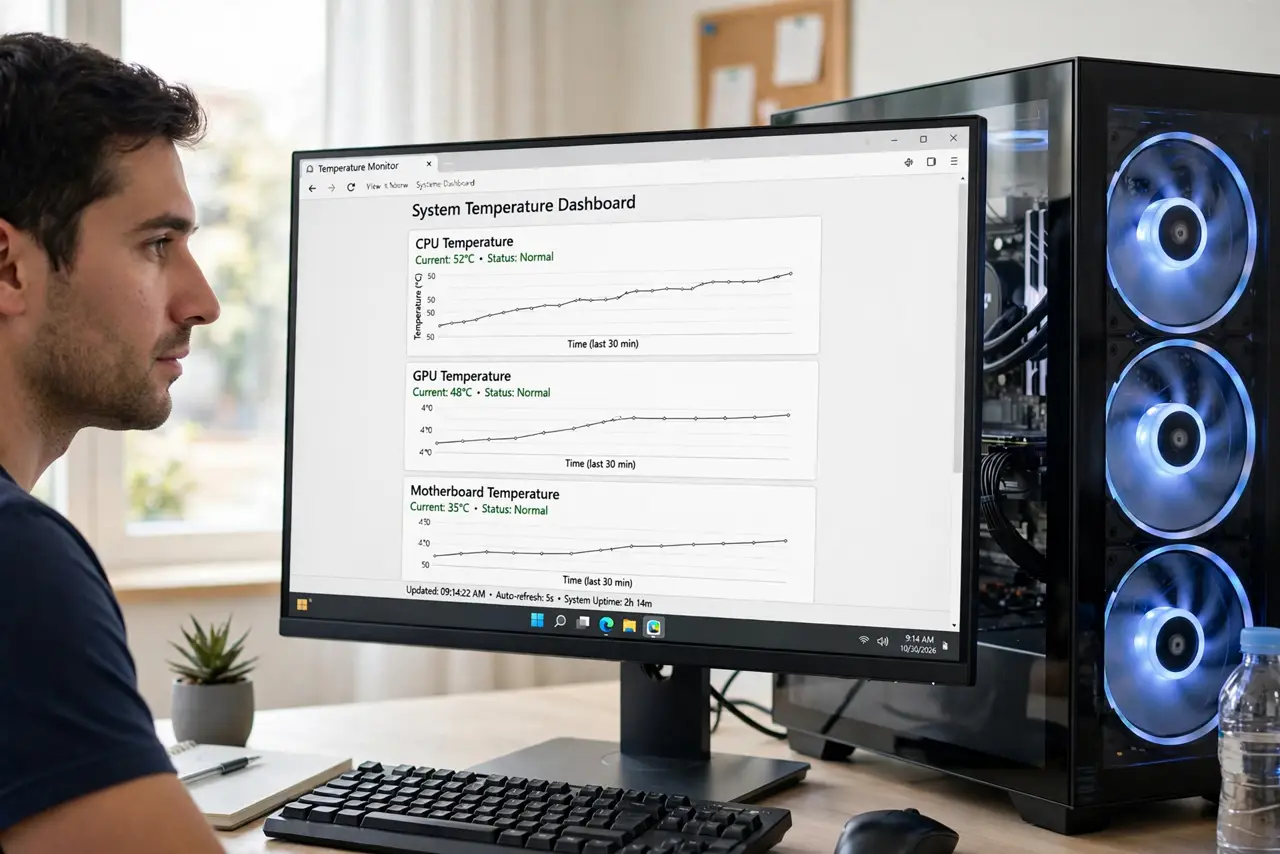
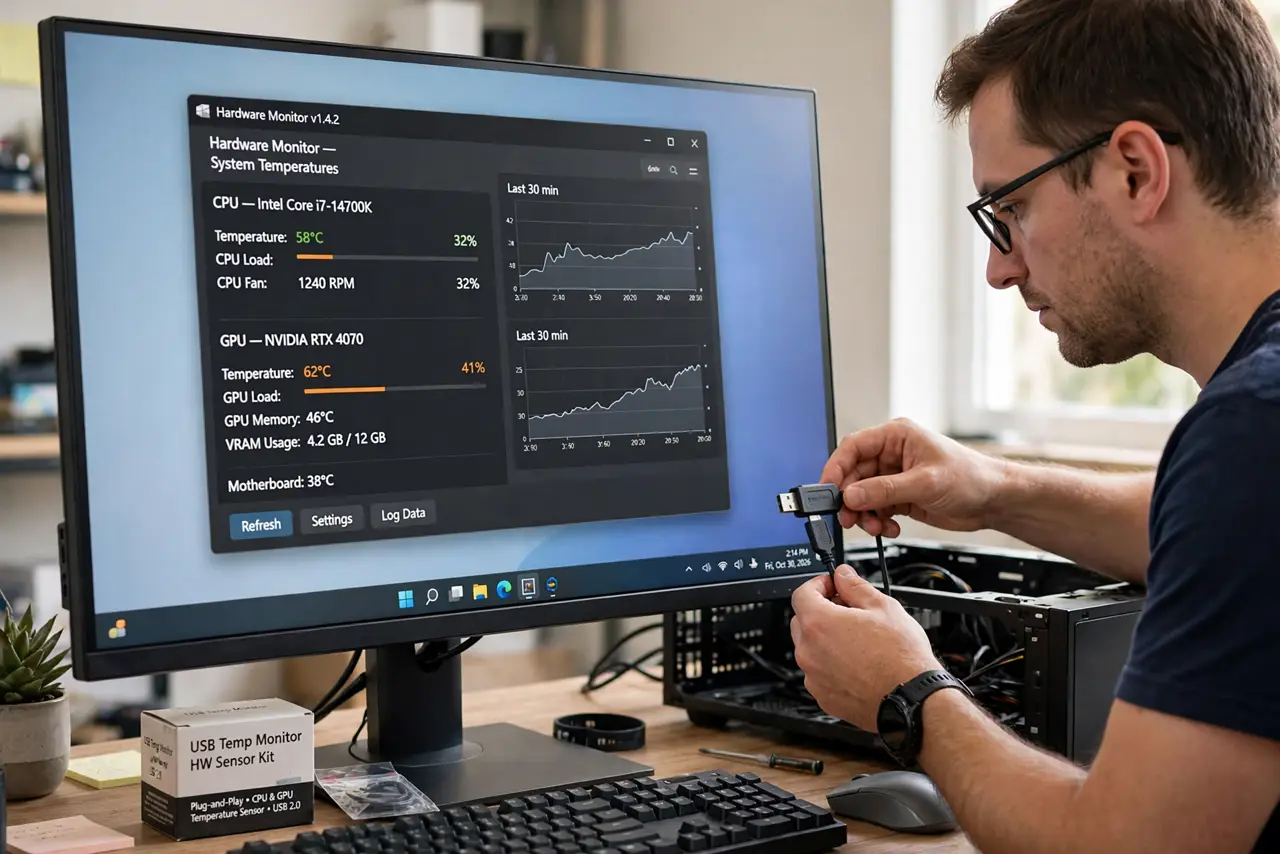
- Install a temperature monitor. A simple hardware monitoring tool showing CPU and GPU temperatures. You need to see the heat — guessing is not testing.
- Stress the CPU first. Run a CPU stress test for 20 to 30 minutes and watch temperatures. Modern CPUs throttle when hot; sustained extreme heat means a cooler mounting problem.
- Stress the GPU next. A graphics stress test or demanding benchmark for 20 to 30 minutes. Watch for artifacts, crashes, or fan behavior — GPUs reveal power issues fast.
- Run both together. Combined load is the real test — it stresses the power supply hardest. An hour of both is the gold standard for a new build.
- Know the temperature limits. Roughly: CPUs happy under 85C, GPUs under 83C during stress. Occasional spikes are fine; sustained high heat needs attention — recheck cooler mounting and fan curves.
- Listen and watch. Grinding fans, coil whine changes under load, random reboots — note everything odd. Day-one quirks are warranty issues, not character.
What NOT to do
- Do not stress test with the case closed and no airflow plan. Testing needs the real setup — panels on, fans as configured.
- Do not ignore crashes as 'probably fine.' A new build should not crash under load, ever — investigate, do not rationalize.
- Do not run stress tests on a laptop on a bed. Blocked vents turn any test into an overheating false alarm.
- Do not skip this because 'it feels fast.' Stability is invisible until it fails — the test makes it visible on your schedule.
Frequently asked questions
How long should I stress test?
An hour of combined CPU and GPU load is the practical standard. Longer tests find rarer issues but with diminishing returns.
What temperatures are dangerous?
Sustained CPU over 90C or GPU over 87C during stress deserves investigation — usually cooler mounting or airflow.
My PC crashed during the test — now what?
Note when and under what load, then check temperatures, reseat RAM and power cables, and test components individually. Day-one failures are what warranties are for.