Front Panel Connectors
The build is nearly done, and now you face the final boss: a fistful of tiny two-pin cables labeled in 4-point font, and a grid of pins on the motherboard with no obvious order. Front panel connectors — power button, reset, power LED, drive LED — are every first builder's least favorite five minutes. But they are just matching labels to a diagram, and this guide makes it painless. You have already survived the CPU power cable; this is easier.
TL;DR / Quick Fix
Quick fix: the front panel connectors are the tiny labeled pins for power button, reset, and case lights — match each cable's label to the motherboard diagram and they slide on easily. Take a phone photo of the diagram first so you are not squinting mid-build.
Follow these steps
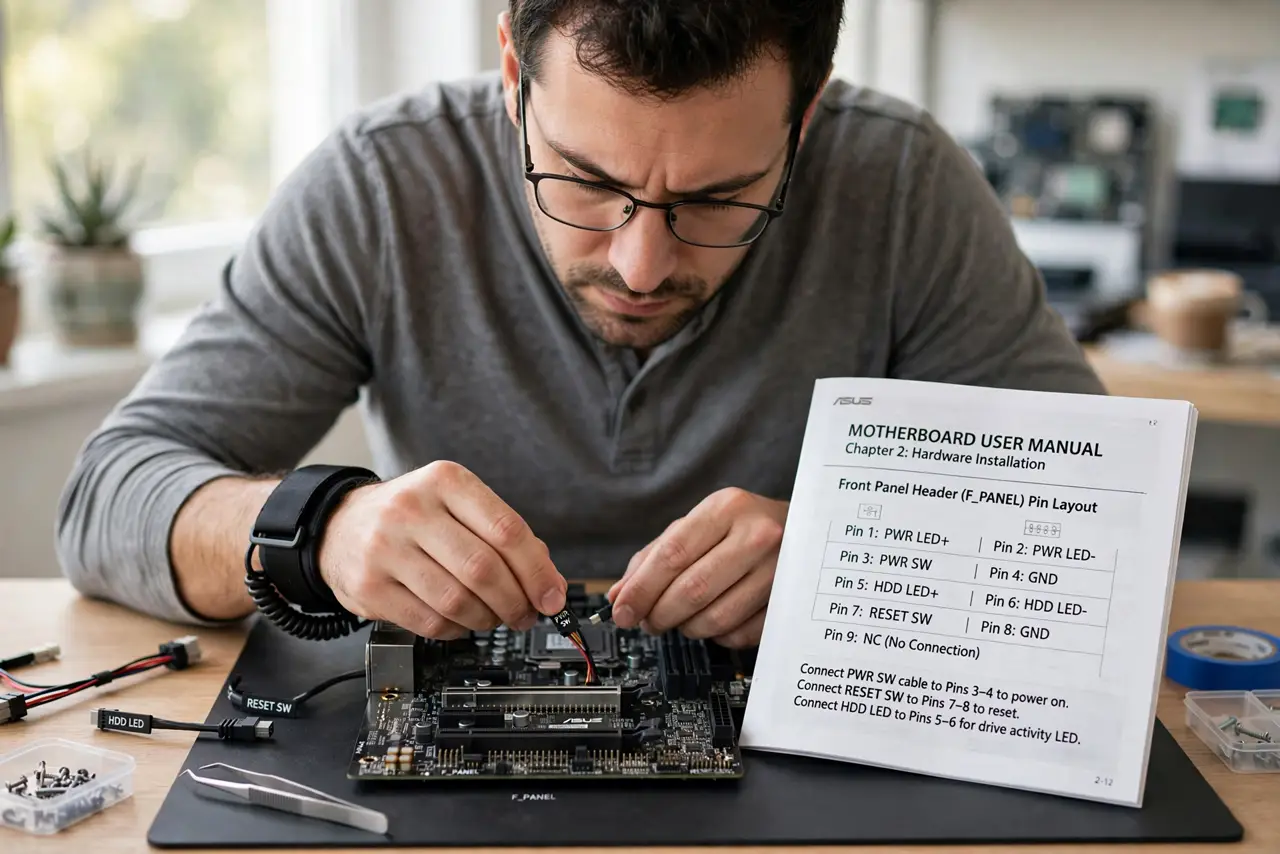
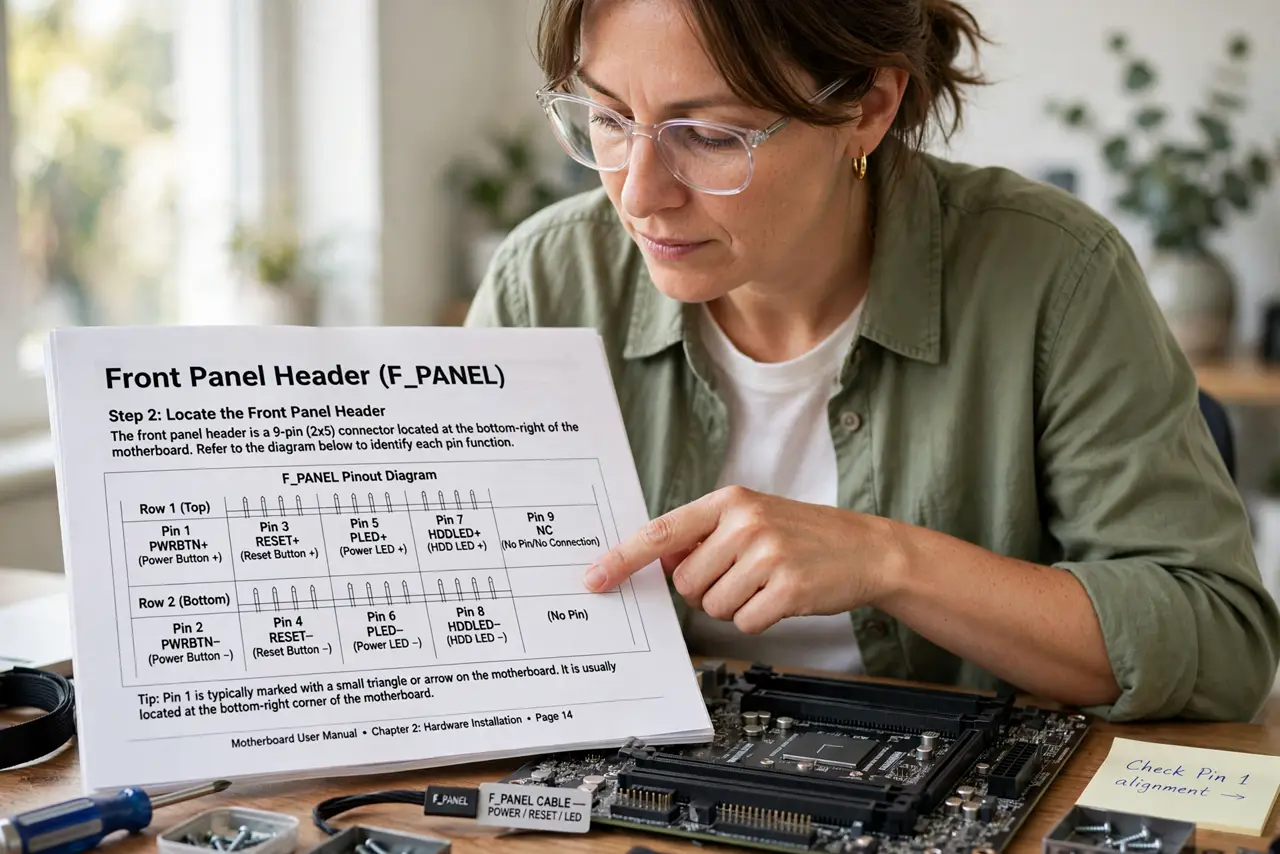
- Find the front panel header. It is a grid of small pins, usually bottom-right of the motherboard, labeled F_PANEL or similar. The manual shows its exact layout — find that page first.
- Photograph the diagram. Take a clear phone photo of the manual's pin diagram. Zooming on your phone beats squinting at tiny print while your hands shake.
- Identify each cable. Case cables come labeled: PWR_SW, RESET_SW, PWR_LED, HDD_LED. The labels are tiny — good lighting and the phone camera help.
- Match labels to pins. Power switch to the PWR pins, reset to RESET, LEDs to their marked pins. Switches work either orientation; LEDs need correct polarity — plus to plus.
- Slide them on gently. The connectors push straight down onto the pins. They are snug by design; gentle even pressure seats them without bending pins.
- Test before final assembly. Short the power pins or press the case button to verify it boots. Fixing a mislabeled connector now takes seconds — later takes disassembly.
What NOT to do
- Do not force connectors sideways. Bent pins are the main risk here — straight down, gentle pressure.
- Do not guess the LED polarity. Reversed LEDs simply do not light up; flip them rather than assuming they are broken.
- Do not skip the manual diagram. Every board lays these pins out differently — memory from another build will betray you.
- Do not connect with the PSU switched on. Power off at the supply before fiddling with any pins.
Frequently asked questions
Do the power and reset switches have polarity?
No — switches work either way round. Only the LEDs care about plus and minus.
My case has one combined block — is that normal?
Some cases ship a single pre-joined block that fits the standard layout. Lucky you — it only fits one way.
The power button does nothing — what did I miss?
Almost always the PWR_SW on the wrong pins. Recheck against the diagram photo — it is a two-minute fix.