Install Windows from USB
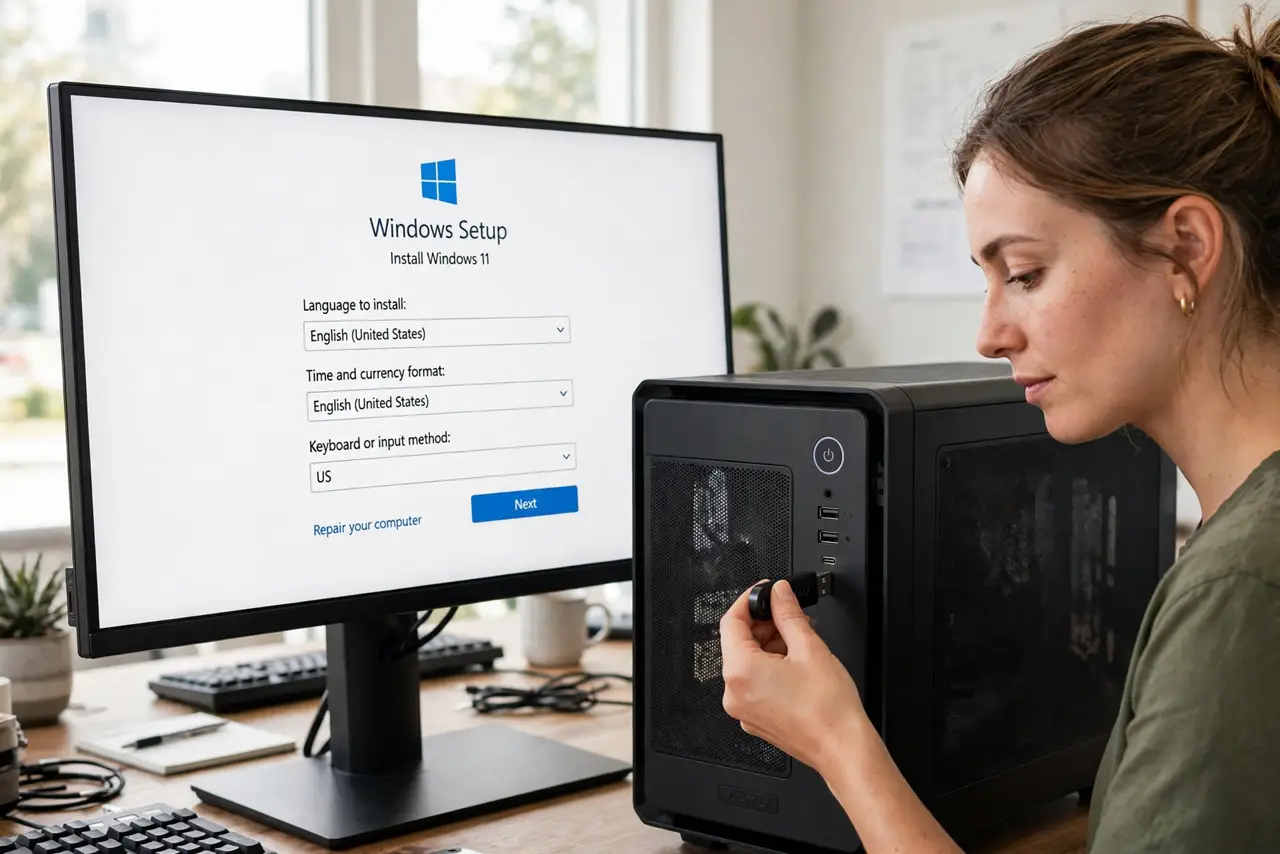
The build is assembled, the BIOS is configured, and now it needs an operating system — but modern cases do not even have DVD slots anymore. The USB install is the standard path: one flash drive, Microsoft's official creation tool on another PC, and about thirty minutes. No discs, no drama. Your BIOS should already be set per the first boot guide.
TL;DR / Quick Fix
Quick fix: create a Windows install USB with Microsoft's free Media Creation Tool on another PC, plug it into the new build, boot from it via the boot menu key, and follow the installer. No DVD drive needed — one 8GB USB stick does the whole job.
Follow these steps
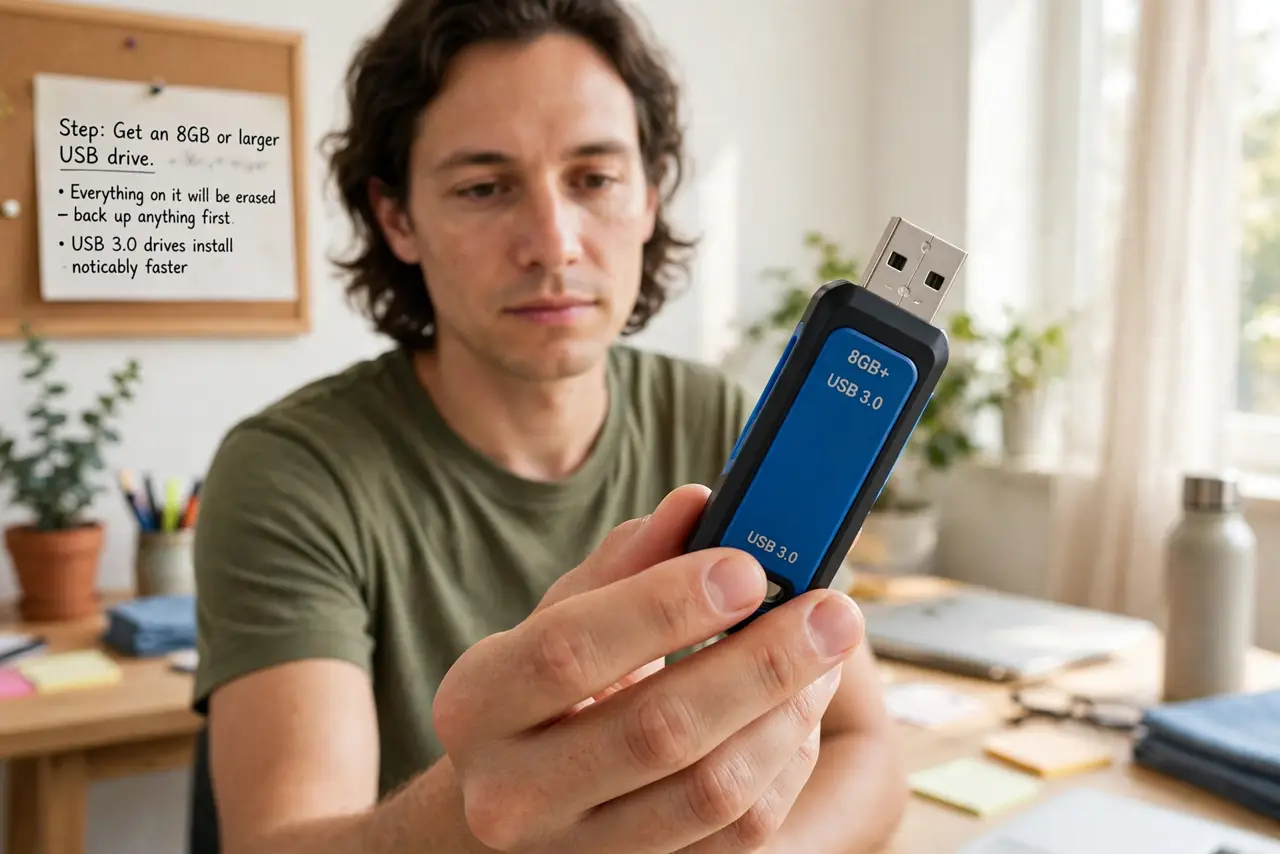
- Get an 8GB or larger USB drive. Everything on it will be erased, so back up anything on it first. USB 3.0 drives install noticeably faster.
- Create the installer on another PC. Microsoft's official Media Creation Tool builds the bootable USB in a guided process. Use the official Microsoft site — never a random download portal.
- Plug it into the new build. Use a rear motherboard USB port for reliability; front-panel ports occasionally glitch during installs.
- Boot from the USB. Restart and press the boot menu key (often F12, F8, or Esc — the BIOS screen names it). Select the USB drive from the list.
- Follow the installer. Choose language, click Install, pick the custom option, and select your SSD. The installer handles partitioning — accept its defaults unless you have a reason not to.
- Complete setup and update. Create your user, connect to the internet, and run Windows Update fully. Then install drivers — the driver guide is next.
What NOT to do
- Do not download Windows from unofficial sites. Modified installers carry malware — the official tool is free and safe.
- Do not unplug the USB mid-install. Interrupting the installer corrupts the process and you start over.
- Do not skip the product key panic. You can install and activate later — the installer lets you proceed without a key.
- Do not install to the wrong drive. Double-check the drive list if you have multiple disks — wiping the wrong one is permanent.
Frequently asked questions
Do I need a product key to install?
No — install first, activate later. Windows runs unactivated with minor limitations while you sort the license.
How long does the USB install take?
Typically 15 to 30 minutes on an SSD, plus updates afterward. Budget an hour total.
Can I reuse the USB drive afterward?
Yes — once Windows is installed, reformat the drive and it is a normal flash drive again.