Rotate Just One Page of a PDF
One page of a PDF lies sideways while the rest sit upright, and the rotate button wants to spin the whole document. The fix is to select only the sideways page in the thumbnail view before rotating.
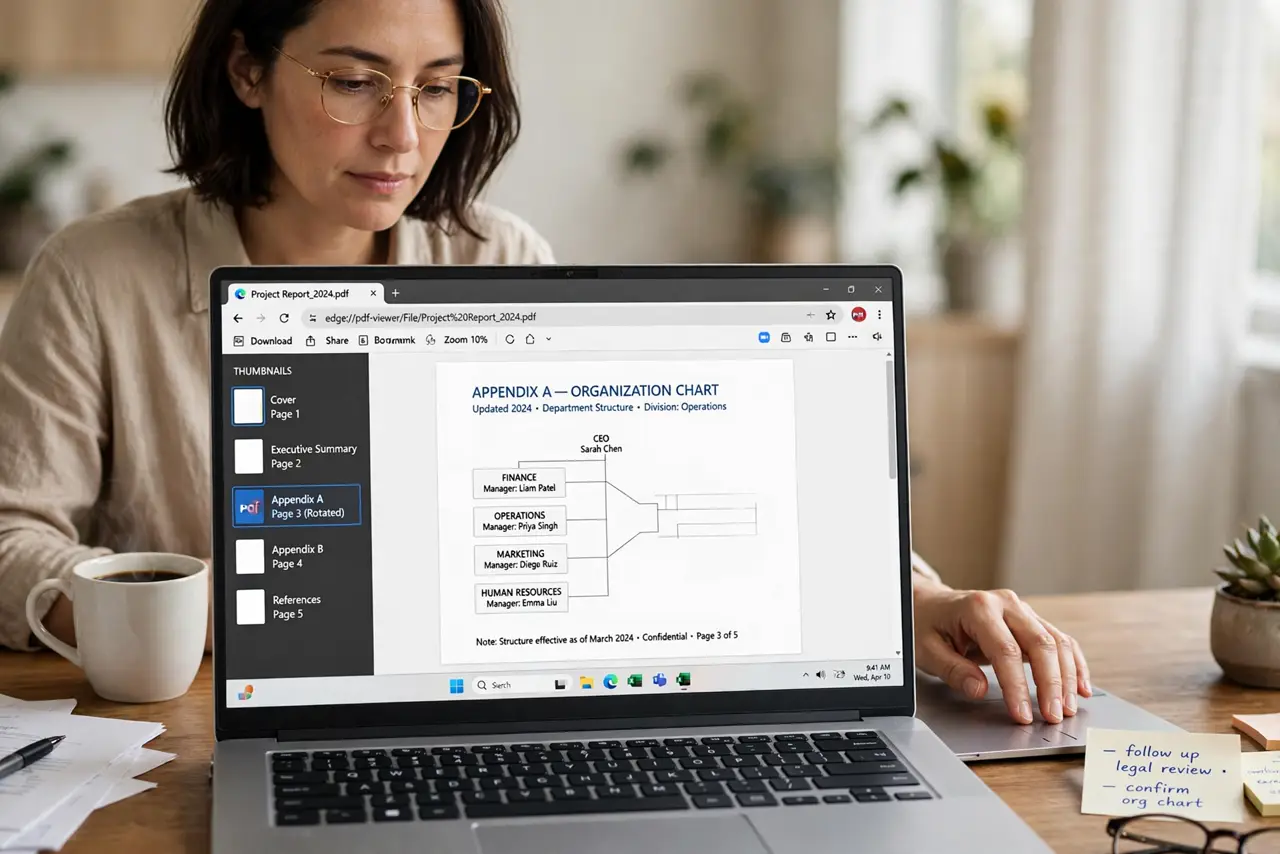
TL;DR / Quick Fix
Quick fix: open the PDF in a reader with page thumbnails, select only the sideways page, and rotate just that one. Save the file as a new copy first, so the original stays untouched and you can retry the rotation safely.
Follow these steps
- Open the page thumbnail view. Show the sidebar with page thumbnails. The thumbnail strip is where single-page operations live, while the main view edits the whole document.
- Select only the sideways page. Click the one thumbnail that lies sideways, and confirm no other pages are selected. A second selected page will rotate too, silently.
- Rotate that page left or right. Use the rotate command on the selection. Rotate in the direction that makes the text upright, and check the main view to confirm.
- Check the neighboring pages. Scroll past the fixed page and confirm its neighbors stayed put. An accidental multi-select is easiest to catch right away.
- Save as a new copy. Save the rotated file under a new name. If the rotation went wrong somewhere, the original still holds the unrotated pages.
- Fix [[page order|pdf-page-order-wrong-after-scan]] in the same pass. While the thumbnails are open, drag any out-of-order pages into place. One editing session handles both problems.

What NOT to do
- Do not rotate the whole document for one bad page. Global rotate fixes one page and breaks the rest, leaving you worse off than before.
- Do not overwrite the original before checking. Save a copy first, because an unnoticed wrong rotation is hard to undo later.
- Do not select pages by dragging across thumbnails. Drag-select grabs neighbors too, so click the single page deliberately.
- Do not ignore a page that looks fine in thumbnails. Zoom the main view to confirm the text is truly upright, not just close.
Frequently asked questions
How do I rotate only one page?
Open the thumbnail view, select just that page, and rotate. The selection limits the rotation to the chosen page.
Why did all pages rotate?
Because more than one thumbnail was selected, or the reader applied the rotation to the whole document by default.
Can I undo a bad rotation?
Yes, if you saved a copy first. Reopen the original and rotate again with only the right page selected.