Green Dot on Your Phone? What It Means
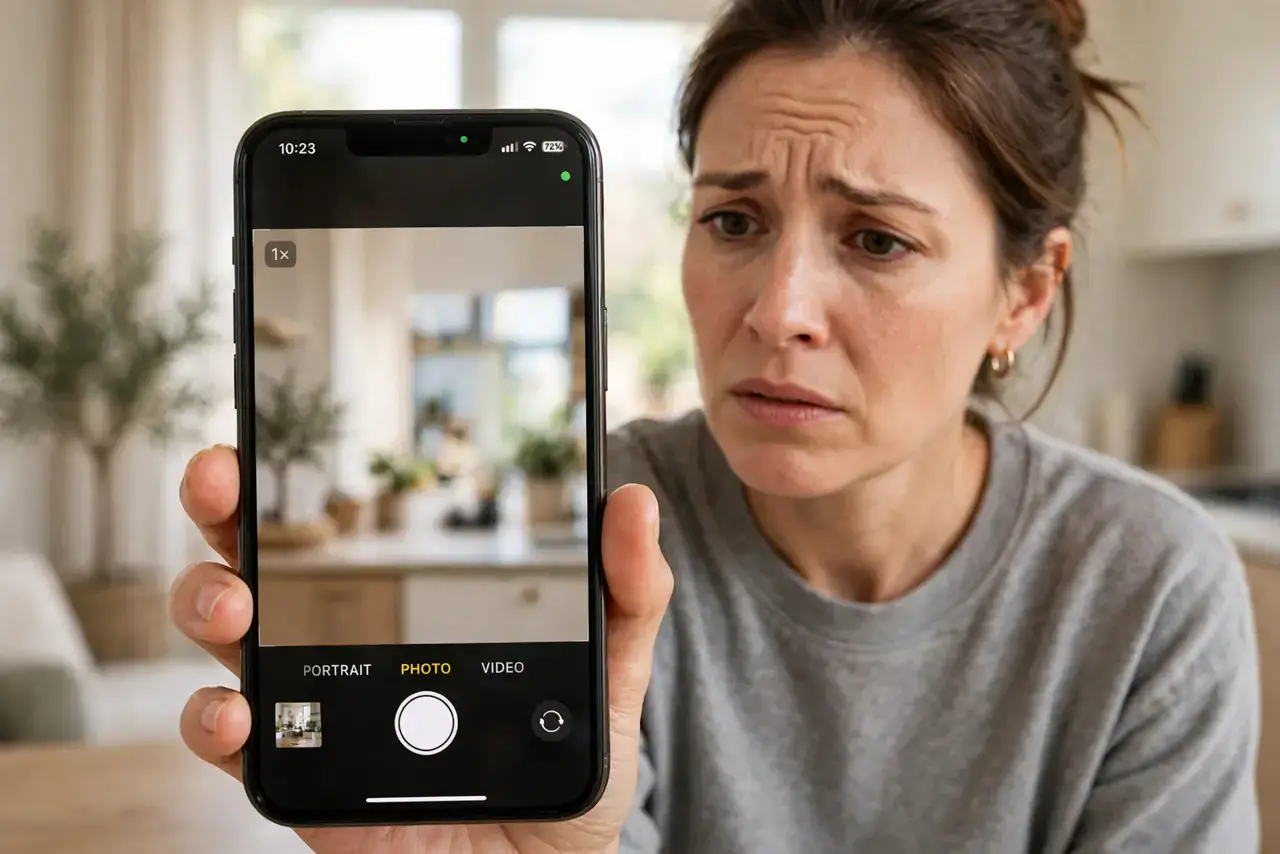
A small green (or orange) dot sometimes appears at the top of your phone screen and then vanishes. That dot is your phone's privacy indicator: it lights up whenever an app is using your camera, and the orange one means the microphone is on. This guide explains what each dot means and what to do if one appears when you are not using the camera.
TL;DR / Quick Fix
Quick fix: the green dot means an app is using your camera; the orange dot means the microphone. If you are not using either, check Control Center for the app name, close it, and revoke its camera permission. If the dot stays on with no app visible, restart the phone.
Follow these steps
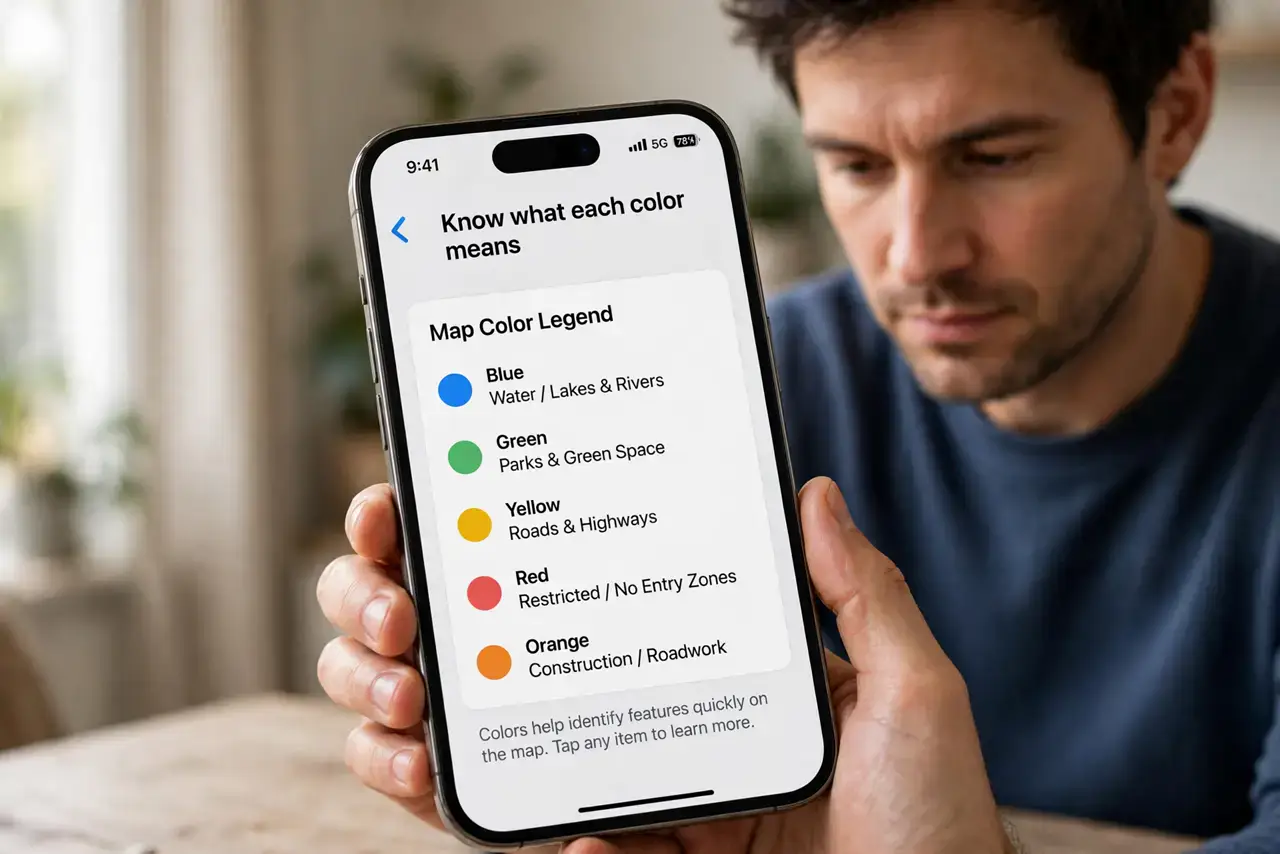
- Know what each color means. On iPhones the green dot means the camera is active and the orange dot means the microphone is active. Android phones show a green privacy indicator for the same job.
- Note when the dot appears. Glance at the dot's timing. A dot during a video call, a photo, or a voice note is normal; a dot while the phone sits idle on the table is worth investigating.
- Check which app triggered it. On iPhone, open Control Center right after the dot appears to see the app name. On Android, tap the green dot to see which app is using the camera or microphone.
- Close or remove the suspicious app. Force-close the app and see if the dot disappears. If the app has no good reason to use your camera, delete it — a game or calculator should never need it.
- Revoke the permission. Open the app's settings and switch its camera and microphone access to off or ask-every-time, following the same yearly permission review you should do for all apps.
- Restart if the dot persists. If the dot stays on with no app visible, restart the phone. A stuck indicator usually clears on reboot; a dot that returns immediately after deserves a deeper check.
What NOT to do
- Do not panic the first time you see the dot. Most appearances are legitimate — your camera app, a video call, or a voice recorder you just opened.
- Do not grant camera access to apps that never need it. A flashlight or calculator app asking for the camera is a red flag; say no.
- Do not cover the dot and ignore it. The indicator is a safety feature, so treat a mysterious dot as a prompt to check, not as a glitch to hide.
- Do not install a random 'dot remover' app. Utilities that promise to hide the indicator cannot fix anything and often request the very permissions you are worried about.
Frequently asked questions
Why is there a green dot but no app open?
An app may still be running in the background. Check Control Center or tap the dot to name it, then close it or revoke its camera permission.
Can an app record me without the dot showing?
On modern iPhones and Androids, the system indicator cannot be hidden by a normal app. If you see no dot, no app is accessing the camera or microphone at that moment.
Is the orange dot the same as the green dot?
No. Green means the camera (and usually the mic) is active; orange means only the microphone. An orange dot during a phone call is expected.