Mic and Camera Indicators on Android? Meaning
Android shows a small green icon at the top of the screen whenever an app uses the microphone or camera. Like the iPhone's dots, these indicators are built into the system and cannot be hidden by apps. Here is what each one means and how to find the app behind it.
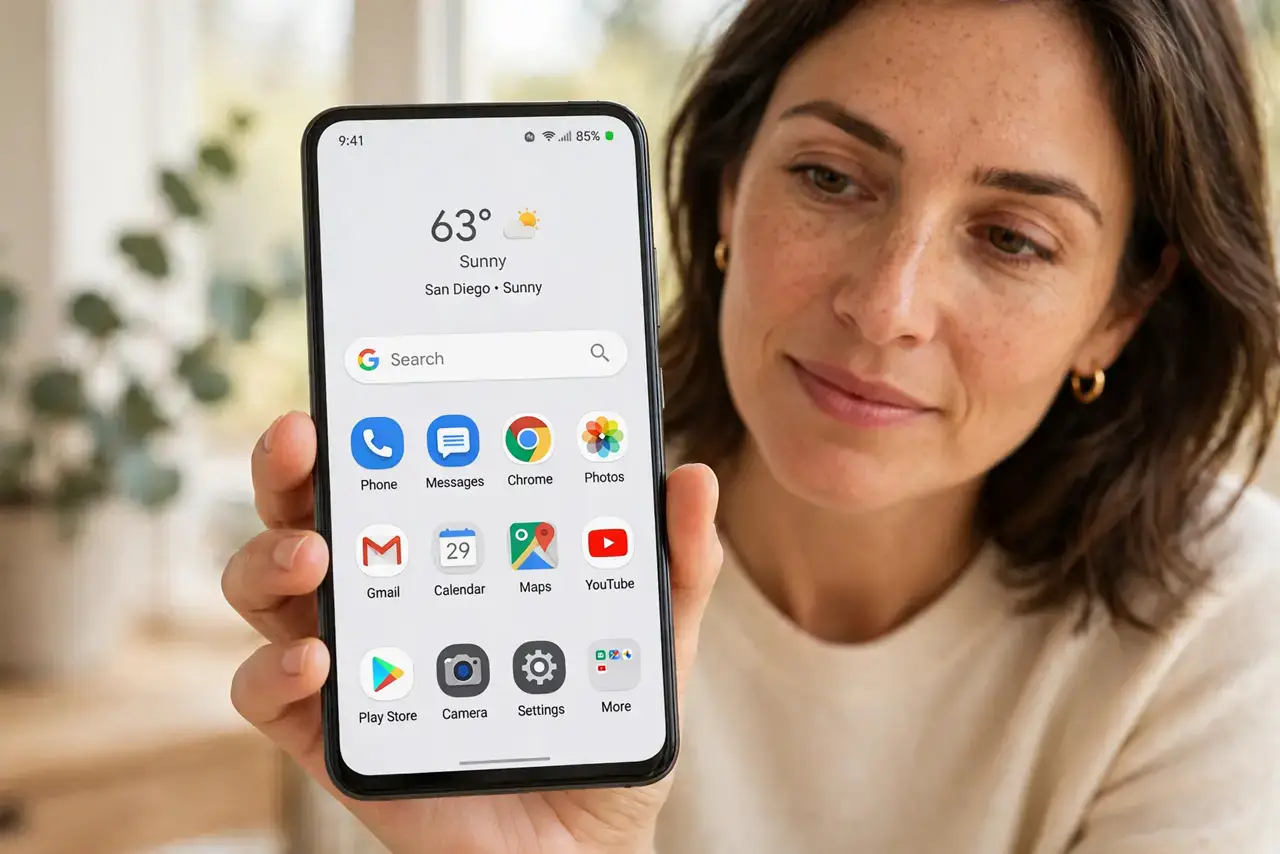
TL;DR / Quick Fix
Quick fix: the green microphone icon means an app is listening; the camera icon means an app is watching. Tap the icon to name the app, then close it or remove its microphone or camera permission in Settings. Review these permissions regularly so only trusted apps can use your sensors.
Follow these steps
- Spot the green icon. Watch the top-right of the status bar. A small green microphone or camera icon appears the moment any app starts using that sensor.
- Tap the icon to name the app. Tap the green icon to open a panel showing exactly which app triggered it — the same idea as the iPhone's dot system.
- Decide if the use is legitimate. A video call using the camera is fine; a weather app using the microphone is not. Ask whether the app's job plausibly needs that sensor.
- Remove the permission. Open Settings, then Apps, then the app, then Permissions, and switch Microphone and Camera to Don't allow. This follows the same audit routine you should run for every app.
- Uninstall repeat offenders. If an app asks again after you denied it, or it stops working just to pressure you, uninstall it. Plenty of alternatives respect a no.
- Check the privacy dashboard. Open Settings, then Privacy, then the Privacy dashboard to see a timeline of which apps used the camera, microphone, and location in the last 24 hours.
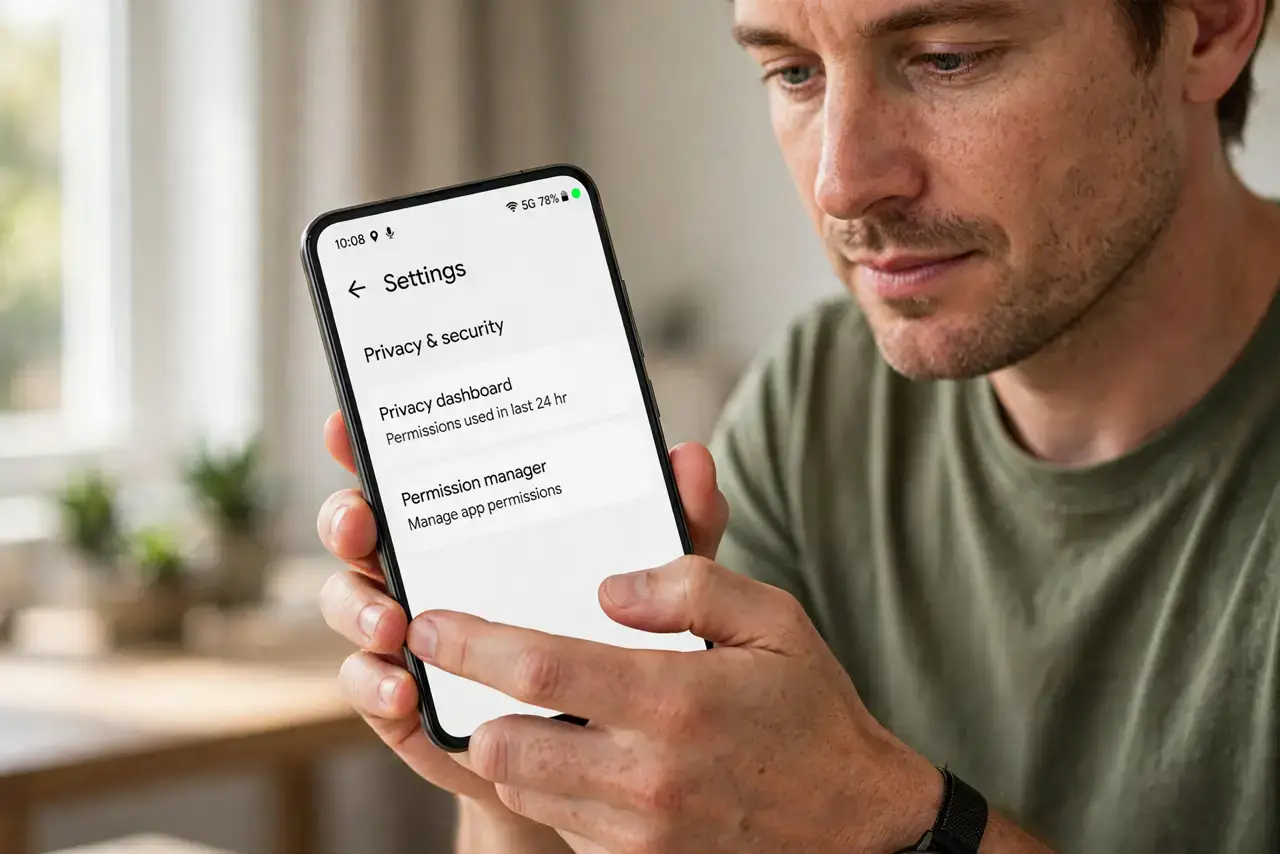
What NOT to do
- Do not ignore a camera icon during an app you never opened. Tap it immediately and close the app if you do not recognize it.
- Do not grant 'allow all the time' to camera or mic. Choose 'allow only while using the app' at most, so background use is blocked.
- Do not assume sideloaded apps obey the rules. Apps installed outside the Play Store may behave badly, so treat unexpected indicators from them seriously.
- Do not confuse the indicator with a notification dot. The privacy indicator lives in the status bar at the very top, not on the app icon.
Frequently asked questions
Where did the green dot go on my Android?
It only appears while an app is actively using the microphone or camera, and it fades when the app stops. The Privacy dashboard keeps a history if you missed it.
Can I turn the indicator off?
No, and that is by design. Android does not let apps or users disable it, which is what makes it trustworthy.
Does the indicator mean I am being recorded?
It means an app is accessing the sensor, which could be a preview rather than a recording. Either way, you should know exactly which app it is.