Filter Unknown Senders? Setup
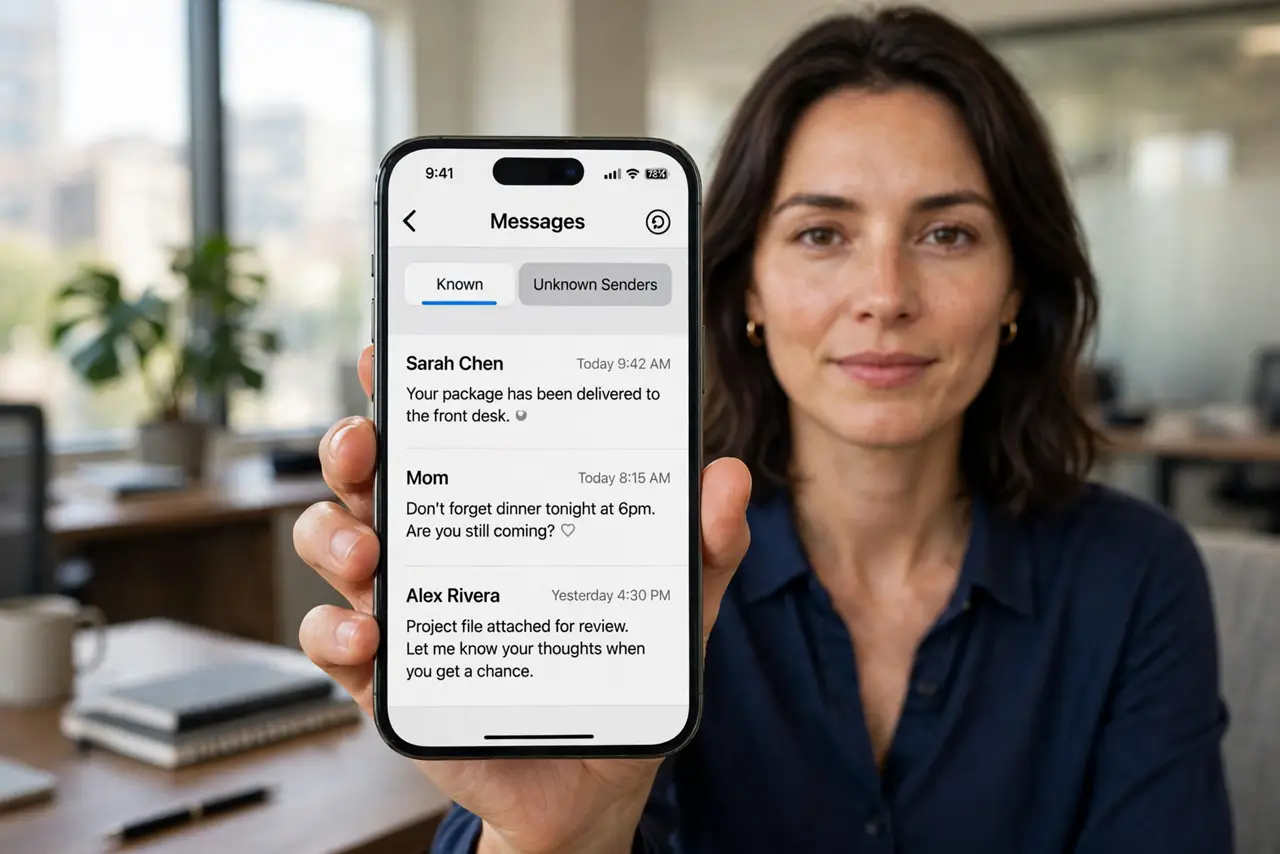
Half your message inbox is people you have never met: spam, scams, wrong numbers, promo blasts. Filtering unknown senders splits your inbox in two — conversations with your contacts up front, strangers quarantined in a separate tab you check on your own terms. Here is how to turn it on.
TL;DR / Quick Fix
Quick fix: filtering splits your inbox so strangers' messages land in a separate tab. On iPhone, go to Settings > Messages > Filter Unknown Senders and turn it on. On Android in Google Messages, enable Spam protection. Your contacts stay front and center; strangers wait quietly aside.
Follow these steps
- Turn it on for iPhone. Go to Settings > Messages > Filter Unknown Senders. The Messages app gains tabs: Contacts & SMS, Unknown Senders, and Spam. Strangers' texts stop interrupting your main list immediately.
- Set it up on Android. In Google Messages, open Settings > Spam protection and enable it, then check notification settings for unknown senders. Carrier spam tools add a second layer — see spam auto-blocking.
- Check the quarantine regularly. Legitimate messages land there too: delivery drivers, doctor's offices, two-factor codes from short numbers. A quick daily glance catches the real ones.
- Understand what gets filtered. Only numbers not in your contacts are filtered — your saved contacts always land in the main inbox. Save important service numbers as contacts to exempt them permanently.
- Combine with reporting. When spam lands in the filtered tab, report it before deleting. Filtering protects you; reporting trains the network filters for everyone.
- Do not confuse with blocking. Filtering organizes; blocking silences. A filtered stranger can still notify you quietly — a blocked one cannot reach you at all.
What NOT to do
- Do not ignore the filtered tab for weeks. Appointment reminders and delivery texts from unknown numbers live there.
- Do not assume everything filtered is spam. New contacts texting first, recruiters, and service providers all start as 'unknown.'
- Do not turn it on and forget verification codes. 2FA texts from short codes often filter — check the tab when a code does not arrive.
- Do not rely on filtering alone against scams. It organizes the inbox; your judgment still has to spot the phish.
Frequently asked questions
Will I miss important texts?
Only if you never check the filtered tab. Save important numbers as contacts and glance at the quarantine daily — that covers it.
Does filtering delete anything?
No. Filtered messages are kept in their separate tab, fully readable. Nothing is deleted or blocked.
Why am I still getting notifications from strangers?
Check notification settings for the unknown-senders category — filtering the list and silencing its notifications are two separate toggles on some phones.