'No Service'? Fix It
The status bar says 'No Service' where your signal bars used to be — no calls, no texts, no mobile data. Before assuming the phone is broken or the carrier is down, run this ladder: most No Service cases are a SIM hiccup, a stuck radio, or a settings toggle, and they resolve in minutes without a store visit.
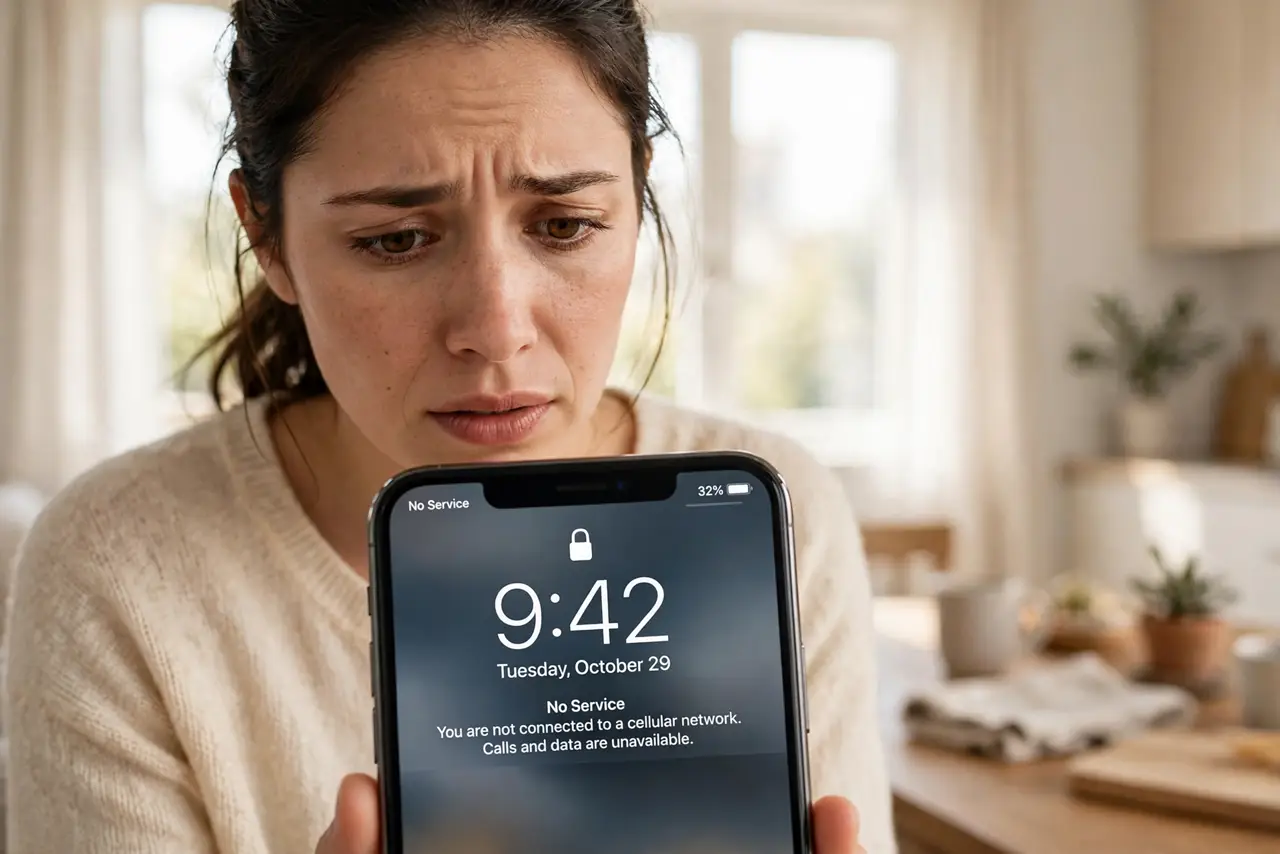
TL;DR / Quick Fix
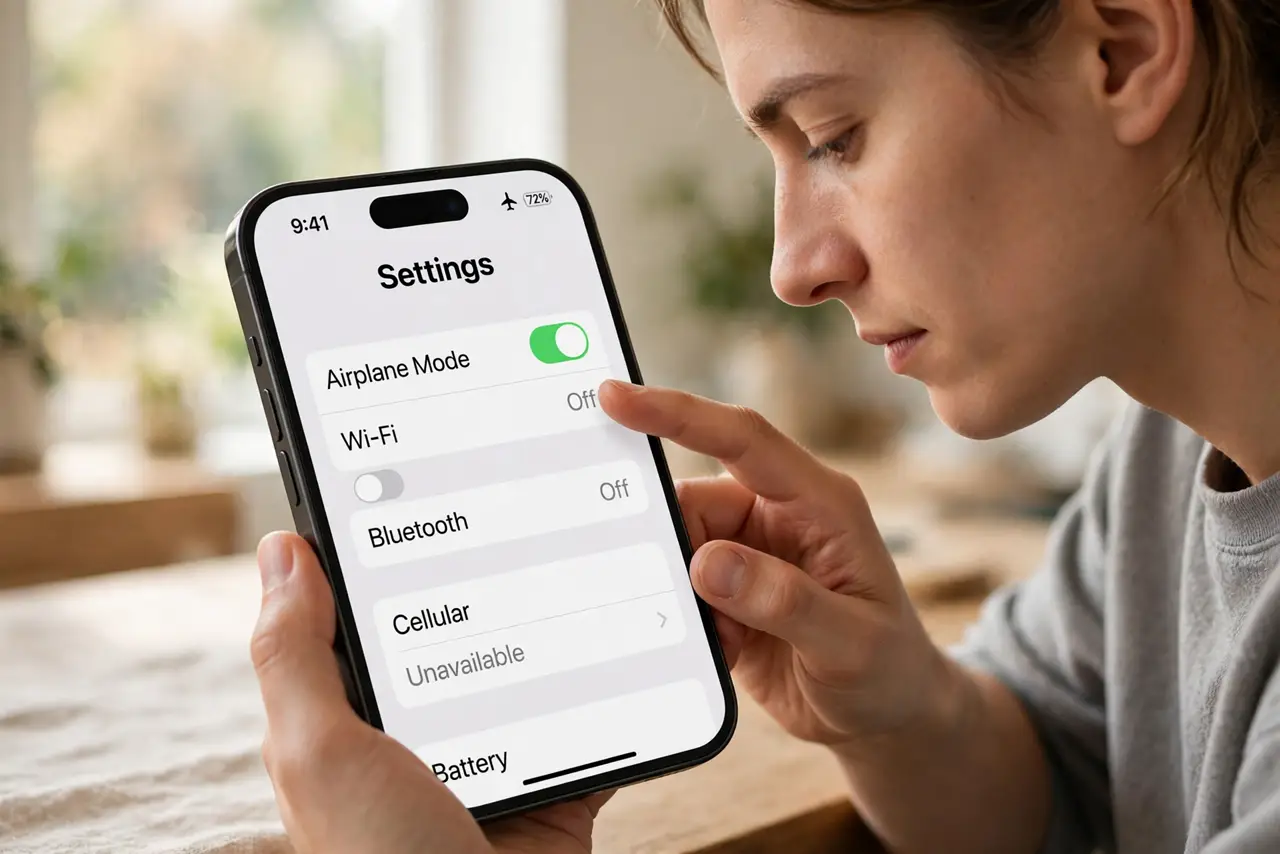
Quick fix: toggle airplane mode on for ten seconds, then off — this re-registers the phone on the network and fixes most cases. If it persists, restart the phone and confirm the line is enabled under cellular settings. Still nothing? Reseat the SIM or check for a carrier settings update.
Follow these steps
- Toggle airplane mode. On for ten seconds, then off. This forces the phone to drop its network registration and make a fresh one — the single most effective quick fix.
- Restart the phone. A full restart clears stuck radio states that airplane mode sometimes misses. Power off completely, wait, power on.
- Confirm the line is enabled. iPhone: Settings, then Cellular — your line should be on. Android: Settings, then Network and internet, then SIMs. An accidentally disabled line shows exactly this symptom.
- Reseat the SIM or check the eSIM. Power off, remove the SIM tray, wipe the card gently, reseat it firmly. For eSIM, confirm the line shows as active under cellular settings.
- Check for a carrier settings update. Open Settings, General, About on iPhone and wait — a pending carrier update can unstick registration problems.
- Rule out outages and account issues. Check the carrier's status page from Wi-Fi, and confirm the bill is paid — suspended lines show No Service too. If neighbors on the same carrier are fine and yours is not, it is your device or SIM.
What NOT to do
- Do not factory-reset over No Service. Wiping the phone will not fix a SIM, carrier, or tower problem — and it deletes your data for nothing.
- Do not keep toggling settings randomly. Work the ladder in order; random toggles create new problems to debug.
- Do not assume the phone is dead. No Service with working Wi-Fi almost always means the cellular side specifically — SIM, carrier, or coverage.
- Do not ignore the 'no service after update' pattern. If it started right after a software update, see No Service after update — that is a distinct, known issue.
Frequently asked questions
Why does it say No Service only in one place?
That is coverage, not a fault. Buildings, basements, and rural gaps kill signal — Wi-Fi calling can bridge the gap indoors.
Can a bad SIM card cause this?
Yes — worn or damaged SIMs are a top cause. Carriers replace them free, and it takes two minutes in a store.
No Service but Wi-Fi works — am I reachable?
Only over Wi-Fi: messaging apps and Wi-Fi calling work, but regular calls and SMS do not until cellular returns.