Pick a Switch microSD
The Switch's internal storage vanishes after a few big downloads, and the eShop keeps tempting you. A microSD card expands it cheaply — but not every card is equal, and counterfeits are everywhere. This guide shows which cards work, which to avoid, and how to install one.
TL;DR / Quick Fix
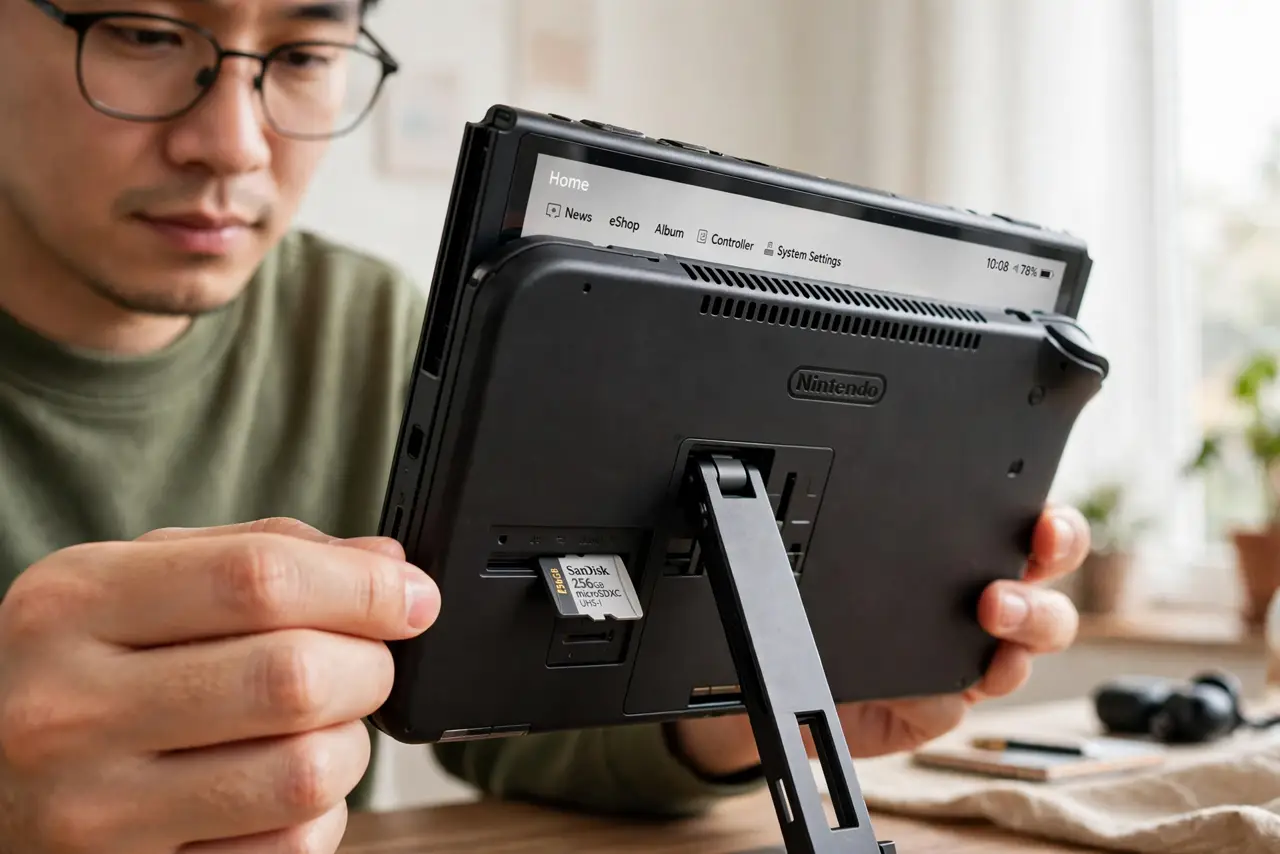
Quick fix: buy a genuine microSDXC card from a reputable seller — 256GB or 512GB hits the value sweet spot. Power off the Switch, lift the kickstand, insert the card until it clicks, and format it when prompted. Downloads then go straight to the card.
Follow these steps
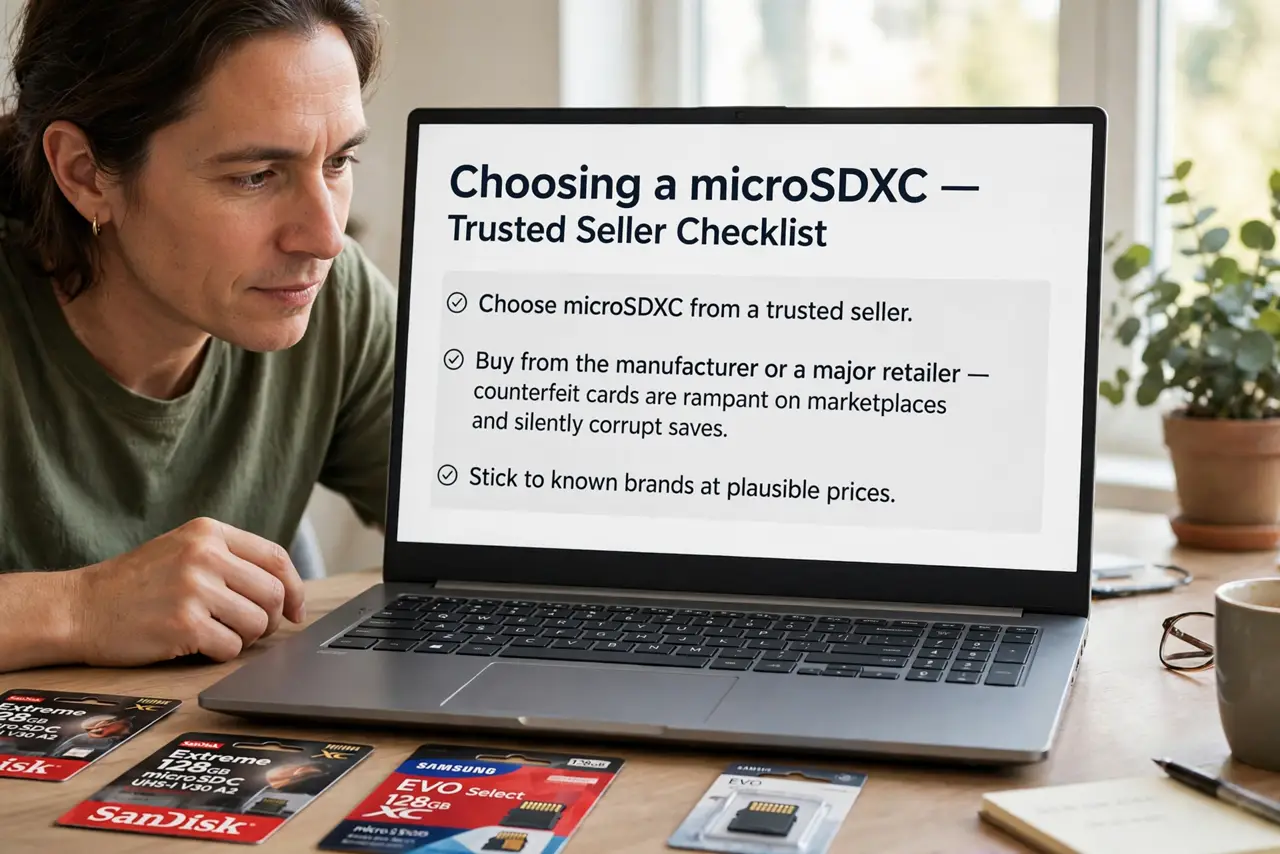
- Choose microSDXC from a trusted seller. Buy from the manufacturer or a major retailer — counterfeit cards are rampant on marketplaces and silently corrupt saves. Stick to known brands at plausible prices.
- Pick 256GB or 512GB. That range holds dozens of games at a sane price. Smaller fills fast; 1TB is fine if your library is huge, but most players never need it.
- Check the speed class. Look for UHS-I with a decent speed rating — the Switch cannot use the fastest UHS-II speeds anyway, so do not overpay for them. See card speed basics if the labels confuse you.
- Power off fully before inserting. Hold the power button and choose Power Options, then Turn Off — not just sleep. Inserting cards while powered risks corruption.
- Insert under the kickstand. Lift the kickstand on the back of the Switch to reveal the microSD slot. Push the card in until it clicks — it only fits one way.
- Format when prompted. Power on and the Switch offers to format the card — accept. Formatting erases the card, so use a new or empty one, then set it as the download location.
What NOT to do
- Do not buy suspiciously cheap huge cards. A 1TB card at a tenth of the normal price is fake — it will eat your saves.
- Do not insert or remove the card while the Switch sleeps. Power fully off first — sleep-mode swaps corrupt data.
- Do not expect the card to speed up loading much. It adds space, not speed — load times barely change versus internal storage.
- Do not store your only copy of saves on the card. Enable cloud saves with a subscription so a dead card does not take your progress.
Frequently asked questions
Can I move games between internal storage and the card?
Yes — in System Settings, then Data Management, you can move games between the two without re-downloading.
Will a slow card hurt performance?
Barely — the Switch's card reader is the bottleneck, not most cards. Any genuine UHS-I card performs about the same.
Can I use the same card in another Switch?
The card is tied to the console that formatted it — moving it requires reformatting, which erases it.