Plug the Monitor Into the GPU
You installed a powerful graphics card, but games run exactly as before — because the monitor cable is still plugged into the motherboard, and the expensive GPU sits idle. This single-cable mistake wastes more gaming PCs than any other. The fix takes ten seconds.
TL;DR / Quick Fix
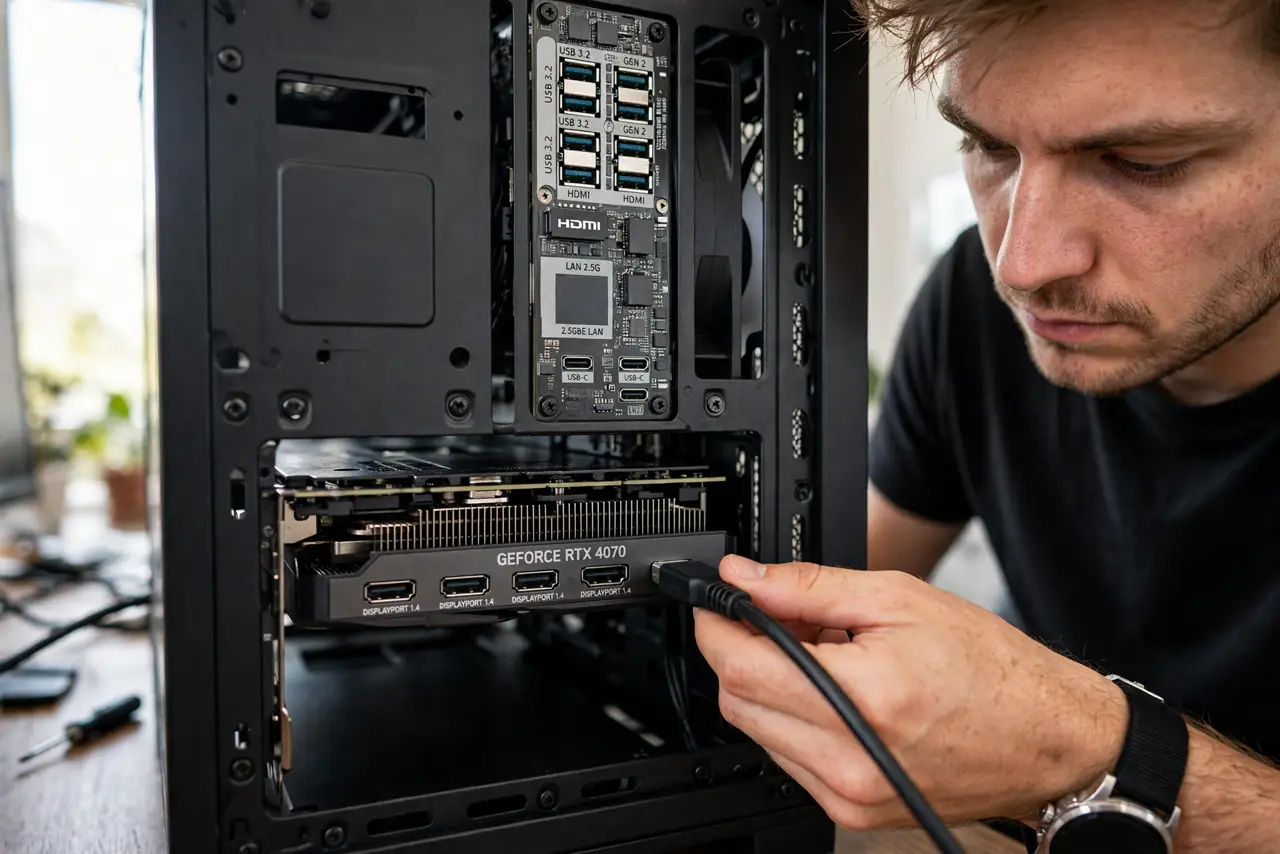
Quick fix: plug the monitor cable into the graphics card's ports — the horizontal ones low on the case back — not the motherboard's vertical ports near the USB jacks. Then confirm in display settings that the GPU is active. Ten seconds, zero cost, full performance.
Follow these steps
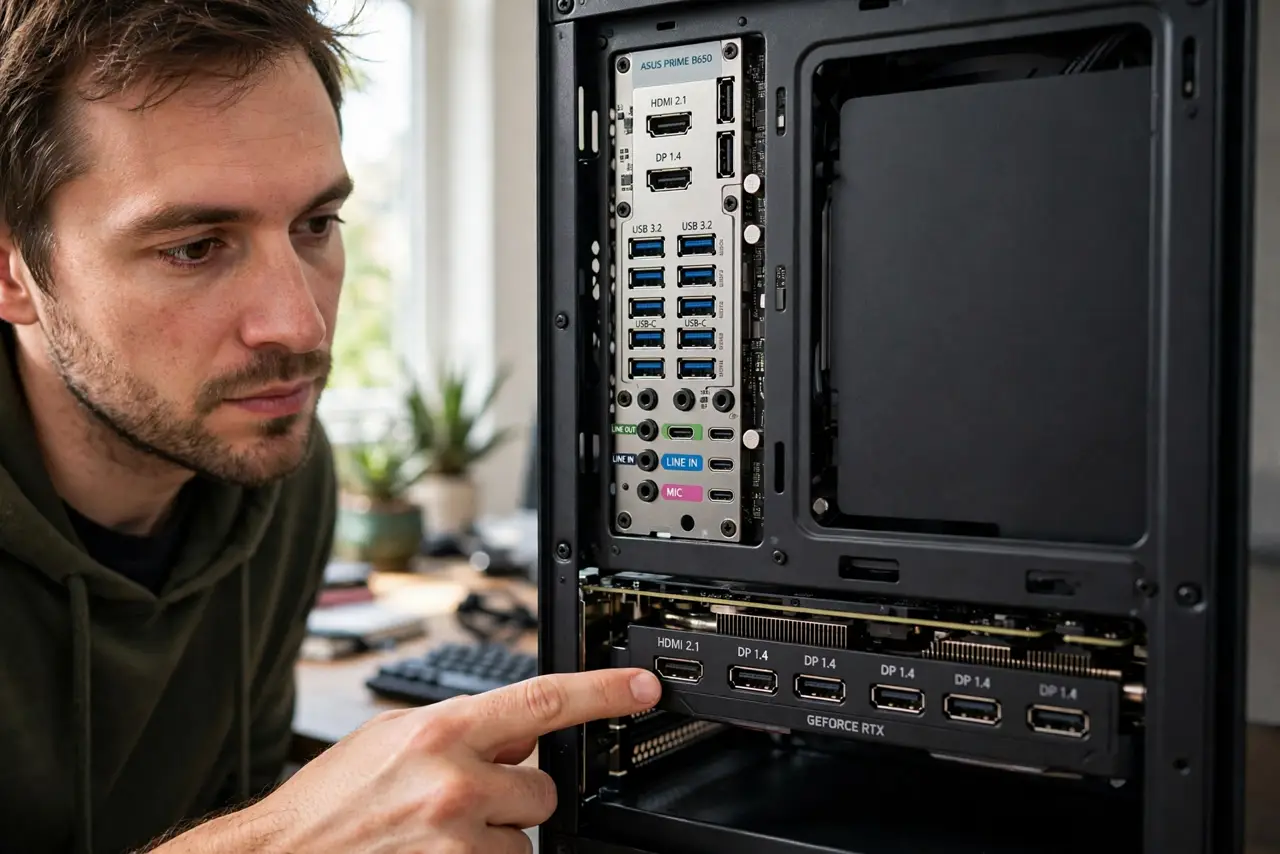
- Find the two port clusters. Motherboard video ports sit vertical, high on the case back among USB and audio. GPU ports sit horizontal, lower down, on the card's own bracket.
- Move the cable to the GPU. Unplug from the motherboard, plug into the matching GPU port — HDMI to HDMI, DisplayPort to DisplayPort. Use the card's ports exclusively.
- Boot and confirm. The screen should light from the GPU. Check display settings or the GPU utility to confirm the discrete card is driving the display.
- Disable the iGPU if it confuses things. In BIOS you can disable integrated graphics entirely. Optional — but it removes any chance the system picks the wrong one.
- Use the right cable for the monitor. High-refresh monitors need DisplayPort or modern HDMI — see the refresh rate setup after the cable move.
- Tell friends checking their builds. This mistake is so common it is worth mentioning: anyone whose 'new GPU changed nothing' should check the cable first.
What NOT to do
- Do not leave the cable in the motherboard 'temporarily.' Temporary becomes permanent, and the GPU idles for months.
- Do not use an adapter chain to reach the GPU. One quality cable, direct — adapters add failure points.
- Do not assume the PC auto-selects the GPU. Some boards default to integrated when both are present.
- Do not plug one monitor into each. Split setups confuse which GPU renders what — keep gaming monitors on the dedicated card.
Frequently asked questions
How do I know which ports are the GPU's?
The GPU's ports are on the horizontal bracket of the card itself, low on the case back. Motherboard ports are vertical, clustered with USB ports.
My motherboard has no video ports — problem?
No — many boards with no iGPU support skip them. Then the GPU ports are your only option, and this mistake is impossible.
Does it matter for non-gaming?
Less, but yes — the dedicated GPU still accelerates video, creative apps, and multiple monitors better than integrated.