Embed a Video So It Plays Offline in Slides
A video plays fine at your desk but shows a black box at the venue, because the slide only links to a file that stayed home. Embedding puts the video inside the deck, so it plays wherever the file goes, with or without internet.
TL;DR / Quick Fix
Quick fix: insert the video with the embed option rather than a link, keep the video file in the same folder as a backup, and play the slide in slideshow mode with the network off to prove it works offline.
Follow these steps
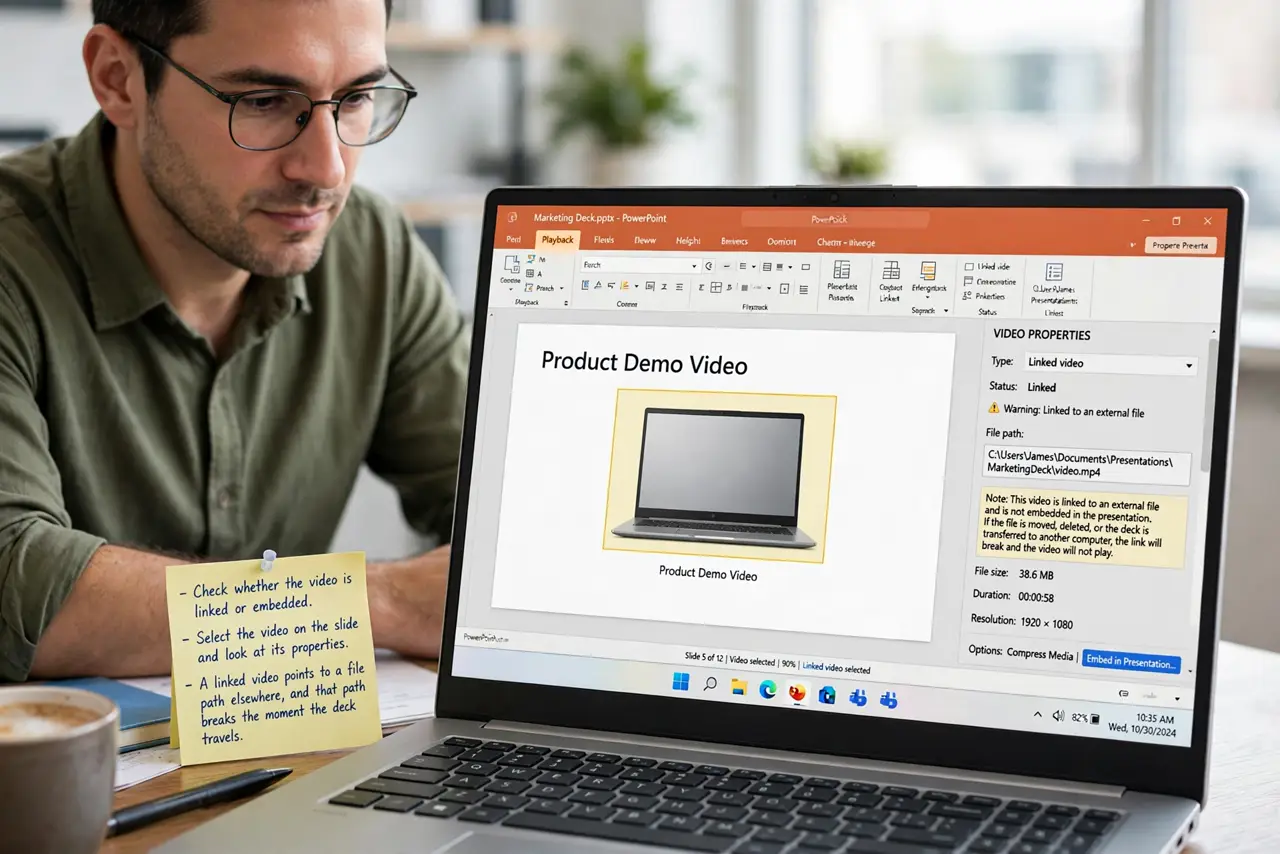
- Check whether the video is linked or embedded. Select the video on the slide and look at its properties. A linked video points to a file path elsewhere, and that path breaks the moment the deck travels.
- Insert the video as embedded. Use Insert, then Video, and choose the embed or insert-from-file option rather than linking. Embedding copies the video data into the deck file itself.
- Use a common video format. Convert the clip to a widely supported format before inserting. An unusual format can play on your computer and still refuse to play on the presenting machine.
- Test with the network turned off. Disconnect from Wi-Fi and play the slide in full slideshow mode. If it plays offline, the video is truly embedded; if it fails, a link is hiding somewhere.
- Keep the deck file size in mind. Embedded videos make the deck file much larger. That is normal, but share it by drive or USB rather than email when it grows past attachment limits.
- Carry the video file separately too. Keep a copy of the video on a USB drive as well. If the slide still misbehaves, you can play the file directly and keep the talk moving.
What NOT to do
- Do not insert a web video and assume it plays offline. A streaming link needs the venue's internet, which you cannot count on.
- Do not move the deck without its folder when the video is linked. Linked videos break the moment the deck travels alone.
- Do not test only the first second of the video. Play it through in slideshow mode, since mid-video failures hide in quick previews.
- Do not email a giant embedded deck and hope it arrives. Large files bounce or get stripped, so use a drive link or a USB stick instead.
Frequently asked questions
Why does the video work at home but not at the venue?
Because the slide links to a video file that stayed on your computer, or streams from a site the venue cannot reach.
Does embedding make the file bigger?
Yes, noticeably. The video data lives inside the deck now, so plan to share the file by drive or USB.
What if the venue computer cannot play my format?
Convert to a common format before inserting, and bring your own laptop as the safest backup.