Rehearse Timings Run Too Fast in Slides
You rehearse a deck and the recorded timings come out far shorter than the real talk, so the self-running slideshow races past your words. Rehearsal timings measure the rehearsal, not the performance, and a rushed run-through records rushed timings.

TL;DR / Quick Fix
Quick fix: clear the existing timings, then rehearse again at your real speaking pace with the notes visible. Save the new timings only when the run feels like the actual talk, and check the total time before you call the rehearsal done.
Follow these steps
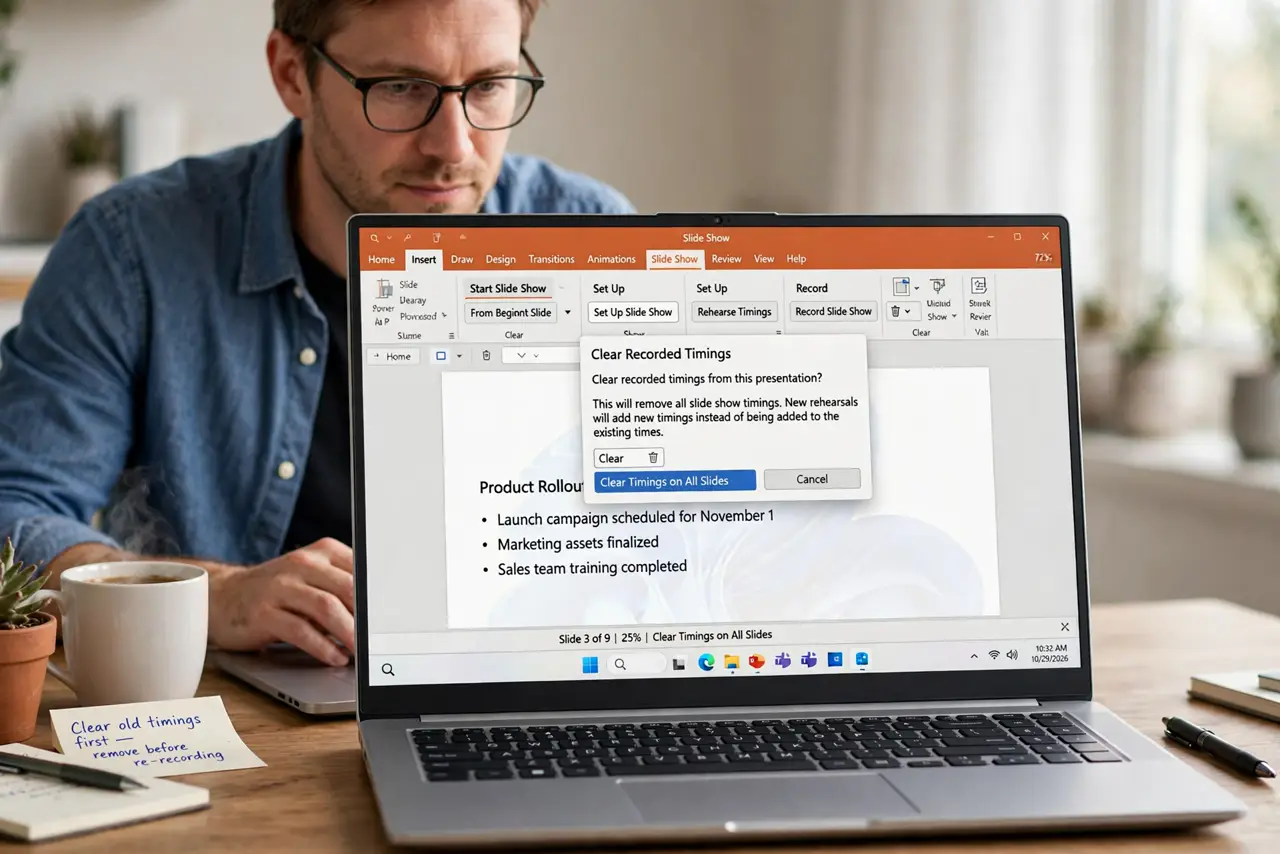
- Clear the old timings first. Open the slideshow settings and clear or remove the recorded timings. New rehearsals add to old numbers otherwise, and the too-fast times survive underneath.
- Rehearse at real speaking pace. Speak the talk out loud at the speed you will use on stage, pauses included. Clicking through silently records timings for a talk you will never actually give.
- Use the same setup as the real talk. Rehearse with the same notes, the same clicker, and presenter view if you will use it. A different setup on stage changes your pace and breaks the timings.
- Pause the rehearsal timer for interruptions. If the phone rings mid-rehearsal, pause the timer instead of letting it run. Unpaused interruptions stretch some timings and make the whole set unreliable.
- Check the total time at the end. Compare the rehearsed total with your speaking slot. If it is ten minutes short, you rehearsed too fast; slow the delivery, not the slides.
- Save timings only from a good run. Keep the timings from the rehearsal that felt most like the real talk. One honest run beats three rushed ones averaged together.
What NOT to do
- Do not keep rehearsing faster to fit a short slot. A rushed rehearsal records rushed timings, and the audience gets the rushed talk too.
- Do not record timings while testing animations. Clicking through to check effects is not a rehearsal, and those click times will haunt the real run.
- Do not leave old timings on a deck someone else will present. Your pace is not theirs, so clear the timings before handing the file over.
- Do not trust the timer while reading slides silently. Silent reading is always faster than speaking, so the recorded times will be too short.
Frequently asked questions
Why are my rehearsed timings so short?
Because the rehearsal ran faster than the real talk, usually from clicking through silently instead of speaking at stage pace.
Should I use recorded timings at all?
Only for self-running kiosk decks. For a live talk, manual clicks with rehearsed pacing give you more control.
Can I fix one slide's timing without redoing all?
Yes. Most slide apps let you re-record or edit the timing of a single slide without clearing the rest.