An Embedded Font Still Changes on Another PC
You embedded the fonts before sharing, yet the other computer still swaps them. Some fonts forbid embedding by license, and some viewers substitute fonts anyway, so the deck needs a fallback plan as well as the embedded fonts.
TL;DR / Quick Fix
Quick fix: confirm the fonts actually embedded by checking the file size and font properties, then test the deck on another computer. If a font still swaps, replace it with a widely available font or share a PDF alongside the editable file.
Follow these steps
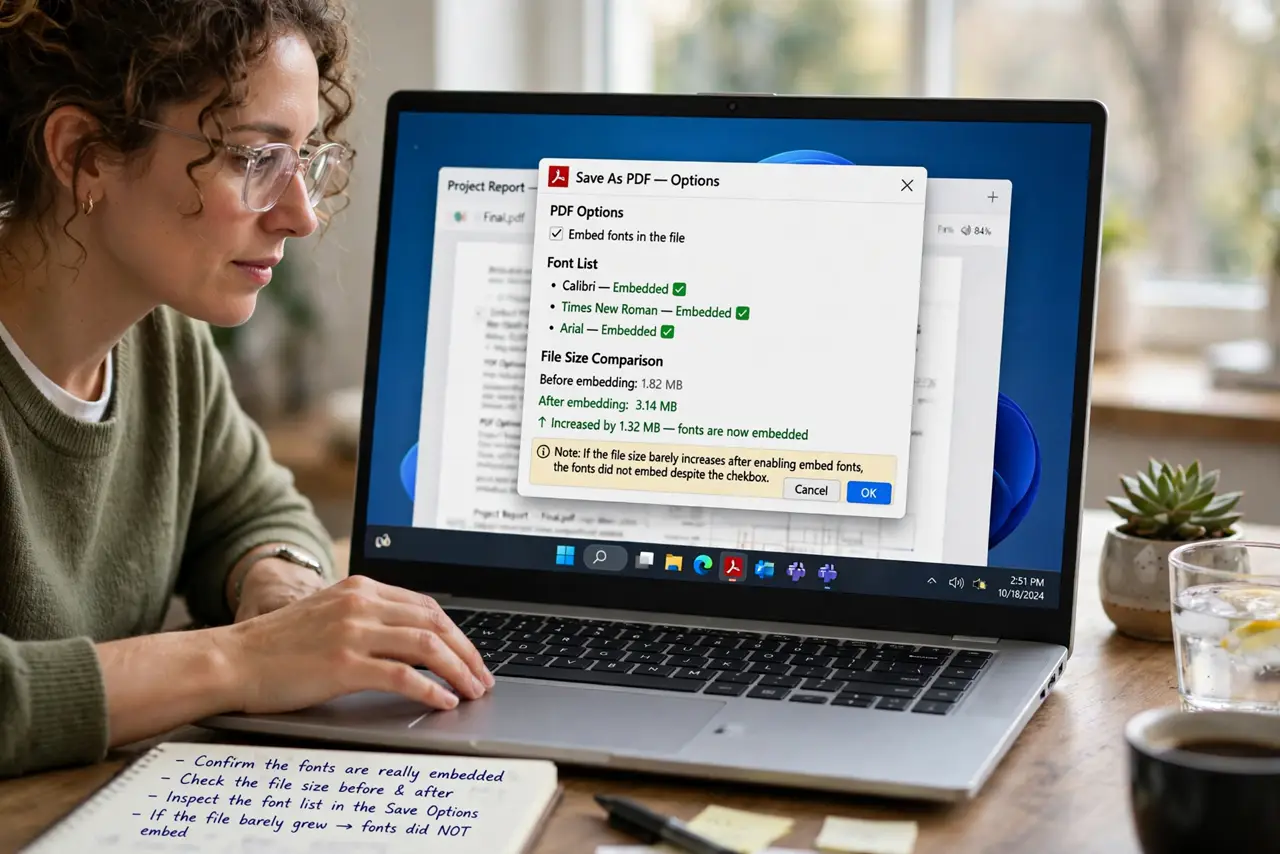
- Confirm the fonts really embedded. Check the file size before and after embedding, and inspect the font list in the save options. If the file barely grew, the fonts did not embed despite the checkbox.
- Check whether the font allows embedding. Some commercial fonts block embedding by license. The app then silently skips them, and the other computer substitutes its own closest match.
- Test the deck on a different computer. Open the file on a machine that never had your fonts. Your own computer hides the problem, because it has the fonts installed locally.
- Replace the stubborn font with a standard one. Swap display fonts to widely available options like Arial, Calibri, or Georgia. Keep the special font only in a title image if the look truly matters.
- Share a PDF next to the editable file. Export a PDF of the finished deck for reading and presenting. A PDF locks the fonts exactly as you designed them, immune to embedding limits.
- Tell recipients to install the font when possible. If the font is free, send the font file with instructions to install it before opening the deck. Installed fonts beat embedded ones for reliability.
What NOT to do
- Do not trust the embed checkbox without testing. Licensed fonts can skip embedding silently, and only another computer reveals the swap.
- Do not keep the rare font for all body text. One stubborn font can reflow the whole deck when it substitutes on another machine.
- Do not send the deck hours before a talk without a PDF. The editable file is for editing; the PDF is what guarantees the audience sees your design.
- Do not assume the other computer is at fault. Font substitution is normal behavior when the font cannot travel, so plan for it instead of fighting it.
Frequently asked questions
Why did my embedded font still change?
Because the font's license blocked embedding, or the viewer substituted fonts anyway, so the other computer never received it.
How can I tell if embedding worked?
The file should grow noticeably, and the font list in the save options should show the fonts as embedded.
Is PDF really the safest option?
For presenting and reading, yes. It freezes fonts and layout exactly, though it cannot be edited like the original.