Presentation Fonts Change on Export? Fix It
A deck that looks perfect on your computer can look completely different after export, with fonts swapped, spacing shifted, and titles wrapping oddly. The cause is almost always a font the other computer does not have, and the fix is to make the deck carry its fonts with it.

TL;DR / Quick Fix
Quick fix: Check which fonts the deck actually uses. Embed the fonts when you save. Replace risky fonts with standard ones. Export, then open the export yourself. Test on a different computer if you can. Share the file carefully when fonts still shift.
Follow these steps
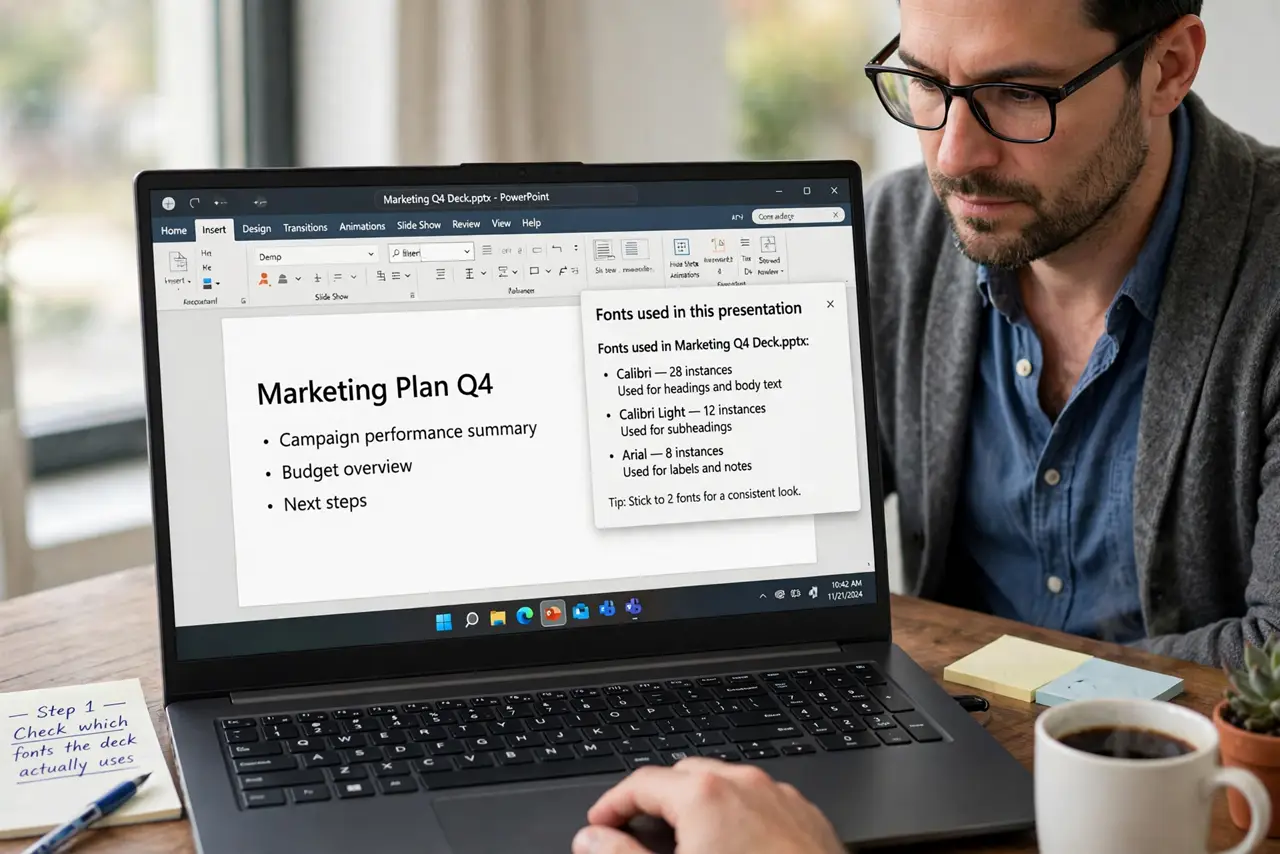
- Check which fonts the deck actually uses. Open the presentation and look at the fonts on your title and body slides. Fancy or downloaded fonts are the usual suspects, because a computer without that font quietly substitutes a different one.
- Embed the fonts when you save. In the save options, turn on font embedding so the fonts travel inside the file. This makes the file bigger, but it stops the most common font swaps on other computers.
- Replace risky fonts with standard ones. If embedding is not available, switch display fonts to widely available ones such as Arial, Calibri, or Georgia. Keep your special font only for a title image, not for body text.
- Export, then open the export yourself. Export the deck and open the exported file on your own computer before sending it. Check every slide, not just the first one, because swaps often hide on later slides.
- Test on a different computer if you can. Open the exported file on another computer, or ask a colleague to open it. A font problem that only shows up elsewhere is exactly the one you need to catch before a meeting.
- Share the file carefully when fonts still shift. If a font still changes after embedding, share the file as a PDF for reading, and keep the editable version for yourself. A PDF locks the layout exactly as you designed it.
What NOT to do
- Do not assume the export looks like your screen. Always open the exported file and check it slide by slide.
- Do not use a rare downloaded font for all body text. One missing font can reflow an entire deck.
- Do not send the deck without testing it. A last-minute font swap is far harder to fix during a live presentation.
- Do not screenshot slides as a fix for every font problem. Screenshots look blurry when projected and cannot be edited later.
Frequently asked questions
Why do fonts change only after export?
Because export often moves the file to a viewer or computer that lacks your fonts, so it substitutes the closest match it has.
Does embedding fonts always work?
Usually, but some fonts forbid embedding, and some viewers still substitute. That is why testing the export matters.
Is PDF a good fallback?
Yes, for reading and presenting. A PDF keeps fonts and layout fixed, though it cannot be edited like the original deck.