Print to PDF Instead of Paper? How To
Need to save a receipt, form, or web page as a file instead of printing it? Every major system has a built-in Print to PDF option that turns the print dialog into a file saver. This guide shows how to use it on Windows, Mac, and phones.
TL;DR / Quick Fix
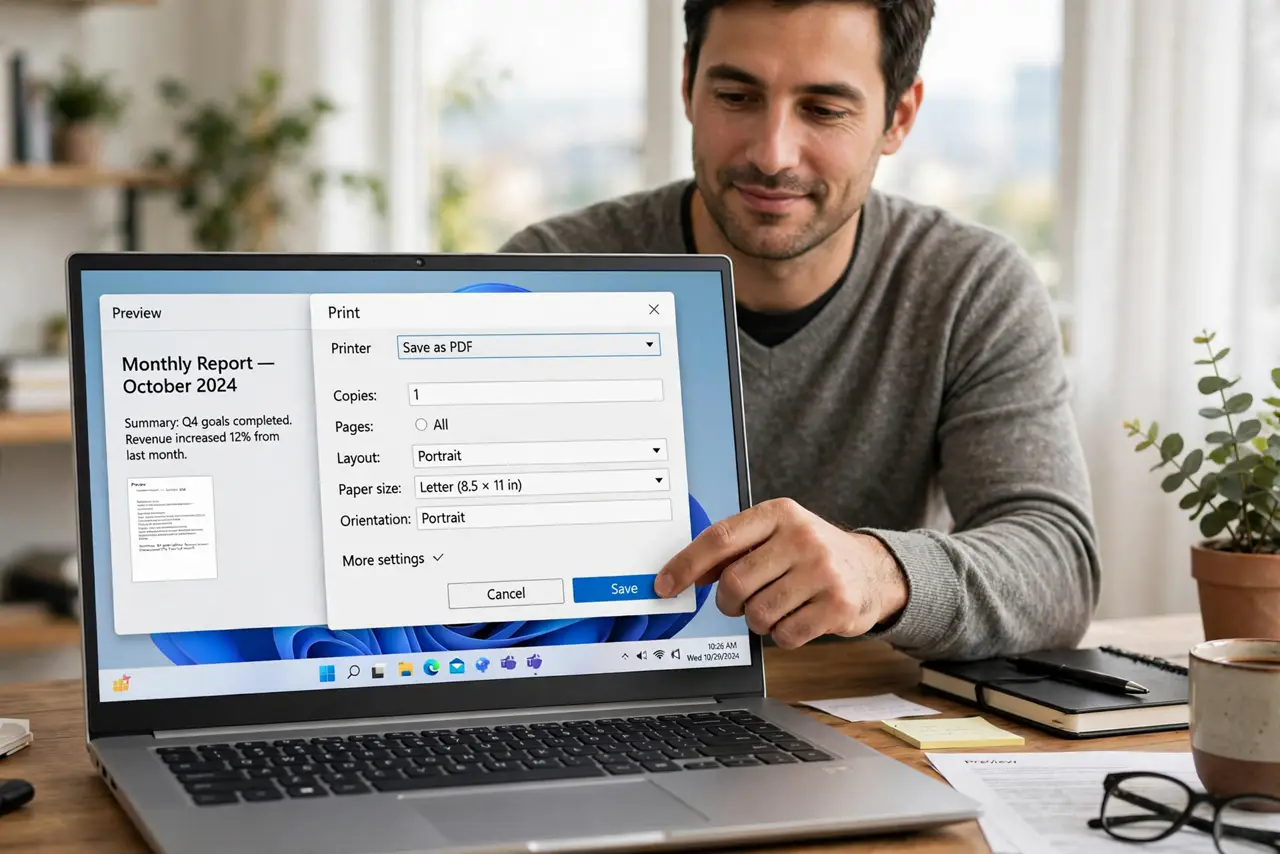
Quick fix: open the print dialog with Ctrl+P or Cmd+P, change the printer to Print to PDF, and save the file. It works for web pages, receipts, and documents on Windows, Mac, and phones. Open the PDF afterward and check that every page looks right before closing the original.
Follow these steps
- Open what you want to save. Open the web page, email, receipt, or document on screen. Print to PDF captures exactly what the print preview shows, so scroll through it first if the page is long.
- Open the print dialog. Press Ctrl+P on Windows or Cmd+P on Mac, or tap Share then Print on a phone. The same dialog you would use for a paper printer appears.
- Change the printer to PDF. In the printer list, choose Microsoft Print to PDF on Windows, or click the PDF button and choose Save as PDF on Mac. On iPhone and Android, pick Save as PDF from the printer options.
- Adjust pages and layout if needed. Set the page range, orientation, and margins in the preview. Cutting a long web page to just the pages you need keeps the file small and readable.
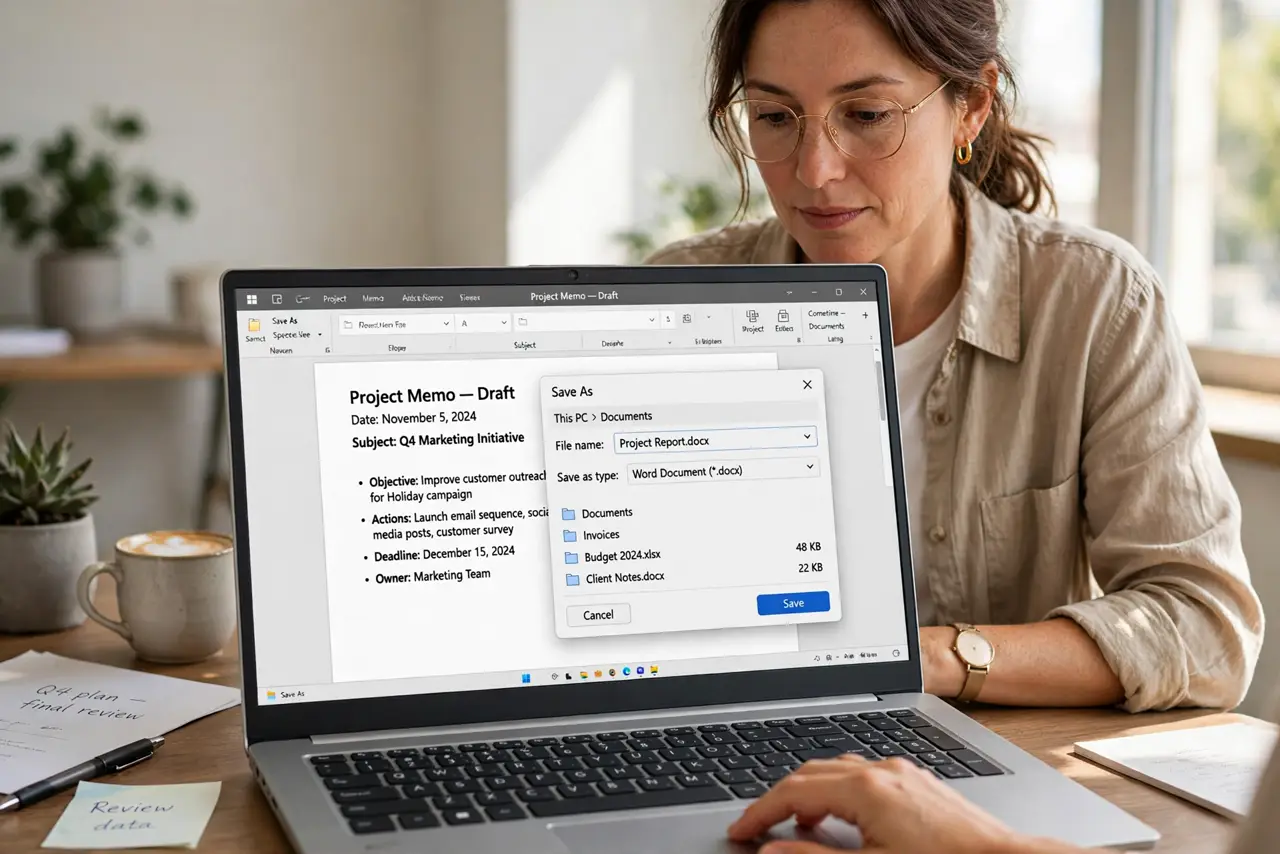
- Save with a clear file name. Click Save or Print, then name the file and pick the folder. A name with the date and topic, like receipt-2026-10-29, is easy to find later.
- Open the PDF to verify it. Open the saved file and flip through every page. If pages come out blank when you later print the PDF, the browser PDF viewer may be causing it.
What NOT to do
- Do not screenshot a long page instead. Screenshots of multi-page documents come out blurry and hard to search, while a PDF stays sharp and selectable.
- Do not pick your real printer by habit. Double-check the printer field says PDF before you click Print, or you will waste paper.
- Do not save to a mystery folder. Note where you save the file, or you will spend ten minutes hunting for it in Downloads.
- Do not close the original before checking the PDF. Verify every page saved correctly first, since some pages need a second try with different settings.
Frequently asked questions
Where is Print to PDF on Windows?
Open the print dialog with Ctrl+P and choose Microsoft Print to PDF from the printer list. It is built into Windows 10 and 11, so nothing needs installing.
Can I print to PDF on iPhone and Android?
Yes. Open the share menu, tap Print, then pinch out on the preview on iPhone or choose Save as PDF on Android, and save the file to your phone or cloud drive.
Why is my PDF file so large?
Full-page images and backgrounds inflate the size. In the print dialog, turn off background graphics or reduce the page range to shrink the file.