Slicer Basics
You downloaded a 3D model and the printer cannot read it — because printers do not print models, they print instructions. A slicer converts your 3D file into layer-by-layer G-code your printer understands. Every print passes through it, so ten minutes learning the basics pays off on every spool.
TL;DR / Quick Fix
Quick fix: import the STL file into a slicer, pick your printer and filament profile, and slice to preview layers. Check for floating parts and overhangs before printing. Start with default profiles — they work for most models. Save the G-code to SD card or send it to the printer.
Follow these steps
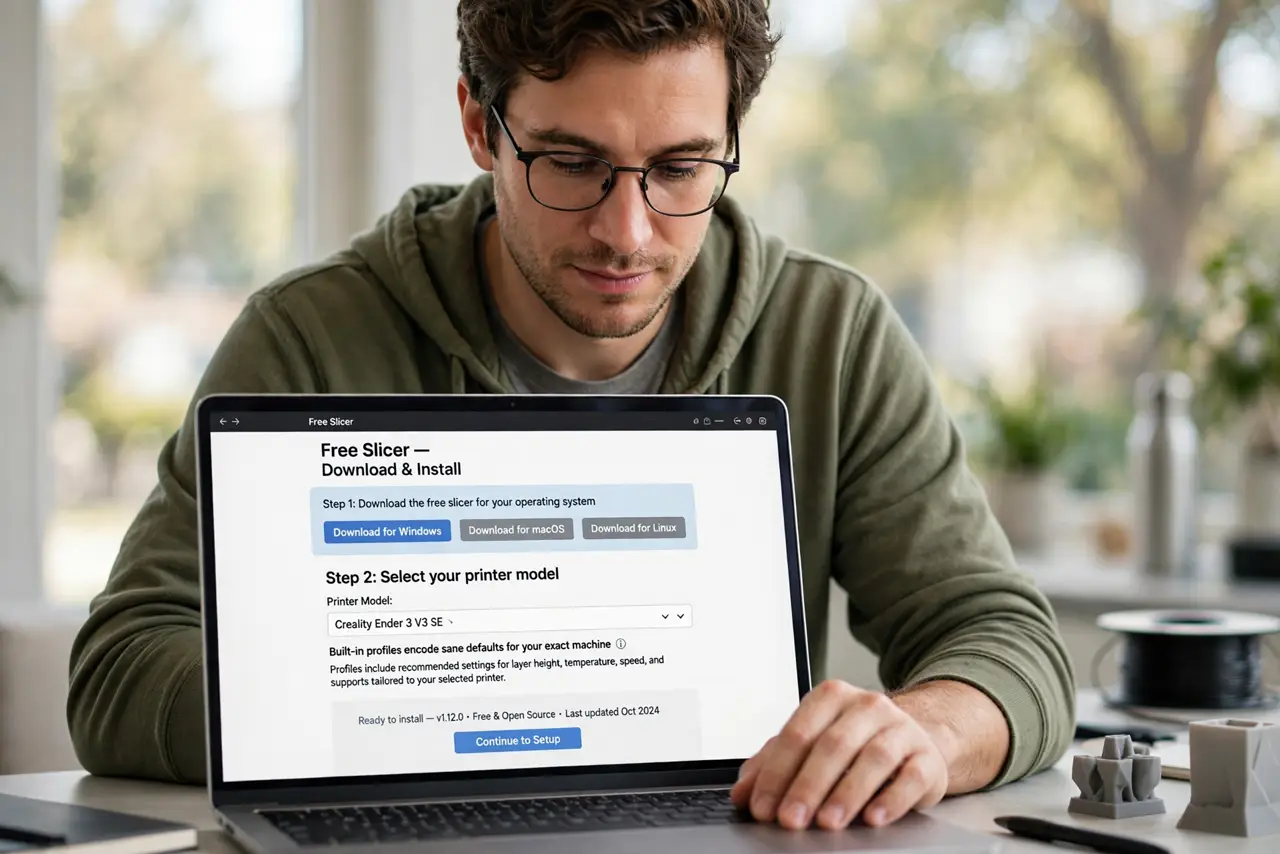
- Get a free slicer. Download a reputable free slicer and select your printer model. The built-in profiles encode sane defaults for your exact machine.
- Import the model file. Load the STL or 3MF file. Rotate and scale it on the virtual bed — what you see is roughly what prints.
- Pick the right profiles. Choose the profile matching your filament and nozzle size. Wrong material profile is the top cause of failed first prints.
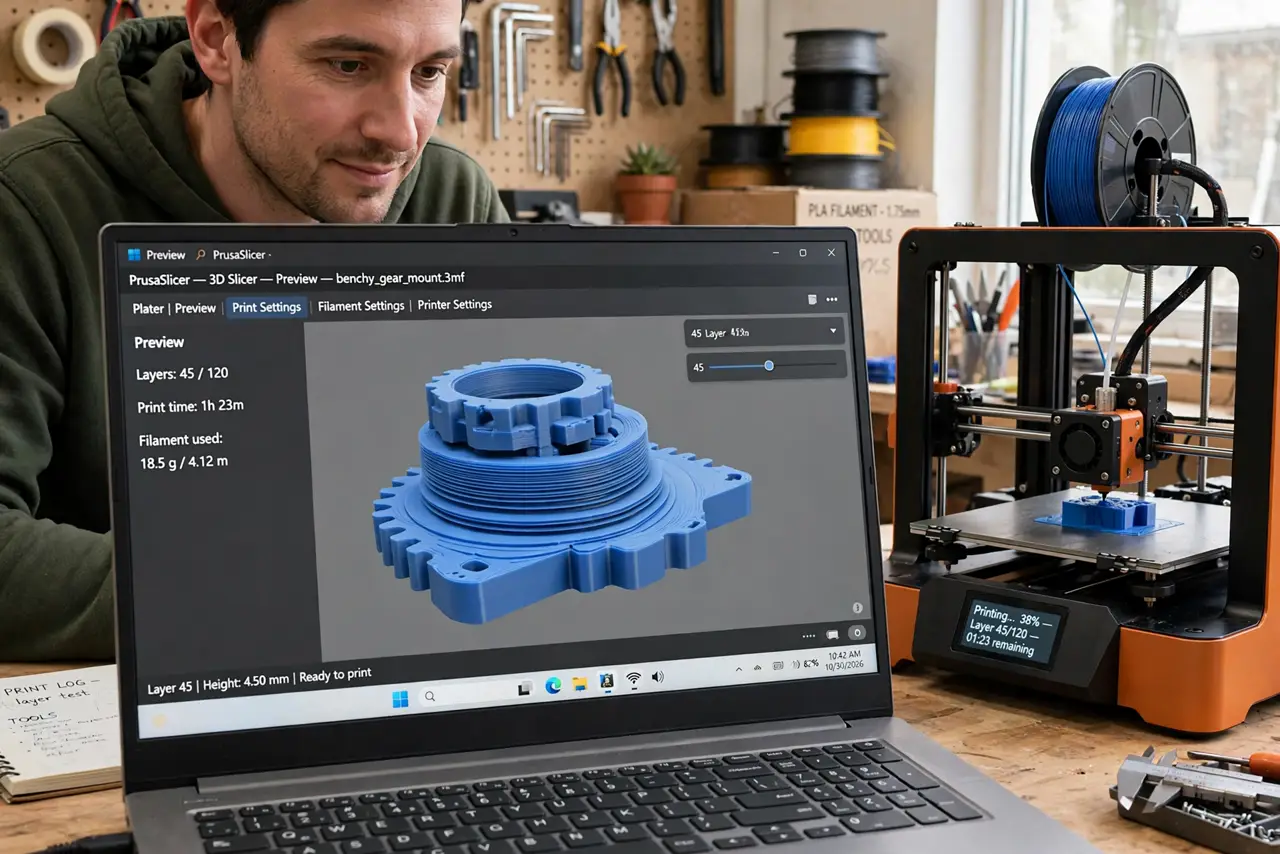
- Preview the layers. Scrub through the layer preview. Look for parts floating in air and extreme overhangs — those need supports or a redesign.
- Add supports where needed. Enable auto-supports for overhangs past 45 degrees. Supports snap off after printing; skipping them drops plastic into thin air.
- Mind bed adhesion in the slicer. Brim and raft settings live here. If prints peel off the bed, the slicer's adhesion settings are the first fix.
What NOT to do
- Do not print without previewing layers. The preview reveals floating parts and missing supports in seconds — skipping it wastes hours.
- Do not use someone else's exotic profile blindly. Profiles tuned for their printer and filament can fail badly on yours.
- Do not ignore the estimated time. A 26-hour print starting at 9pm finishes at 11pm tomorrow — plan accordingly.
- Do not slice at maximum detail first. Ultra-fine layers multiply print time; standard profiles succeed more often while learning.
Frequently asked questions
What file format does a slicer need?
STL is the universal standard; 3MF is newer and richer. The printer itself only understands the G-code the slicer outputs.
Free slicer or paid?
Free slicers handle everything beginners and most hobbyists need. Paid options add convenience, not fundamentally better prints.
Why did my print fail halfway?
Common causes: poor bed adhesion, a clogged nozzle, or running out of filament. The layer preview plus a first-layer check prevent most failures.