A Printer Memory Can Store Your Documents
Modern printers keep copies of what they print — on a hard drive, in memory, or in the cloud queue. Selling, returning, or servicing a printer can hand those documents to the next person who opens it.
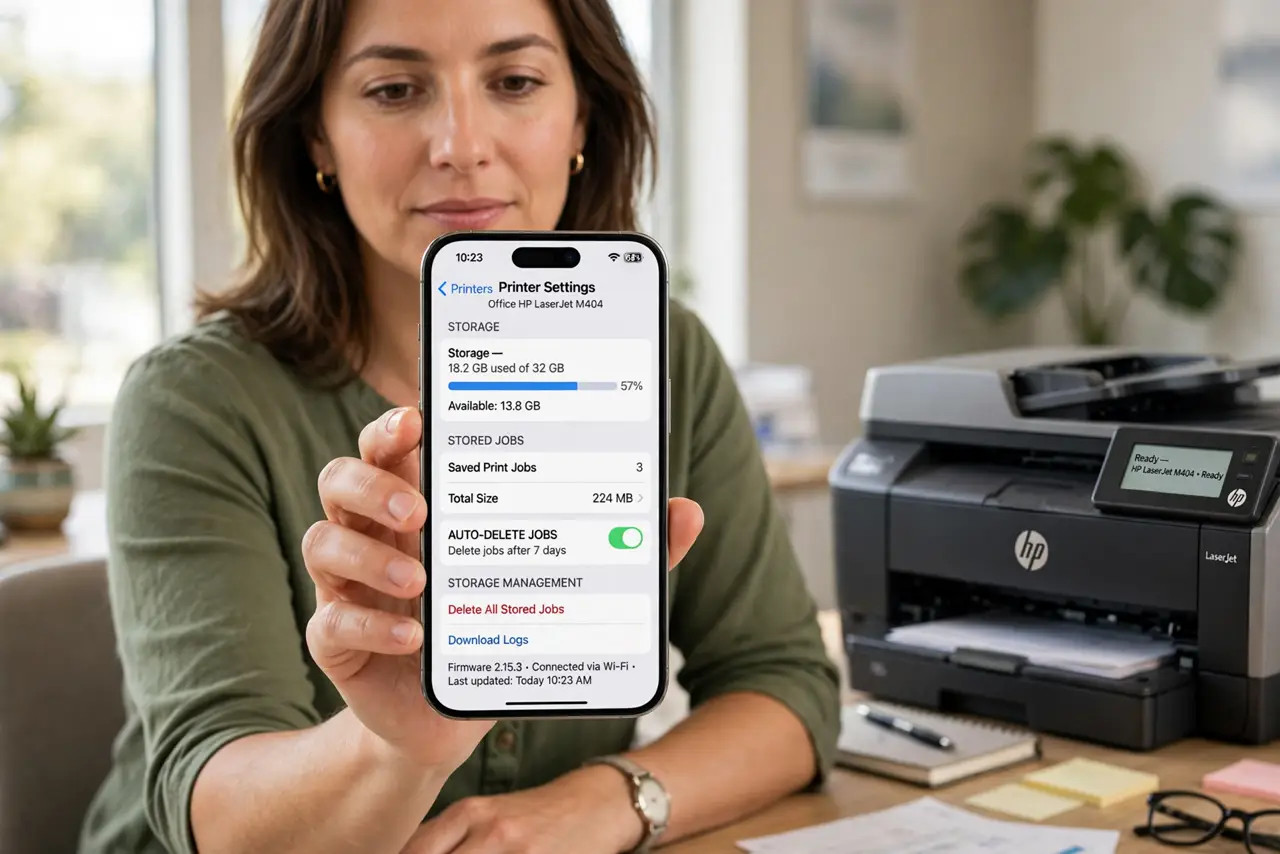
TL;DR / Quick Fix
Quick fix: open the printer's settings and run its clear or reset storage option, then remove it from your cloud print account. Before selling or servicing it, do a factory reset, pull any memory cards or drives, and confirm it prints nothing stored.
Follow these steps
- Check what your printer stores. Look up your model's manual for hard drive, memory, or cloud queue storage. Business printers often have real drives; home printers keep recent jobs in memory.
- Run the printer's clear-storage option. Use the settings menu's clear, reset, or secure-erase function for stored jobs. That wipes the copies the printer kept of your documents.
- Remove it from cloud print services. Detach the printer from your cloud and manufacturer accounts. Queued documents can sit in the cloud even after the printer itself is wiped.
- Factory-reset before selling or servicing. Run the full factory reset before the printer leaves your hands, just as you would wipe a laptop before donating it. Service technicians and buyers can browse stored jobs on an unreset machine.
- Pull memory cards and hard drives. If the printer has a removable card or drive, take it out and keep or destroy it. Physical media outlives every software reset.
- Print a test page after the reset. Run a reprint or job-history check after resetting. If the printer offers no stored jobs to reprint, the wipe worked.
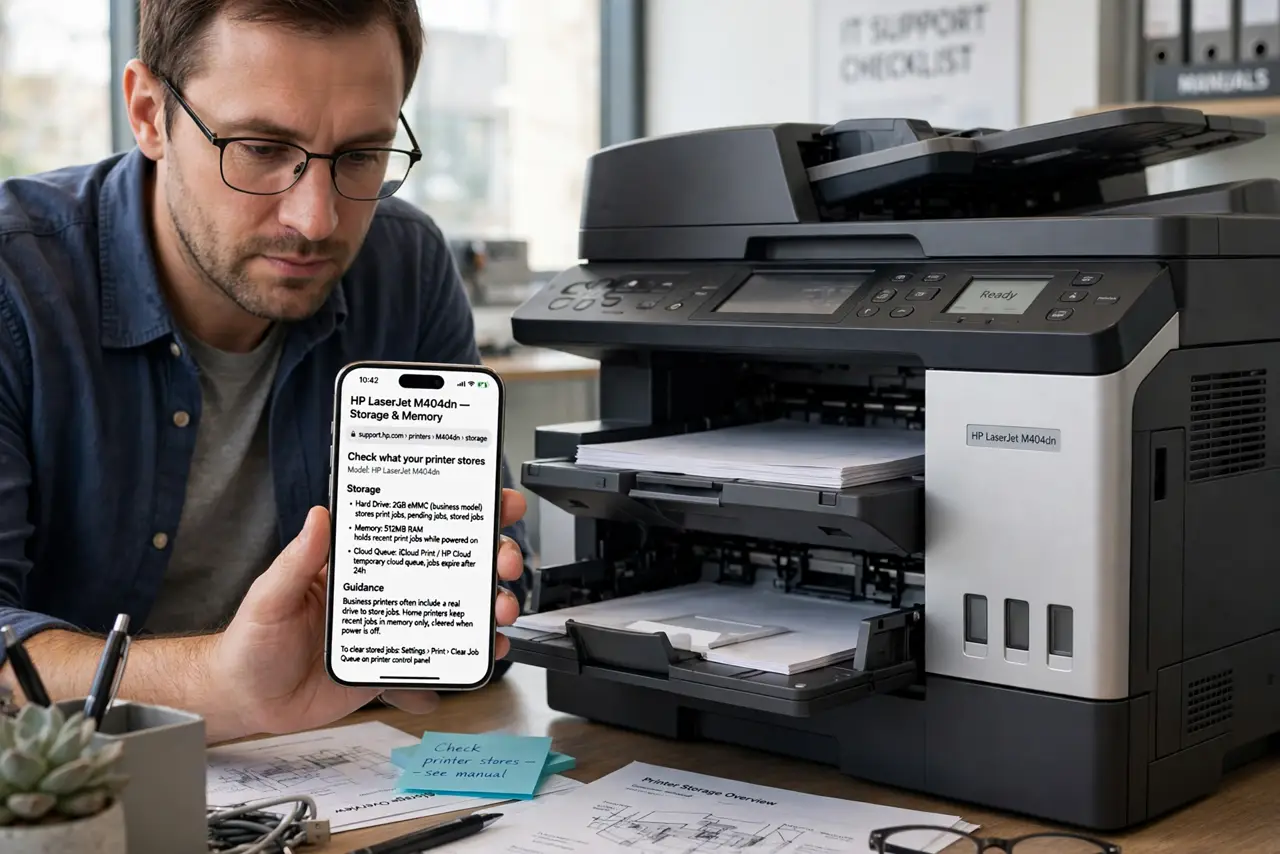
What NOT to do
- Do not assume printers forget. Many keep every job by design for reprinting, and that storage survives a simple power-off.
- Do not return a printer without resetting it. Returns go to refurbishers who power them on and browse exactly what you left.
- Do not ignore the cloud queue. A wiped printer with an active cloud account can re-download your queued documents.
- Do not toss the hard drive in the trash. Printer drives hold the same sensitive documents as a computer drive, so destroy or keep them.
Frequently asked questions
Do home printers store documents?
Many keep recent jobs in memory for reprinting, and models with drives keep far more. Check your model's manual.
Does unplugging wipe the memory?
Not reliably. Some memory clears on power loss, but drives and cloud queues keep everything.
What about office printers I do not own?
Assume the office printer keeps copies. Avoid printing highly sensitive personal documents on shared machines.