Printer Says 'Paper Size Mismatch'? Fix It
Your printer insists the paper size is wrong even though you loaded the right paper. The mismatch is almost never about the paper — it is the size setting in the print dialog disagreeing with the tray guides. This guide aligns all three so the error disappears.
TL;DR / Quick Fix
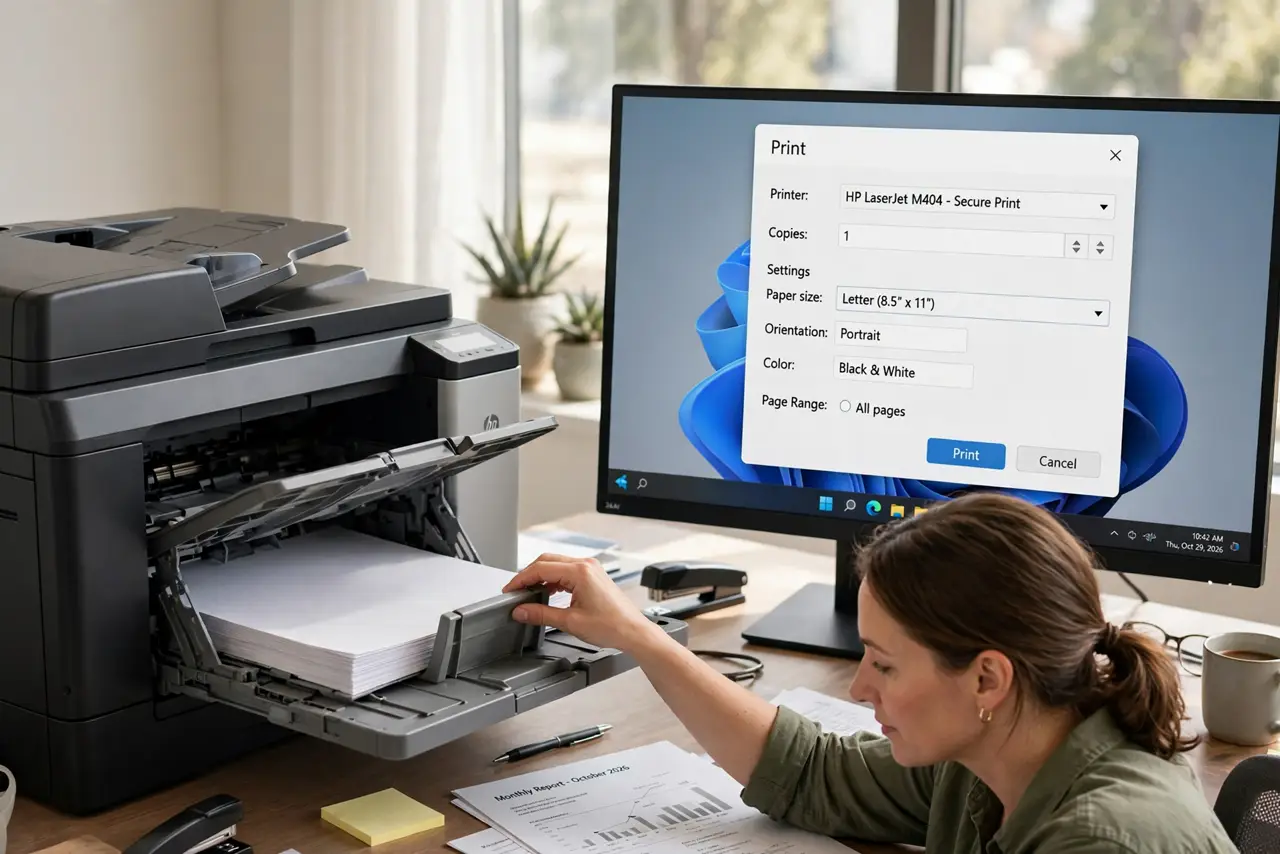
Quick fix: open the print dialog and set the paper size to exactly what is loaded, then slide the tray guides snug against the stack. The error clears when the dialog, the printer's tray setting, and the physical guides all agree on one size.
Follow these steps
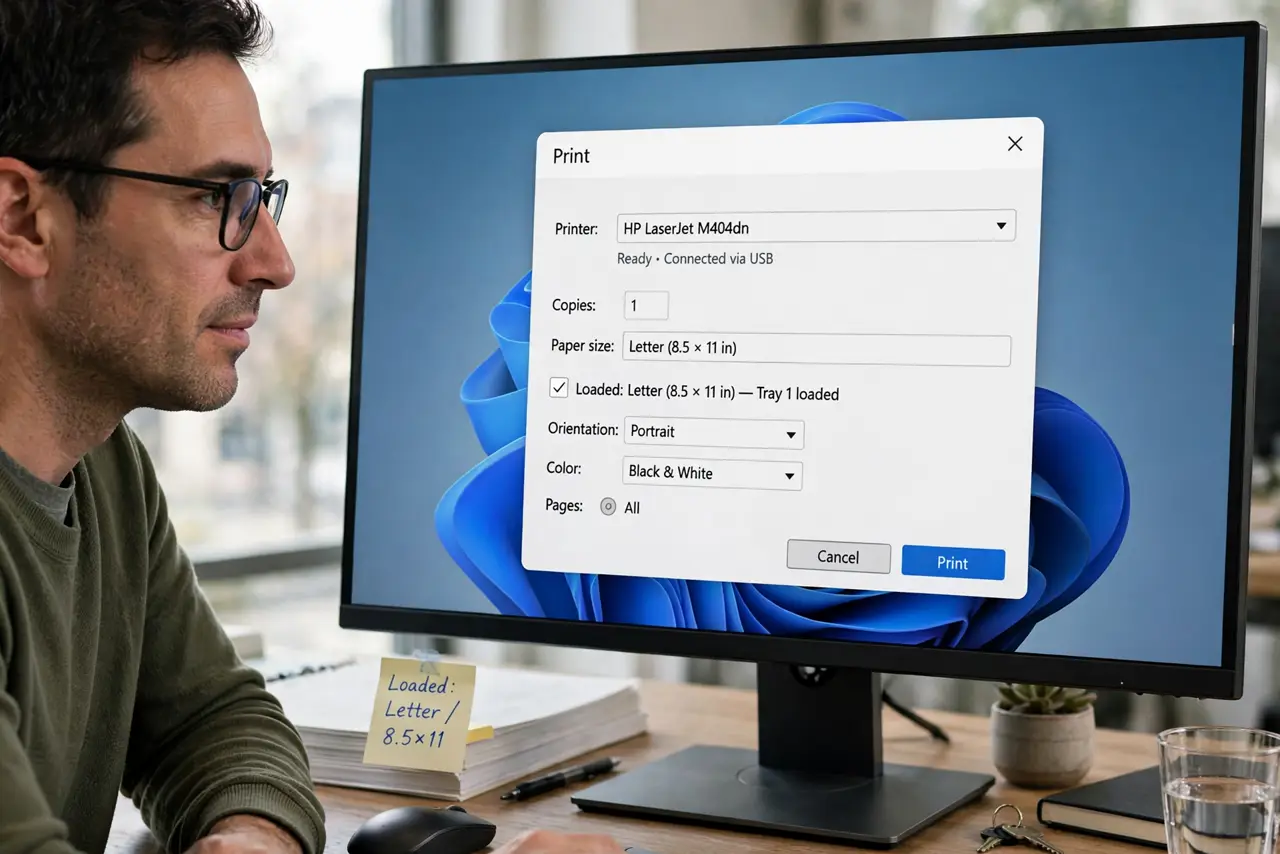
- Check the print dialog first. Open the print dialog and confirm the paper size field — Letter, A4, Legal — matches the loaded paper. The dialog's default often survives from a previous job, silently overriding the tray.
- Set the tray size on the printer. Use the printer's own panel to set each tray's paper size. If the printer thinks the tray holds A4 while you loaded Letter, the mismatch error appears no matter what the dialog says.
- Slide the tray guides to the paper. Move the width and length guides until they just touch the stack. Loose guides make the printer misread the size, especially in trays with automatic size detection.
- Match the paper type too. Confirm the paper type setting matches the loaded stock. Size and type travel together in most drivers, and a wrong type can trigger the same refusal — the streaks guide covers what wrong type settings do to output.
- Check the application's own settings. Some apps set paper size in their own page setup, ignoring the system dialog. In Word or your PDF reader, open page setup and confirm the size there too.
- Test with a fresh simple document. Print one page from a plain text file. If it works, the original document carries an embedded paper size that is fighting you — re-export it or copy the content into a new file.
What NOT to do
- Do not force the print past the error repeatedly. Each failed attempt can leave a half-fed sheet in the path, turning a settings problem into a real jam.
- Do not assume the paper is the problem and buy new paper. If the loaded paper worked last week, the paper did not change size — a setting did.
- Do not set the tray to 'Auto' when the printer guesses wrong. Manual size per tray removes the guesswork that causes this error.
- Do not ignore the app-level page setup. Fixing the driver while the document demands Legal will keep the error coming back.
Frequently asked questions
Why does my printer say paper size mismatch?
Because the size in the print dialog, the tray setting, or the document disagrees with the loaded paper. All three must name the same size.
What is the difference between Letter and A4?
Letter is 8.5 x 11 inches, common in North America; A4 is 210 x 297 mm, common elsewhere. Loading one while the driver expects the other triggers the error.
The dialog says Letter and the tray has Letter — now what?
Check the application's page setup and the printer's own tray setting. One of the three almost always disagrees.