Scan to Email
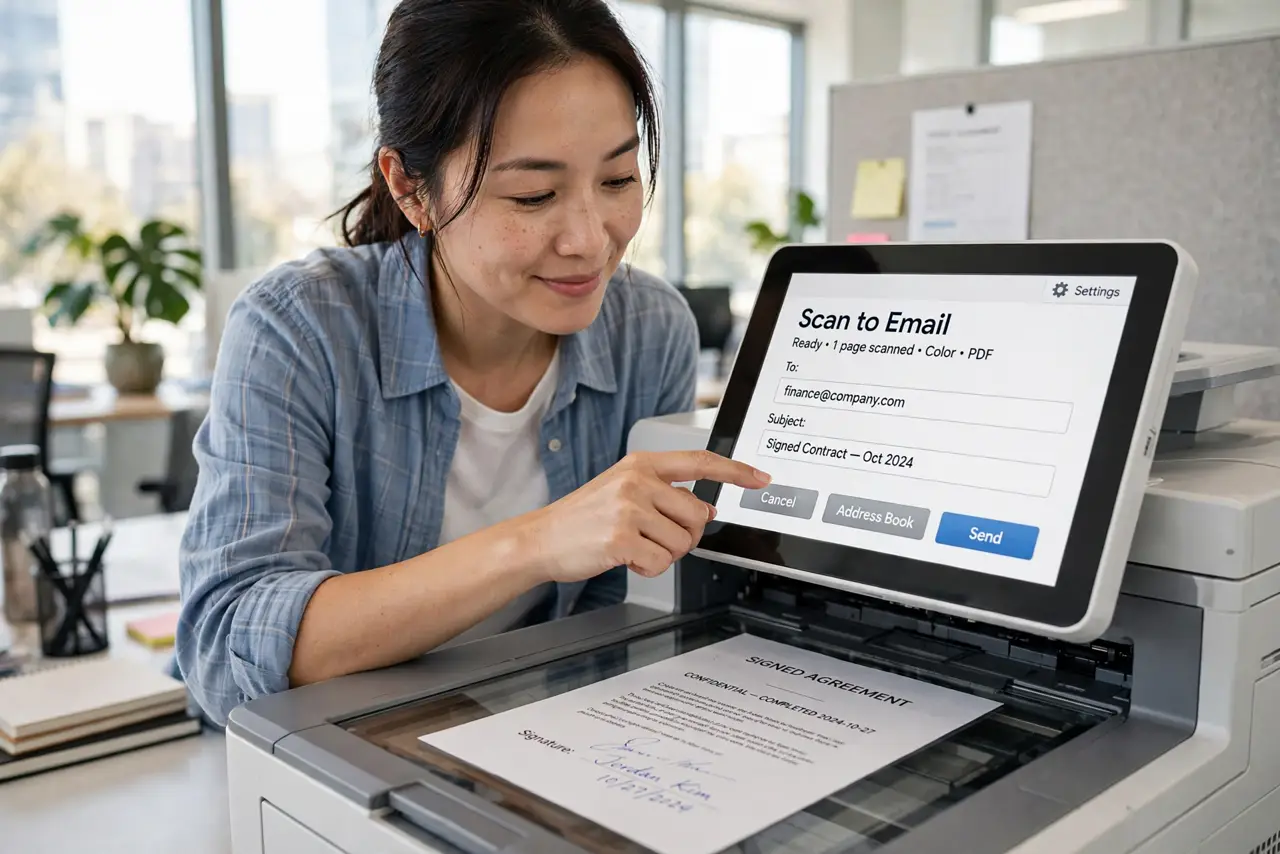
You need a signed page sent now, and the computer is off, updating, or across the room. Most modern printers can scan straight to an email address from their own touchscreen — no PC, no app, no cable shuffle. Setup takes a few minutes once, then every scan is two taps.
TL;DR / Quick Fix
Quick fix: on the printer touchscreen, open Scan to Email and add your address to the printer's address book. Enter your email account's SMTP details or app password when asked. Place the page, tap scan, and the PDF lands in your inbox. Save frequent addresses as presets for one-tap scanning.
Follow these steps
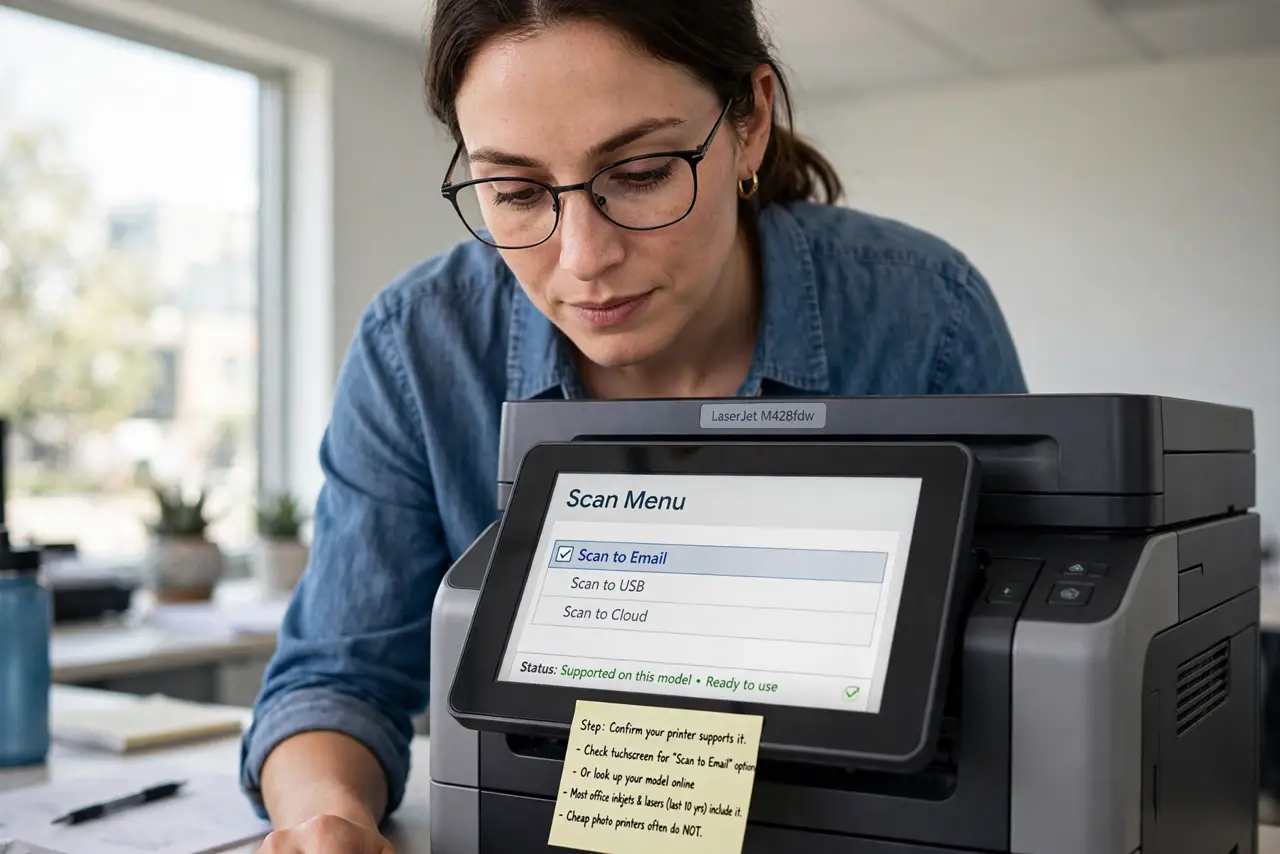
- Confirm your printer supports it. Check the touchscreen for a Scan to Email option or look up your model. Most office inkjets and lasers from the last decade include it — cheap photo printers sometimes do not.
- Add your email to the address book. On the printer, open the address book and add your email address. Saving it once avoids retyping on the tiny touchscreen every time.
- Enter the SMTP or app password. The printer needs your email provider's outgoing server details. Gmail and Outlook require an app-specific password, not your normal one — generate it in your account security settings.
- Pick scan settings that suit email. Choose PDF format and a modest resolution like 200-300 DPI. Huge 600-DPI color scans bounce off attachment limits — see the large attachment guide for the limits.
- Place the page and scan. Face-down on the glass, or face-up in the feeder for multi-page documents. Tap the address, tap Start, and wait for the confirmation.
- Save presets for repeat recipients. Store your accountant, your boss, yourself as one-tap presets. Two taps beats retyping addresses forever.
What NOT to do
- Do not type your normal email password into the printer. Use an app-specific password — if the printer is compromised, your main password stays safe.
- Do not scan at maximum resolution for email. A 10-page 600-DPI color PDF will choke most inboxes.
- Do not leave sensitive scans in the printer memory. Clear the job log on shared office printers after confidential scans.
- Do not assume it works over USB only. Scan-to-email needs the printer on the network — for PC scanning instead, see scan from printer.
Frequently asked questions
Why does the printer reject my Gmail password?
Google blocks normal passwords for this. Generate an app password in your Google account security settings and use that.
Can I scan to multiple addresses at once?
Most printers allow several recipients per scan — add them all before tapping Start.
Is the scan quality good enough for signatures?
Yes at 300 DPI in PDF. It is crisp enough for contracts, receipts, and signed forms.