Fix Keystone Distortion
Your projector throws a trapezoid instead of a rectangle — wide at the top, narrow at the bottom, or skewed sideways. That is keystone distortion, caused by the projector not sitting square to the screen. Digital correction can fix it, but physical placement fixes it better.
TL;DR / Quick Fix
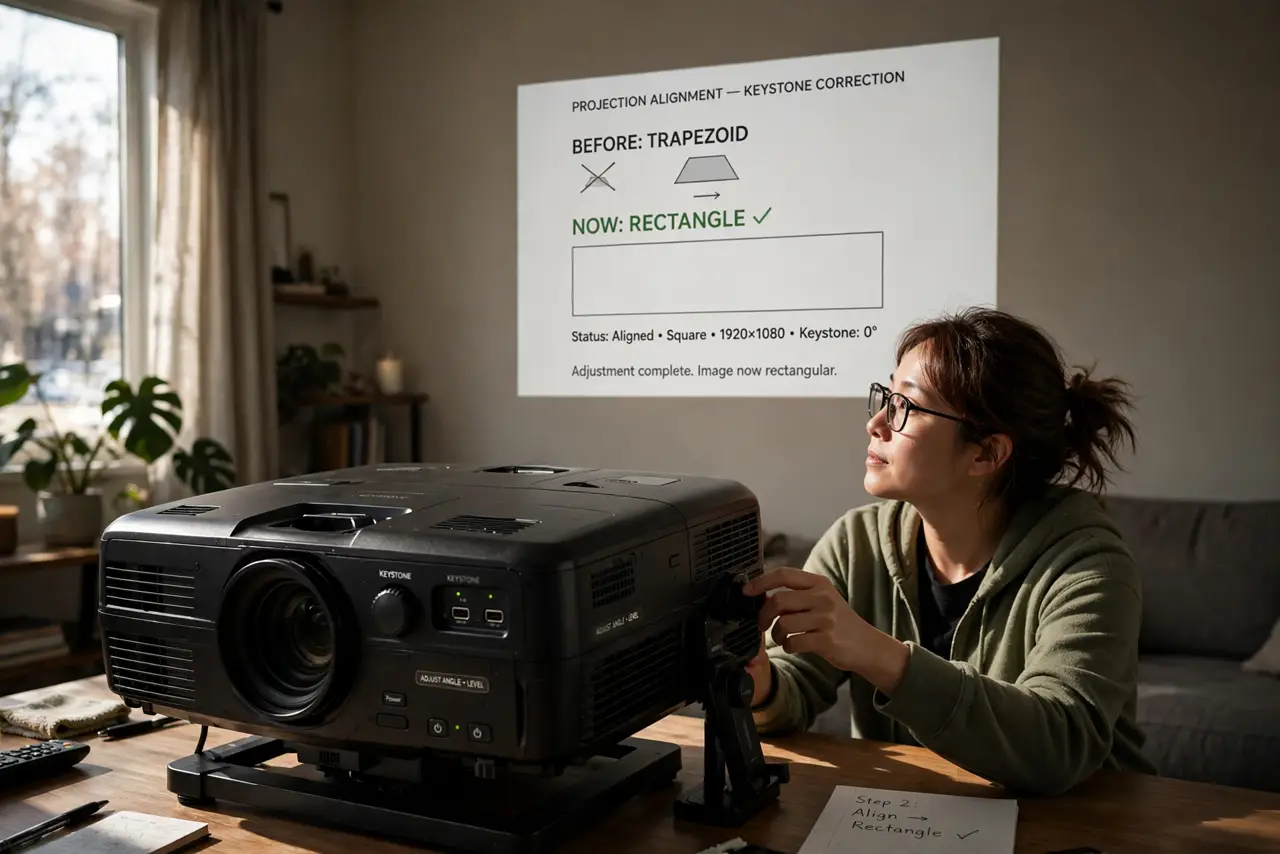
Quick fix: move the projector so its lens is centered with the screen and level — most keystone distortion vanishes with square placement. Then use the projector's keystone setting for the last small correction. Avoid heavy digital correction: it crops pixels and softens the image.
Follow these steps
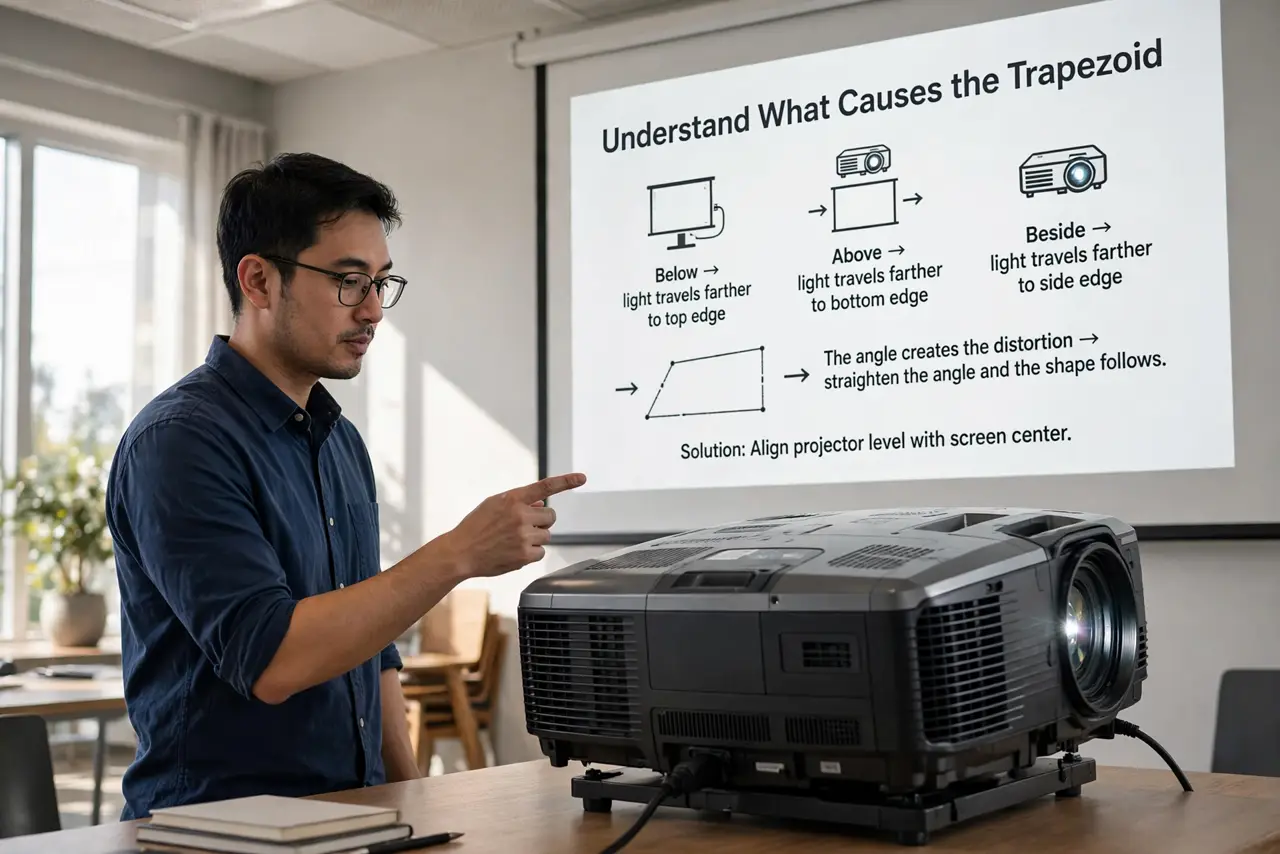
- Understand what causes the trapezoid. When the projector sits below, above, or beside the screen's center, the light travels farther to one edge and the image stretches there. The angle creates the distortion — straighten the angle and the shape follows.
- Center the lens with the screen. Move the projector left or right until the lens points at the screen's horizontal center. This fixes sideways keystoning, which digital correction handles worst.
- Level the projector height. Raise or lower the projector so the lens is near the screen's vertical center. A projector on the floor aiming up creates the classic wide-top trapezoid — a small stand or shelf fixes it physically.
- Use lens shift before digital keystone. If your projector has lens shift, use it — it moves the image optically with zero quality loss. Digital keystone should be the last resort, not the first tool.
- Apply digital keystone sparingly. In the settings menu, adjust vertical then horizontal keystone until edges look straight. Keep correction under about 15 degrees — beyond that, the image visibly softens from resampling.
- Re-focus after correcting. Keystone correction changes the effective focus plane. Run through focus again after the geometry looks right, checking small text at the corners.
What NOT to do
- Do not crank digital keystone to maximum. Heavy correction throws away resolution — the image gets soft and slightly jagged.
- Do not ignore sideways keystoning. Horizontal angles distort worse than vertical ones and correct worse — fix placement instead.
- Do not use keystone to compensate for a tilted screen. A crooked screen plus corrected projection looks wrong from every seat — straighten the screen.
- Do not forget to save the settings. Many projectors reset keystone when unplugged — check the memory or startup settings so you are not redoing it weekly.
Frequently asked questions
Why does keystone correction make the image blurry?
Digital correction resamples the image — squeezing pixels unevenly. Light correction is invisible; heavy correction visibly softens text and edges.
What is the difference between keystone and lens shift?
Lens shift moves the optics physically with no quality loss; keystone digitally warps the image with some loss. Lens shift is always the better fix.
My projector is ceiling mounted and still trapezoids — why?
The mount is likely not centered or level. Loosen it, center the lens with the screen, and level the unit — ceiling mounts drift over time.