How to Reseat a RAM Stick Safely
Reseating memory means taking the sticks out and putting them back so they make full contact again. It fixes many no-boot and missing-memory faults, but only if you handle the sticks gently and fit them the right way. Follow each step in order, and never force a stick. If a stick is not detected after cleaning, the same careful reseat is the first fix.
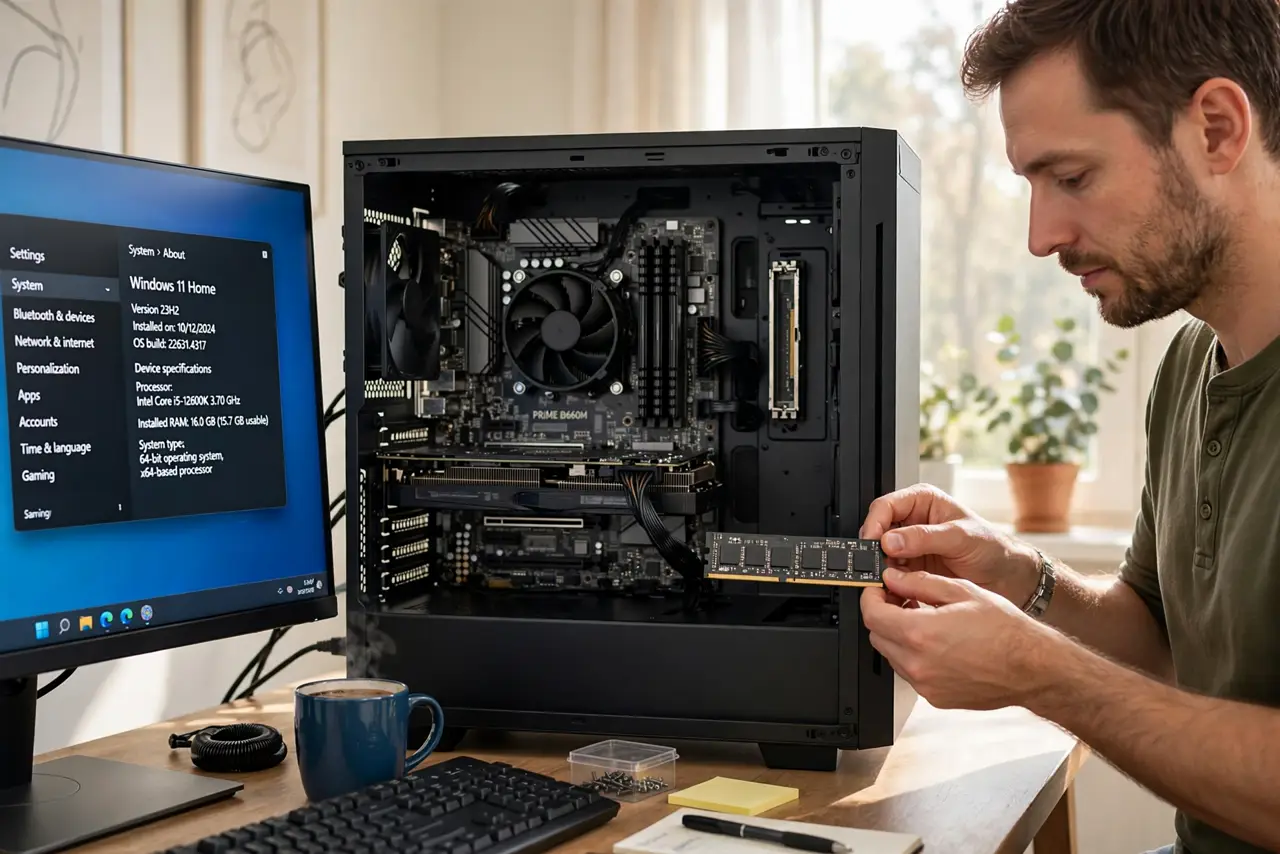
TL;DR / Quick Fix
Quick fix: Unplug the PC and drain leftover charge. Ground yourself on the case. Then work through the remaining steps in order, checking one change at a time, and stop for a technician if you see damage, swelling, or a burning smell.
Follow these steps
- Unplug the PC and drain leftover charge. Shut the computer down, unplug the power cable, then press and hold the power button for a few seconds. Working inside a plugged-in PC risks damage and shock.
- Ground yourself on the case. Touch a bare metal part of the case before touching memory, and keep touching it now and then while you work. Static you cannot feel can still damage memory.
- Open the clips and lift the stick straight out. Push the clips at both ends of the slot outward, then lift the stick straight up by its edges. Note which way the notch faces, because the stick fits only one way.
- Check the stick and slot before refitting. Look for dust in the slot and for damaged contacts on the stick. Clear dust with short, upright bursts of compressed air, and stop if you see bent pins or broken parts.
- Line up the notch and press evenly. Line the notch on the stick up with the notch in the slot, then press down evenly with both thumbs, one near each end, until both clips snap shut on their own.
- Boot and confirm the full memory total. Plug in, boot, and check System settings or BIOS setup for the full memory total. If the total is short, power off, unplug, and reseat that stick once more before suspecting a fault.
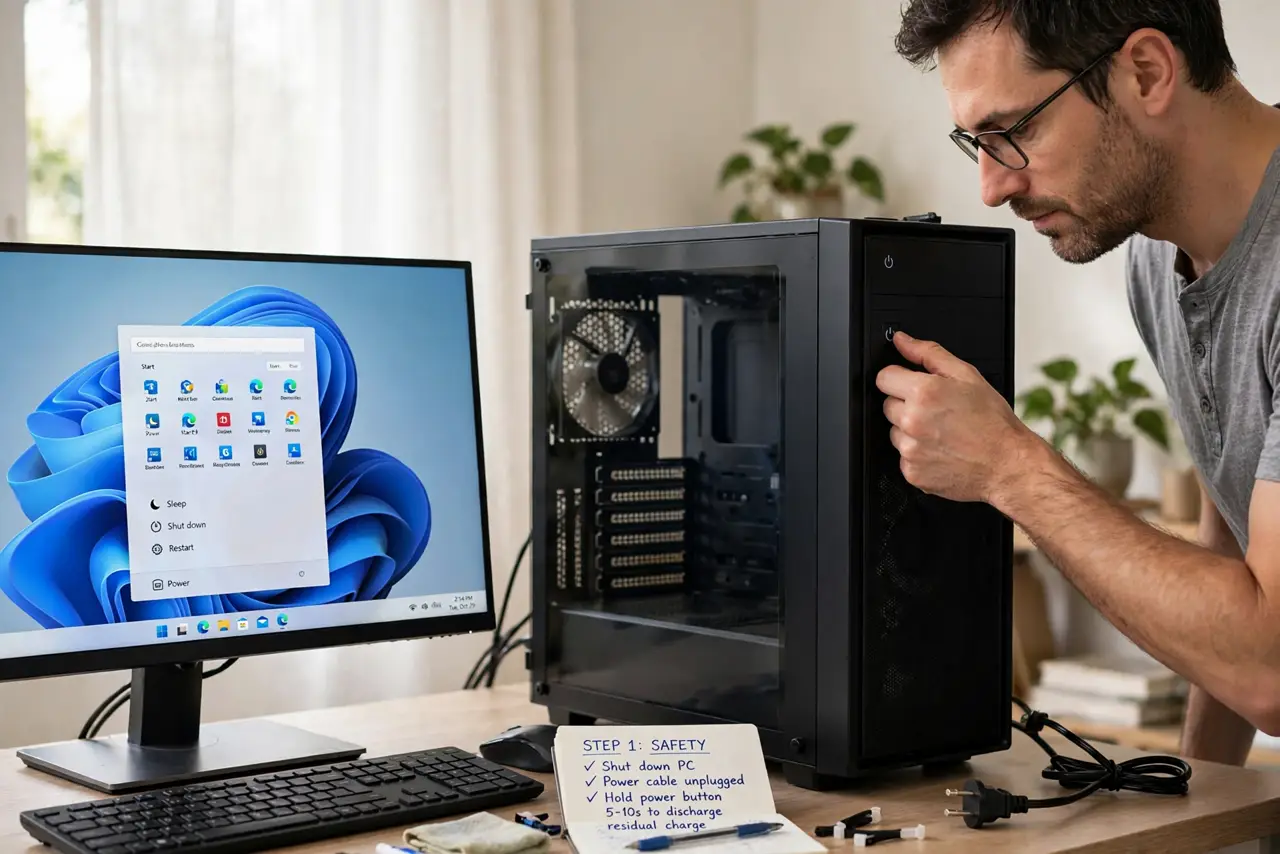
What NOT to do
- Do not force a stick that will not fit. A stick fits only one way, and forcing it can snap the stick or bend slot pins.
- Do not hold a stick by its gold contacts. Hold it by the edges only, because skin oils and static harm the contacts.
- Do not reseat memory while the PC is plugged in or sleeping. A sleeping PC still powers the board, so shut down and unplug fully.
- Do not mix sticks of very different types in one PC. Check the manual for matched pairs, because mismatched memory can cause faults that look like a bad reseat.
Frequently asked questions
How do I know the stick is fully seated?
Both end clips snap shut on their own, and the stick sits level in the slot with no end raised. If a clip stays open, the stick is not fully in.
Can I reseat memory on a laptop the same way?
Only if your model guide shows an accessible memory bay. Many laptops seal memory under panels, so check the guide and stop at a full dismantle.
What if the clips will not close?
The notch is likely misaligned. Lift the stick out, line the notch up again, and press evenly. Never force the clips shut by hand.