Read Clutter-Free Online
You open an article and get cookie banners, autoplay videos, newsletter popups, and seventeen ads before the first paragraph. Reader Mode is the escape hatch built into your browser: one tap reformats the article into clean, readable text. It is free, instant, and most people have never tried it.
TL;DR / Quick Fix
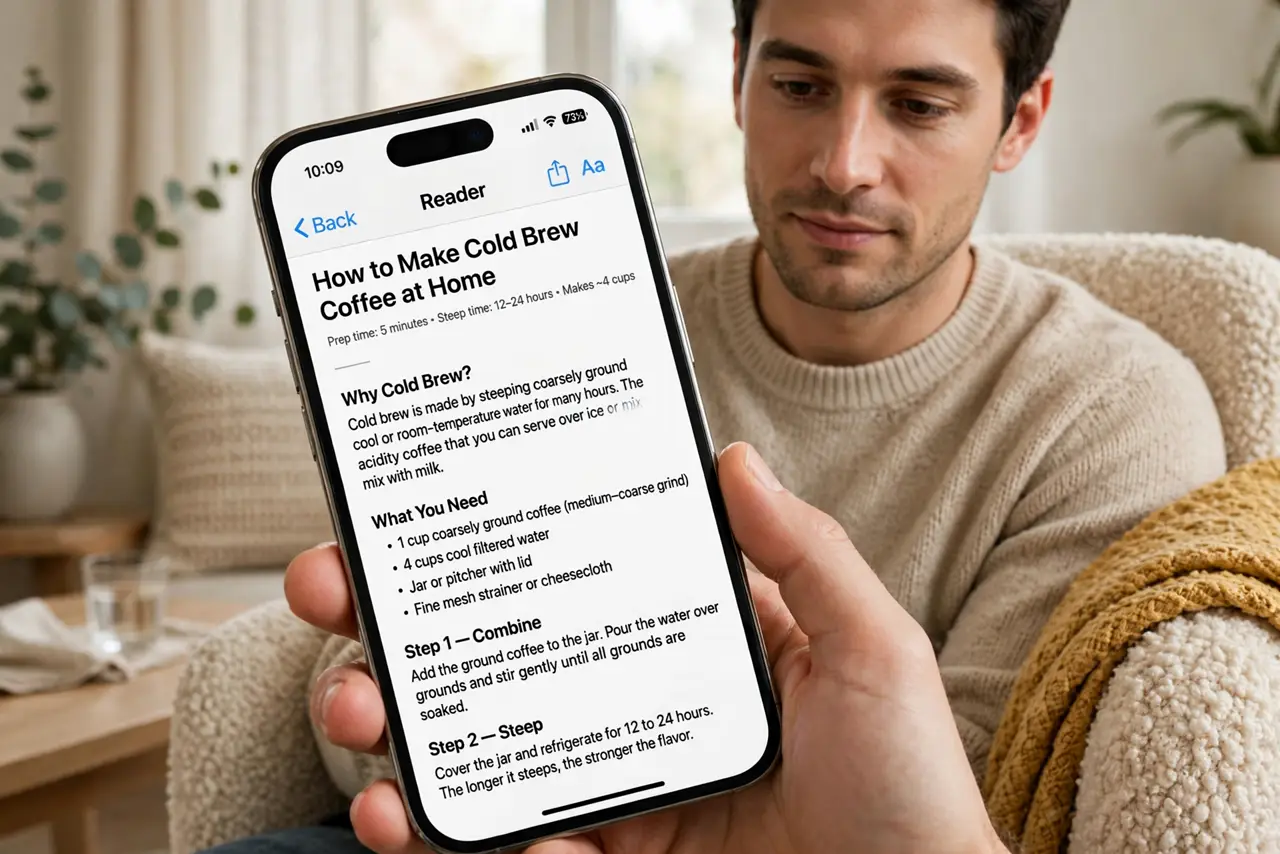
Quick fix: Reader Mode strips articles to clean text — no ads, popups, or autoplay videos. In Safari, tap the reader icon in the address bar; most browsers offer a similar view. It enables read-aloud and saves articles cleanly. If the icon is missing, the reader fix explains why.
Follow these steps
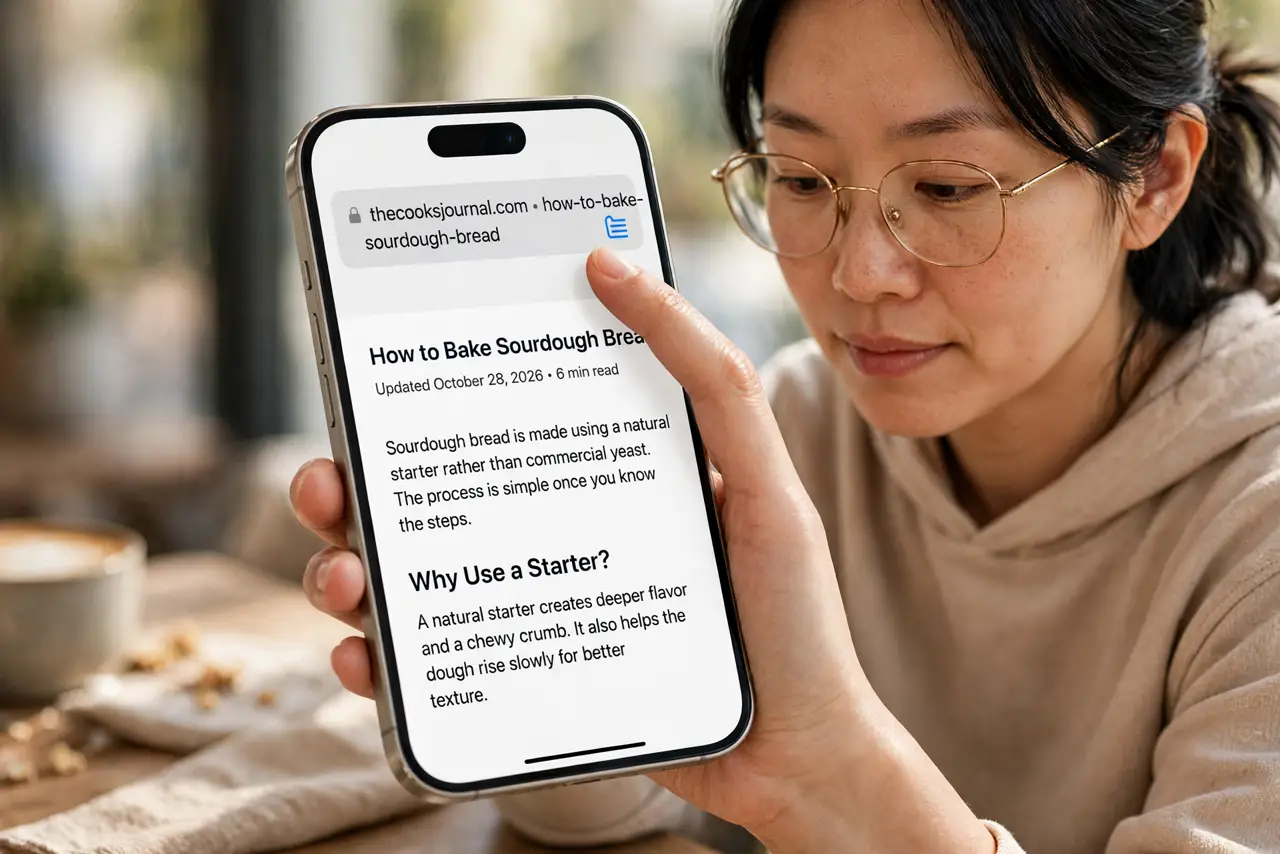
- Find the reader icon. In Safari's address bar, the reader icon (lines on a page) appears on article pages. Tap it — the page reformats into clean text instantly. Chrome and Firefox have their own reader views in the menu.
- Customize the reading view. Tap the aA button in reader view: font, size, background (including dark). Set it once — comfortable reading is personal, and the defaults are just a starting guess.
- Use read-aloud. Reader view enables clean text-to-speech without the ads being read too. Listen on a walk, in the car, while cooking — articles become podcasts.
- Save articles cleanly. Share > Add to Reading List (or Pocket/Instapaper) from reader view saves the clean version. Your read-later list stays readable instead of a graveyard of cluttered pages.
- Know when it will not appear. Homepages, product pages, and heavily interactive sites do not offer reader view — it needs a recognizable article structure. The missing-button fix covers the edge cases.
- Pair with a blocker for the rest. Reader view handles articles; a content blocker handles everything else. Together they make the mobile web actually pleasant.
What NOT to do
- Do not expect reader view on every page. It is for articles — homepages, shops, and web apps will not offer it, and that is by design.
- Do not miss the images. Reader view keeps essential images but drops galleries and embeds — for photo essays, read the original page.
- Do not forget paywalls still apply. Reader view cleans the layout; it does not bypass subscriptions — and should not.
- Do not read everything in reader view. Interactive graphics and data visualizations lose their meaning stripped to text — choose per article.
Frequently asked questions
Why is there no reader button on this page?
The browser did not recognize it as an article. Try scrolling — the icon sometimes appears after the page settles — or check the troubleshooting.
Does reader mode block ads?
Effectively yes for that article — it renders only the text and essential images. It is the most pleasant ad-blocker ever made, limited to articles.
Can I print from reader view?
Yes — and it is the best way to print articles: clean text, no ads, no wasted ink on banners. Share > Print from reader view.