Replace a Desktop CMOS Battery Safely
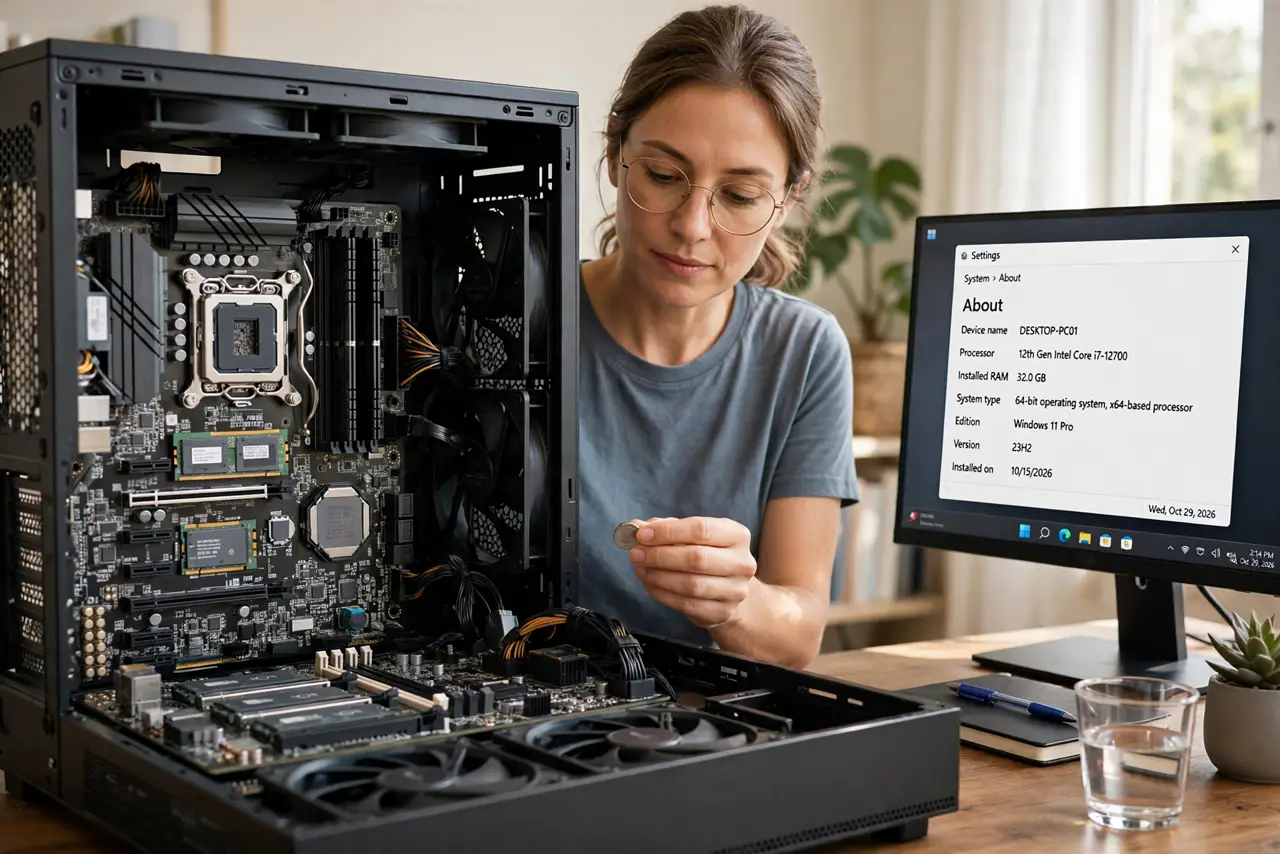
When a desktop keeps losing the time or BIOS settings, the small coin battery on the motherboard is the usual suspect. Swapping it is a simple job on most desktops, as long as you unplug the PC first and handle the board gently. This guide covers the safe steps, and points to the CMOS battery symptoms to check before you open the case.
TL;DR / Quick Fix
Quick fix: Confirm the battery is the likely cause. Unplug the PC and press the power button. Then work through the remaining steps in order, checking one change at a time, and stop for a technician if you see damage, swelling, or a burning smell.
Follow these steps
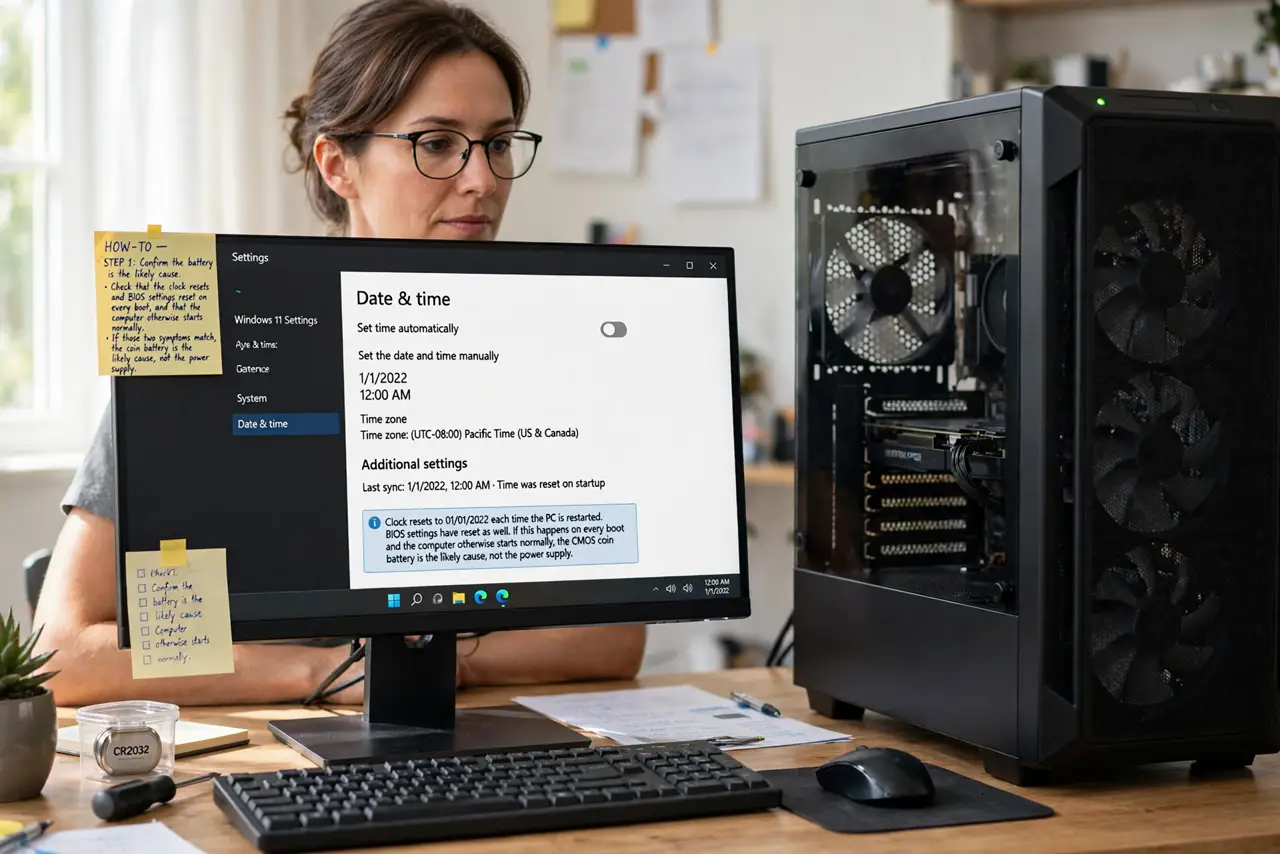
- Confirm the battery is the likely cause. Check that the clock resets and BIOS settings reset on every boot, and that the computer otherwise starts normally. If those two symptoms match, the coin battery is the likely cause, not the power supply.
- Unplug the PC and press the power button. Shut the computer down, unplug the power cable from the wall, then press and hold the power button for a few seconds. This drains leftover charge so you are not working on a live machine.
- Ground yourself before touching the board. Touch a bare metal part of the case before you touch anything inside, and avoid carpet and wool clothing while you work. Static can damage motherboard parts you cannot see.
- Find the coin battery and note its number. Look for a silver coin-shaped battery on the motherboard, usually near the center. Note the number printed on it, such as CR2032, and buy the same number, because size and voltage must match.
- Swap the battery with gentle pressure. Push the small metal clip aside, lift the old battery out, and press the new one in with the same side up. Do not force it, and do not use a metal tool to pry it, or you can bend the holder.
- Plug in, boot, and set the time and BIOS settings. Plug the power cable back in, start the computer, set the correct time, and re-enter any BIOS settings you changed before. Restart once and confirm the time and settings now hold.
What NOT to do
- Do not open a desktop while it is plugged in. The power supply holds charge, and working inside a live PC risks a shock and damaged parts.
- Do not touch the motherboard with bare, dry hands after walking on carpet. Static damage is invisible and can cause faults that appear weeks later.
- Do not force a battery of the wrong size into the holder. A wrong battery can fail, leak, or damage the holder, so match the printed number exactly.
- Do not throw the old battery in household trash. Coin batteries go to battery recycling, and they must stay out of reach of children and pets.
Frequently asked questions
How do I know which battery to buy?
Read the number printed on the old battery, such as CR2032, and buy that exact number. The number sets the size and voltage.
Will replacing the battery delete my files?
No. The battery only keeps the clock and BIOS settings while the PC is off. Your files live on the drive and are untouched by this swap.
What if the clock still resets after a new battery?
The holder may be loose or the board may have another fault. Reseat the battery once, and if it still resets, ask a technician to check the board.